AWS Cost Management Tools
Not sure you’re ready?
Take the ~3-minute readiness diagnostic and see where you stand.
An engineer designing a physical bridge calculates the tension of steel cables; an architect designing a cloud environment calculates the consumption of compute and storage. In traditional on-premises environments, costs are fixed capital expenditures. In the cloud, infrastructure is entirely elastic, meaning cost is a dynamic variable intrinsically linked to architectural choices. A highly scalable application that seamlessly absorbs a massive traffic spike is an engineering success, but if that scalability lacks financial governance, it becomes a severe organizational liability. Mastering AWS cost management tools is not merely an accounting exercise; it is the fundamental discipline of architecting systems that are both technically resilient and financially sustainable.
To manage cloud costs, you must first be able to attribute them. Imagine looking at an AWS bill for $50,000. If you cannot definitively prove whether that money was spent on the production database, a staging environment, or an abandoned machine learning experiment, you have no operational control.
This visibility is achieved through AWS cost allocation tags. These are key-value pairs assigned to AWS resources specifically to track and categorize cloud spending. When properly implemented, they allow you to slice a monolithic monthly bill into highly specific, manageable pieces.
There are two distinct classifications of these tags:
- AWS-generated cost allocation tags: AWS automatically applies these. The most critical one is the
createdBytag, which automatically tracks the IAM identity that created a specific resource. If an intern spins up an expensive GPU instance, this tag ensures the cost is permanently associated with their IAM user or role. - User-defined cost allocation tags: These are custom key-value pairs (e.g.,
Environment: Production,Project: ProjectAlpha) defined by your organization.
Crucial Implementation Detail: Applying a tag to an EC2 instance does not automatically make it appear on your bill. User-defined cost allocation tags must be activated in the AWS Billing console before appearing in AWS Cost Explorer. Once you click activate, AWS requires up to 24 hours for newly activated cost allocation tags to appear in the Billing console.
Once activated, these tags become immensely powerful. Activated cost allocation tags appear as filtering dimensions in AWS Cost Explorer and appear as filtering dimensions in AWS Budgets, allowing you to isolate and track spending with granular precision.
Elevating Tags with AWS Cost Categories
While tags are applied directly to resources, large enterprises often need to map costs to higher-level business units. AWS Cost Categories allow users to map AWS costs to custom organizational groups.
Instead of relying on a single tag, you can build logic. Cost category rules in AWS Cost Categories group costs using dimensions like tags, linked accounts, and services. For example, you could create a "Frontend Team" cost category that automatically captures any spending from Linked Account A, or any resource tagged with Team: UI, or any Amazon CloudFront service usage.
As organizations grow, running all workloads in a single AWS account becomes an anti-pattern. Solutions Architects separate environments into multiple accounts to enforce security boundaries and limit blast radius. However, you do not want a separate invoice for every account.
AWS Organizations provides consolidated billing to combine usage and payments across multiple AWS accounts into a single invoice. Under this model, the management account in AWS Organizations pays the consolidated bill for all member accounts.
Consolidated billing is not just an administrative convenience; it actively saves you money. Many AWS services—like Amazon S3 and data transfer—utilize tiered pricing where the unit cost drops as your volume increases. Consolidated billing aggregates usage across all AWS Organization accounts to calculate volume pricing discounts. If Account A uses 40 TB of S3 storage and Account B uses 40 TB, they are billed together as 80 TB, pushing the organization into a cheaper pricing tier than if they were billed independently.
Commitment Discounts and Account Boundaries
When you purchase long-term compute commitments, the benefits flow across the entire organization:
- Reserved Instance discounts automatically share across multiple AWS accounts within an AWS Organization.
- Savings Plans discounts automatically share across multiple AWS accounts within an AWS Organization.
If the account that purchased the Reserved Instance (RI) has no running instances that match the RI attributes, AWS automatically applies that discount to matching instances in any other member account.
However, there are scenarios where strict chargeback models require departments to remain entirely financially isolated. To accommodate this, the management account can disable Reserved Instance discount sharing for specific member accounts in an AWS Organization.
The Visibility Asymmetry: Information flow in AWS Organizations is unidirectional. AWS Cost Explorer allows the management account to view the aggregated costs of all member accounts in an organization. Conversely, member accounts in an AWS Organization can only view their own specific cost and usage data in AWS Cost Explorer. They cannot see the spending of sibling accounts.
Data without visualization is just noise. AWS Cost Explorer is a tool that enables users to visualize and manage cloud costs and usage over time. It is the primary dashboard a Solutions Architect uses to investigate financial telemetry.
Cost Explorer is highly customizable. It allows users to filter cloud spend by attributes such as service and region, as well as filter cloud spend by specific linked accounts.
Time Horizons and Granularity
Understanding the timeframes Cost Explorer operates within is critical:
| Direction | Timeframe | Description |
|---|---|---|
| Past (Default) | 14 Months | AWS Cost Explorer provides a default of 14 months of historical cost and usage data. |
| Past (Extended) | 38 Months | Users can enable multi-year data in AWS Cost Explorer to access up to 38 months of historical data. |
| Future | 18 Months | AWS Cost Explorer can generate cost forecasts for up to 18 months into the future based on historical trends. |
When investigating a sudden spike in cost, you often need to look closer than monthly aggregates. By default, AWS Cost Explorer provides resource-level cost data at a daily granularity for the past 14 days. This allows you to pinpoint the exact EC2 instance ID that caused yesterday's billing anomaly.
If you require even deeper forensics, you must explicitly configure it: enabling hourly and resource-level granularity in AWS Cost Explorer is an opt-in feature (and carries its own minor data storage fee).
Tracking Commitments
Cost Explorer is also the definitive source of truth for your long-term compute investments. It provides reports to track the coverage and utilization of Reserved Instances, and similarly provides reports to track the coverage and utilization of Savings Plans.
- Utilization tells you if the commitments you purchased are actually being used (avoiding wasted money).
- Coverage tells you how much of your total compute footprint is covered by discounts (highlighting opportunities to buy more).
Cost Explorer is a passive analysis tool; it requires a human to look at it. To prevent bill shock, you need active guardrails. AWS Budgets allows users to set custom spending thresholds and receive alerts when costs exceed those limits.
Budgets are predictive as well as reactive. AWS Budgets can evaluate and trigger alerts based on actual accumulated costs (e.g., "Alert me when we hit $5,000 this month"), but incredibly, AWS Budgets can trigger alerts based on forecasted costs (e.g., "We have only spent $1,000 so far, but based on our run-rate over the last three days, alert me because we are forecasted to breach $5,000 by month's end").
To accommodate different architectural needs, AWS Budgets supports cost budgets, usage budgets, reservation budgets, and Savings Plans budgets:
- A cost budget in AWS Budgets monitors costs against a specified monetary amount. (e.g., "Do not exceed $10,000.")
- A usage budget in AWS Budgets tracks the consumption of specific AWS resources such as Amazon EC2 compute hours. (e.g., "Do not exceed 500 GB of Data Transfer out.")
- A reservation budget in AWS Budgets tracks the utilization and coverage metrics of Reserved Instances. (e.g., "Alert if RI utilization drops below 80%.")
- A Savings Plans budget in AWS Budgets tracks the utilization and coverage metrics of active Savings Plans.
Additionally, for sandbox environments, AWS Budgets can track AWS Free Tier usage to alert users when free tier limits are approached, ensuring learning exercises don't result in unexpected credit card charges.
When a budget threshold is breached, the system must notify the team. AWS Budgets can send threshold alerts via email, or programmatically via Amazon Simple Notification Service (SNS). For modern ChatOps workflows, AWS Budgets can send threshold alerts to Slack or Amazon Chime using AWS Chatbot.
Closing the Loop: AWS Budget Actions
Notification is good, but automation is better. What if an alert fires at 2:00 AM on a Saturday because a compromised IAM key is spinning up crypto-mining instances? An email is useless if no one is awake to read it.
AWS Budget Actions automatically execute specific responses when a budget threshold is breached. This transforms your budget from a mere siren into an active circuit breaker.
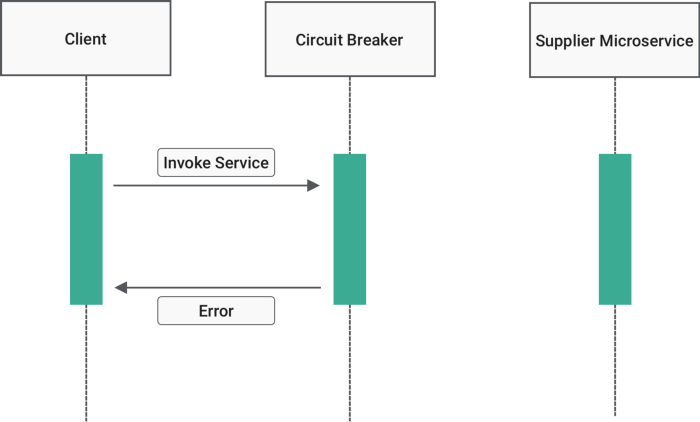
Architects can implement several types of automated responses:
- An AWS Budget Action can automatically apply an IAM policy to restrict user permissions when a cost threshold is exceeded. (e.g., Revoking the
ec2:RunInstancespermission from the development team until Monday). - An AWS Budget Action can automatically apply a Service Control Policy to restrict specific AWS Organizations member accounts. (Instantly freezing a compromised linked account).
- An AWS Budget Action can automatically stop specific Amazon EC2 instances when costs exceed a limit.
- An AWS Budget Action can automatically stop specific Amazon RDS instances when a cost threshold is exceeded.
Security Checkpoint: AWS operates on the principle of least privilege. Budgets do not inherently have the right to alter your infrastructure. Therefore, users must configure IAM role permissions to allow AWS Budgets to execute automated actions on their behalf. If you configure a Budget Action to stop an EC2 instance, you must explicitly pass it an IAM role with
ec2:StopInstancespermissions.
Budgets require you to know what a "normal" threshold is. But what if a developer introduces a bug into an AWS Lambda function that causes it to loop infinitely, racking up thousands of dollars in a matter of hours? If your monthly budget is set to $20,000, and this loop happens on day 2, your budget won't trigger until immense damage is already done.

To solve the problem of unknown baseline behaviors, AWS introduced a machine learning safety net. AWS Cost Anomaly Detection uses machine learning models to continuously monitor cloud spending and identify unusual usage patterns.
It learns your baseline organically. If your staging database usually costs $5 a day, and suddenly spikes to $50 a day, Anomaly Detection catches the deviation instantly, irrespective of your overall organizational budget. For rapid incident response, AWS Cost Anomaly Detection integrates with Amazon Simple Notification Service to send immediate alerts about spending spikes.
By layering AWS Cost Allocation Tags for visibility, AWS Organizations for structural discounts, Cost Explorer for deep historical analysis, and Budgets paired with Anomaly Detection for proactive enforcement, a Solutions Architect transforms cloud spending from a monthly surprise into a meticulously engineered metric.