Application Installation Requirements
Not sure you’re ready?
Take the ~3-minute readiness diagnostic and see where you stand.
Installing an application on a modern operating system is not merely copying files from one directory to another; it is the delicate integration of a highly complex subsystem into a living, breathing digital environment. Every time a user double-clicks an installer, that software makes immediate demands on the central processing unit, stakes a claim on system memory, alters central configuration databases, and silently consumes network bandwidth. For an IT support professional, the "Next, Next, Finish" installation wizard is a convenient illusion. Beneath that graphical interface lies a strict mathematical reality of architectural rules, hardware limits, and operational impacts that must be meticulously managed. When you deploy software across an enterprise, you are fundamentally altering the tools users rely on daily. Failure to anticipate how an application will interact with the underlying hardware or network inevitably results in system crashes, disrupted workflows, and flooded help desk queues.
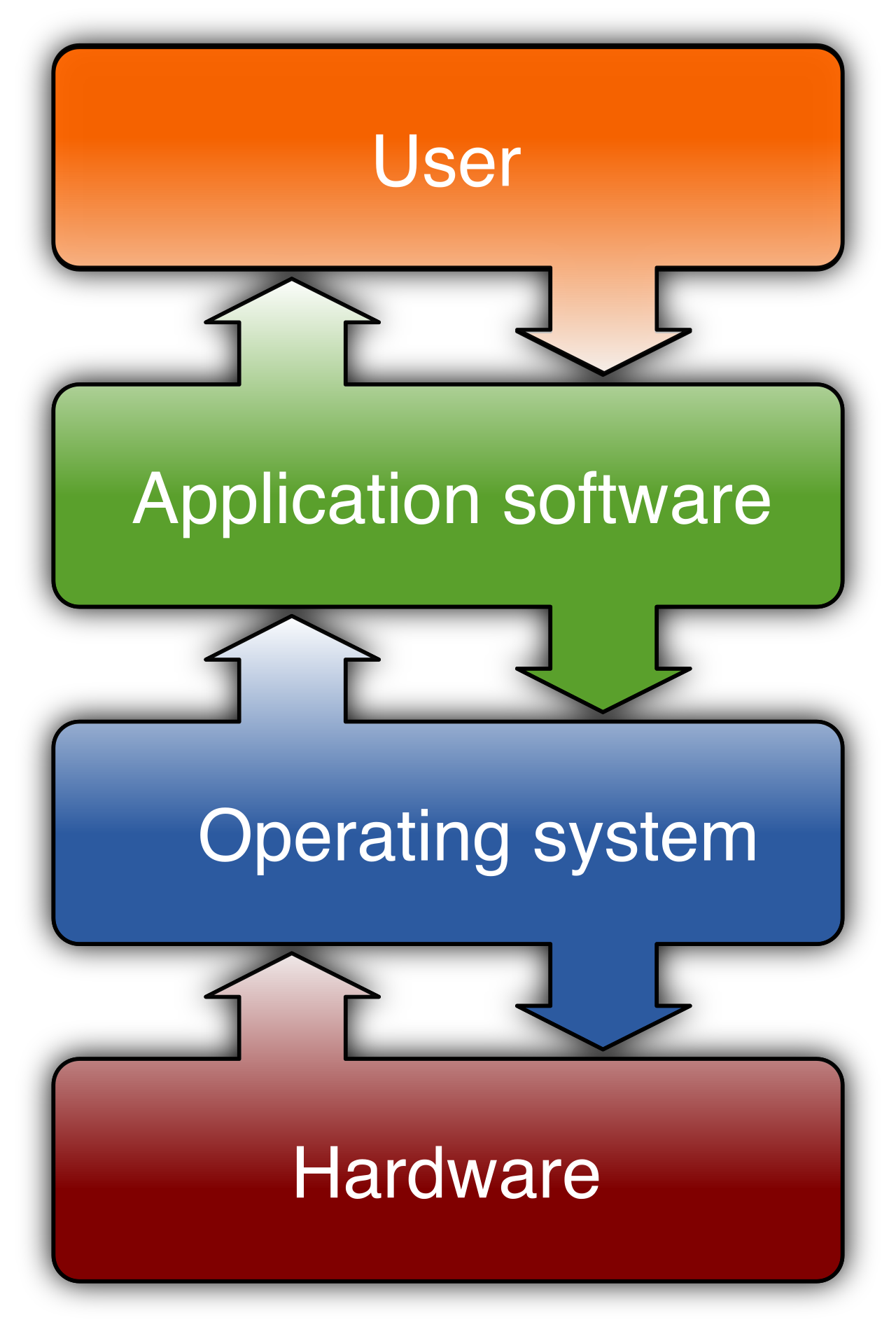
Before a single byte of application data is transferred to a storage drive, a fundamental architectural compatibility check must occur. The processor and the operating system speak a specific mathematical language, and the application must be fluent in it.
We classify modern CPU architectures into two primary lanes: x86, which refers to a 32-bit CPU architecture, and x64, which refers to a 64-bit CPU architecture.
The size of the "bit" architecture dictates how much memory the system can address at once. Think of it like a mailing system: a 32-bit operating system architecture supports a maximum of 4 gigabytes of random access memory. No matter how much physical RAM you install in a 32-bit machine, the operating system simply does not possess the mathematical vocabulary to address anything beyond that 4 GB ceiling. Consequently, a 32-bit operating system can only execute 32-bit applications.
By contrast, the 64-bit architecture shatters this limitation, allowing for terabytes of memory addressing. A fascinating piece of operating system engineering is backward compatibility. A 64-bit Windows operating system can execute both 32-bit and 64-bit applications. Microsoft achieves this through an emulation subsystem, but to keep the two architectures from interfering with one another, Windows strictly separates their installation directories:
- On a 64-bit Windows operating system, 64-bit applications install into the
[Program Files](https://en.wikipedia.org/wiki/Program_Files)directory by default. - On a 64-bit Windows operating system, 32-bit applications install into the
[Program Files (x86)](https://en.wikipedia.org/wiki/Program_Files)directory by default.
If you are a desktop support specialist attempting to manually locate an application's executable file to troubleshoot a crash, knowing which directory to search based on the software's bit-architecture saves you immense amounts of time.
Software is abstract, but it requires physical hardware to manifest. Software vendors provide two sets of baselines to help you determine if a device can handle the load.
Minimum system requirements define the lowest hardware specifications needed for an application to operate. Meeting this baseline means the software will turn on, but it will likely run sluggishly.
Recommended system requirements define the hardware specifications needed for optimal application performance. This is the target you must aim for when provisioning systems for corporate users.
The Processing and Memory Triad
To evaluate an application's impact on a system, you must understand three core hardware components:
- The CPU (Central Processing Unit): The Central Processing Unit core count and clock speed dictate the execution speed of an application's computational tasks. More cores allow the application to process multiple operations simultaneously, while a higher clock speed churns through those operations faster.
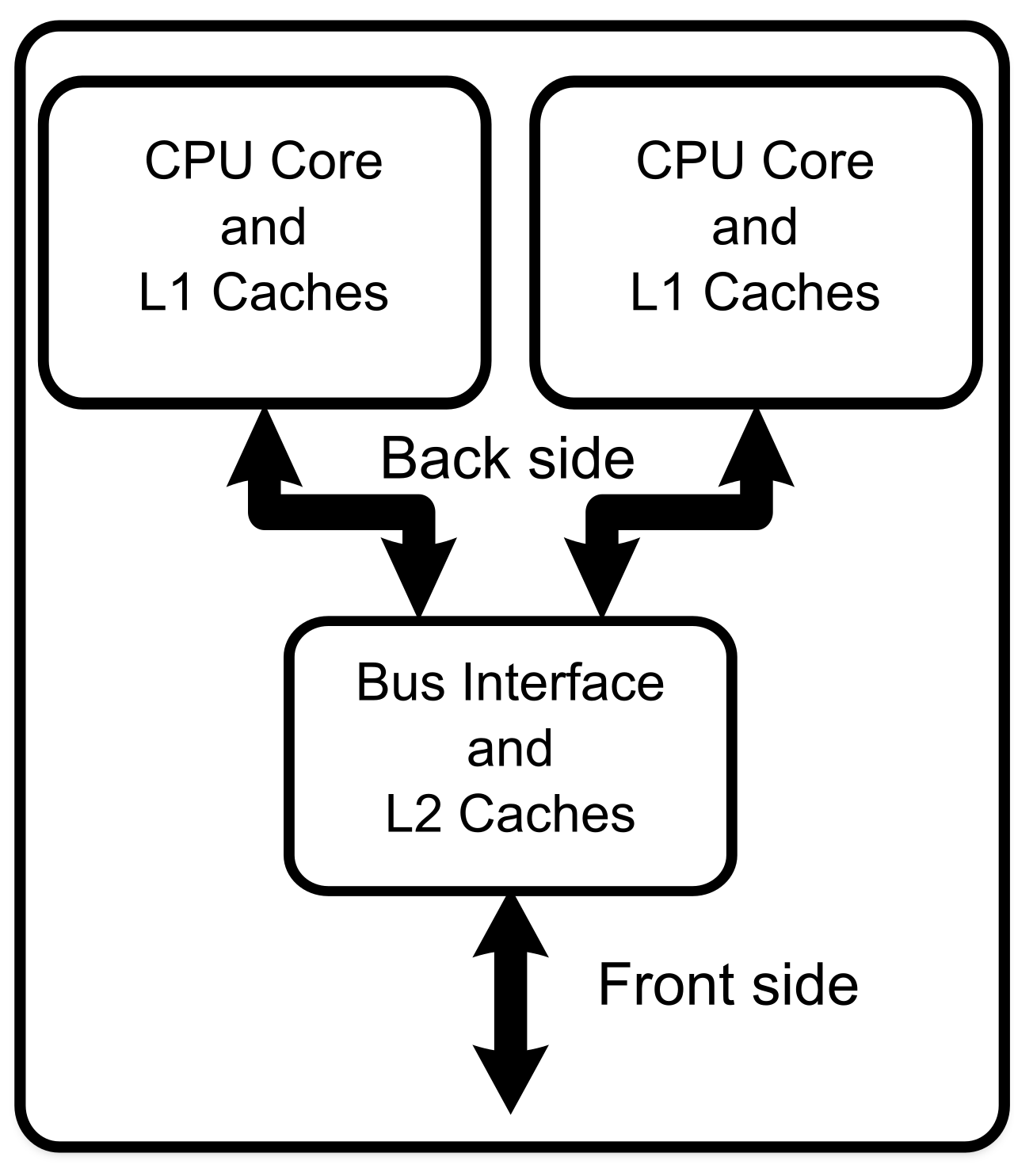
- RAM (Random Access Memory): Random Access Memory stores active application data for immediate access by the central processing unit. If the CPU is a chef, RAM is the cutting board. It provides high-speed workspace. If a system has insufficient Random Access Memory, it forces an operating system to use slower storage drives as virtual memory. This is known as paging or swapping, and it is catastrophic for performance. The computer is forced to continually swap active data between the high-speed RAM and the drastically slower hard drive, resulting in intense system lag.
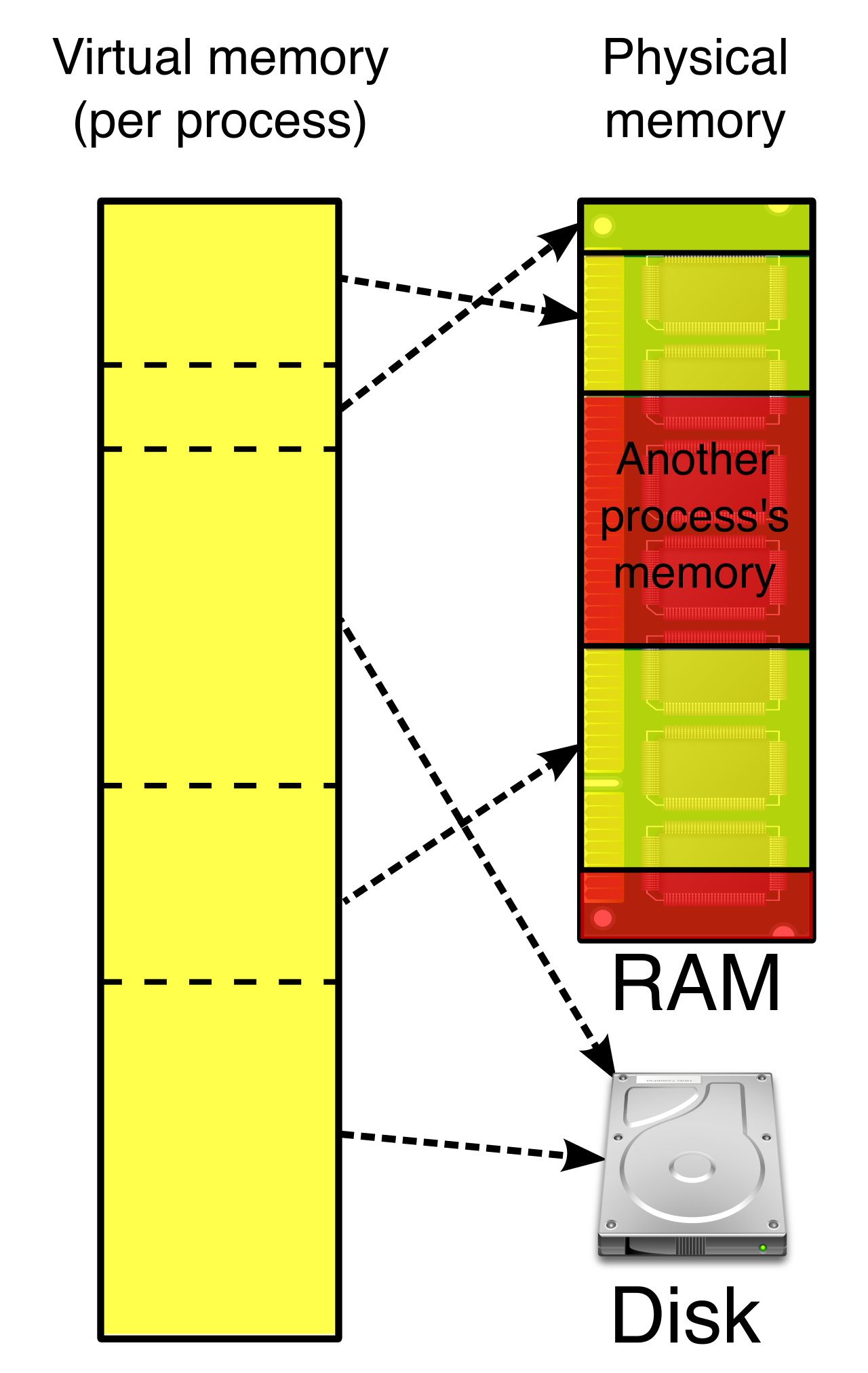
- VRAM (Video Random Access Memory): Video Random Access Memory is dedicated memory used exclusively by the Graphics Processing Unit (GPU). While system RAM handles general computing, Video Random Access Memory stores graphical textures and display data for rendering images on a screen. Standard office applications—like word processors and spreadsheets—require minimal VRAM. However, graphic design and video editing software require higher Video Random Access Memory than standard office applications. If you are deploying Adobe Premiere or AutoCAD, standard integrated graphics will choke; you must ensure the system has a dedicated GPU with ample VRAM.
Finally, do not forget the permanent storage. Applications require free storage space for installation files and temporary operational data. An installer might be 2 GB, but when unpacked, it could require 10 GB of permanent space, plus an additional 5 GB of free space dynamically used for temporary files while the program is running.
Once you have verified that the system can handle the application, you must deliver the software to the endpoint. The method of distribution varies drastically depending on the operating system and the scale of the deployment.
Windows Executables and Packages
| Format | Description | IT Support Context |
|---|---|---|
| EXE | An EXE file is a standard Windows executable file capable of launching an application installation wizard. | Best for one-off manual installations. Often requires a user to manually click through the prompts. |
| MSI | An MSI file is a Microsoft Windows Installer package used for enterprise application deployment. | Essential for IT admins. MSI files can be deployed silently across hundreds of computers over a network using tools like Microsoft Endpoint Configuration Manager. |
| MSIX | MSIX is a modern Windows application package format designed to ensure clean installs and uninstalls. | Traditional installers scatter files across the registry and storage drives. MSIX containerizes the application, ensuring that when it is uninstalled, no trace files are left behind to "rot" the system. |
Apple macOS Distribution
The Apple ecosystem utilizes an entirely different structure. Apple macOS uses DMG files as mountable disk images for software distribution. Think of a DMG as a digital flash drive; you double-click it, it mounts to the desktop, and the user simply drags the application into the Applications folder. For more complex installations that require system-level scripts, Apple macOS uses PKG files as installer packages for application deployment, similar in function to a Windows MSI.
ISOs and Physical Media
Sometimes you aren't deploying a single small application, but a massive software suite or an entire operating system. For this, we use an ISO file, which is an exact digital replica of an optical disc's file system and data. Historically, you had to burn an ISO to a physical DVD to use it. Today, modern Windows operating systems can natively mount ISO files as virtual optical drives, allowing you to run the installer directly from the downloaded file.
However, in highly secure environments, internet and network access are intentionally severed. Physical media distribution is required for systems on air-gapped networks without internet access. In these environments, physical media distribution uses USB flash drives or optical discs to deliver software, ensuring that proprietary systems remain entirely isolated from outside network threats.
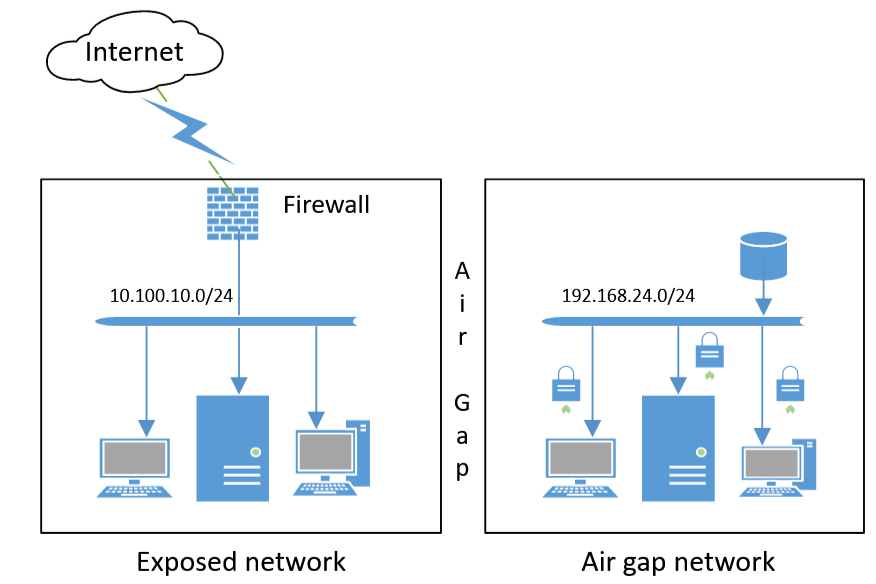
Deploying software is not an isolated event; it sends ripples across your entire IT infrastructure. Failing to assess the impact of an installation is the quickest way to bring a business to a halt.
Network Congestion
Software sizes have ballooned over the last decade. Downloading large application installers consumes network bandwidth. If you push a 5 GB installer to 200 machines at 9:00 AM on a Monday, you are demanding 1,000 GB of network traffic simultaneously. Downloading large application installers reduces network speeds for other users on the same network, choking out VoIP phone calls, video conferences, and critical cloud services.
To mitigate this, IT administrators schedule large application deployments during off-peak hours to minimize network congestion. Furthermore, the network impact does not end after the initial installation. Many modern applications configured with automatic background updates continuously consume network bandwidth over time. Enterprise networks must be actively managed to throttle or centralize these update downloads to prevent daily network saturation.
Device Readiness and Disruption
The physical state of the endpoint is just as critical as the network. For laptops and tablets, power management is a serious constraint. Installing applications on battery-powered devices risks data corruption if the device powers off during installation. A sudden loss of power while the installer is writing to the core OS registry will "brick" the application, and potentially the operating system. Connecting mobile devices to alternating current (AC) power before beginning a software installation prevents unexpected shutdowns.
You must also respect the user's time. Many low-level system drivers or heavy applications require the computer to restart to lock their files into the OS architecture. System reboots required by software installations temporarily disrupt operational workflows and user productivity. Pushing an update that forces a reboot while an accountant is in the middle of processing payroll is an unacceptable IT practice.
A seasoned IT professional does not simply run an installer and hope for the best. They follow a rigorous methodology to protect the integrity of the endpoint.
Pre-Installation Safeguards
Before deploying software widely, IT technicians install new applications in a test environment to identify compatibility issues before network-wide deployment. A virtual machine or a dedicated lab computer allows you to see if the new software conflicts with existing tools. During this phase, verifying software licensing constraints prevents legal compliance issues during mass application deployments. Deploying a single-user licensed software to 500 machines opens the business up to devastating financial audits.
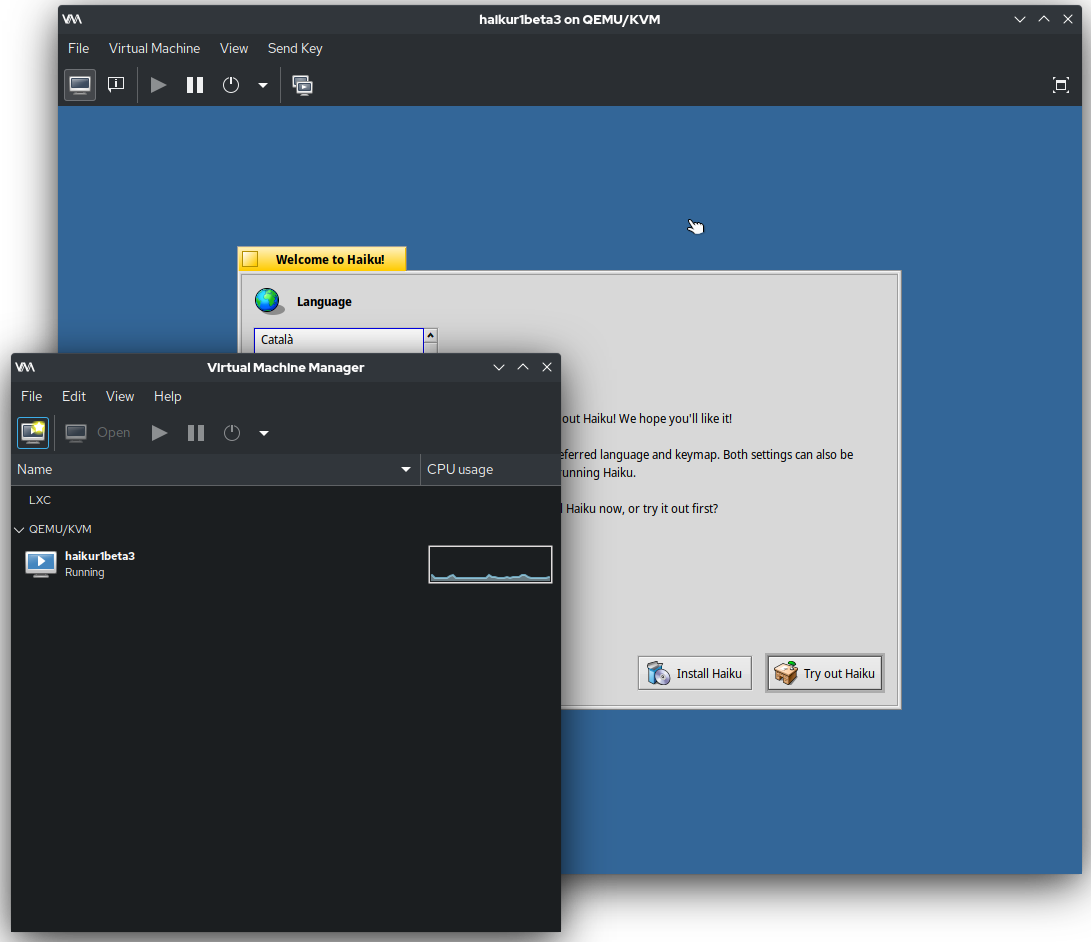
If you are deploying an older piece of legacy software on a modern machine, it may immediately crash. Fortunately, Windows Compatibility Mode allows older applications to run on newer versions of the Windows operating system by tricking the application into believing it is running on Windows 7 or even Windows XP.
Managing System Modifications
When an installation begins, it often attempts to weave itself deeply into the OS. Installing software that modifies the Windows registry requires Administrator privileges. This is a vital security mechanism. If any user could install anything, malware would run rampant. Instead, User Account Control (UAC) prompts for administrator credentials when a standard user attempts to install an application in Windows.
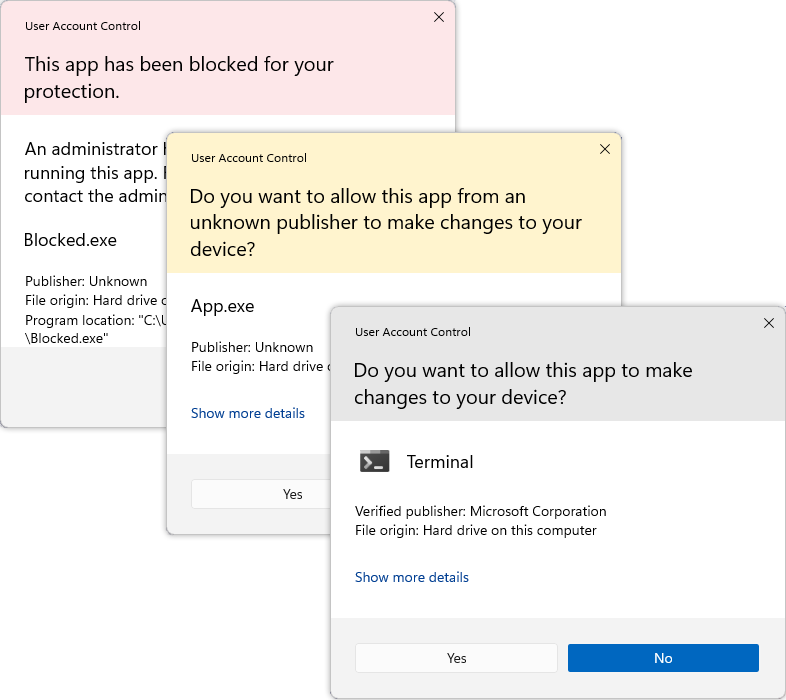
Even with the best intentions, things can go awry. Security tools are deeply suspicious of executables making core system changes. Often, antivirus software can falsely identify legitimate application installers as malware and block the installation process. If you verify the software is safe, you may need to temporarily whitelist the installer in your endpoint protection software.
Finally, what happens if the installation violently breaks the system? Professional technicians plan for failure. Before installing complex or risky software, they verify that the OS is backed up. System restore points allow a technician to revert the operating system to a previous state if an application installation causes system instability. By capturing a snapshot of the registry and system files beforehand, you guarantee that no matter how disastrous an installation goes, you can pull the system back from the brink, returning the user to a stable, working computer.