Cloud-based Productivity Tools
Not sure you’re ready?
Take the ~3-minute readiness diagnostic and see where you stand.
Managing enterprise IT infrastructure once meant building a physical fortress: racking heavy servers, wiring storage arrays, and maintaining localized control over every byte of data traversing the local area network. Today, IT support is akin to operating an intricate global transit system. The physical infrastructure—the servers, the hard drives, the network backbones—is owned and maintained by a third party. As a support specialist, your responsibility has shifted from replacing failed disk drives to ensuring that the passengers (the users) and their cargo (the data) route through this invisible infrastructure securely, efficiently, and without friction. This paradigm shift requires a deep understanding of how local operating systems interact with remote cloud-based productivity tools.

To troubleshoot modern computing environments, you must understand the boundary where the local machine ends and the cloud begins. We are no longer installing monolithic software packages from optical discs; we are configuring localized clients to stream, sync, and interface with massive data centers.
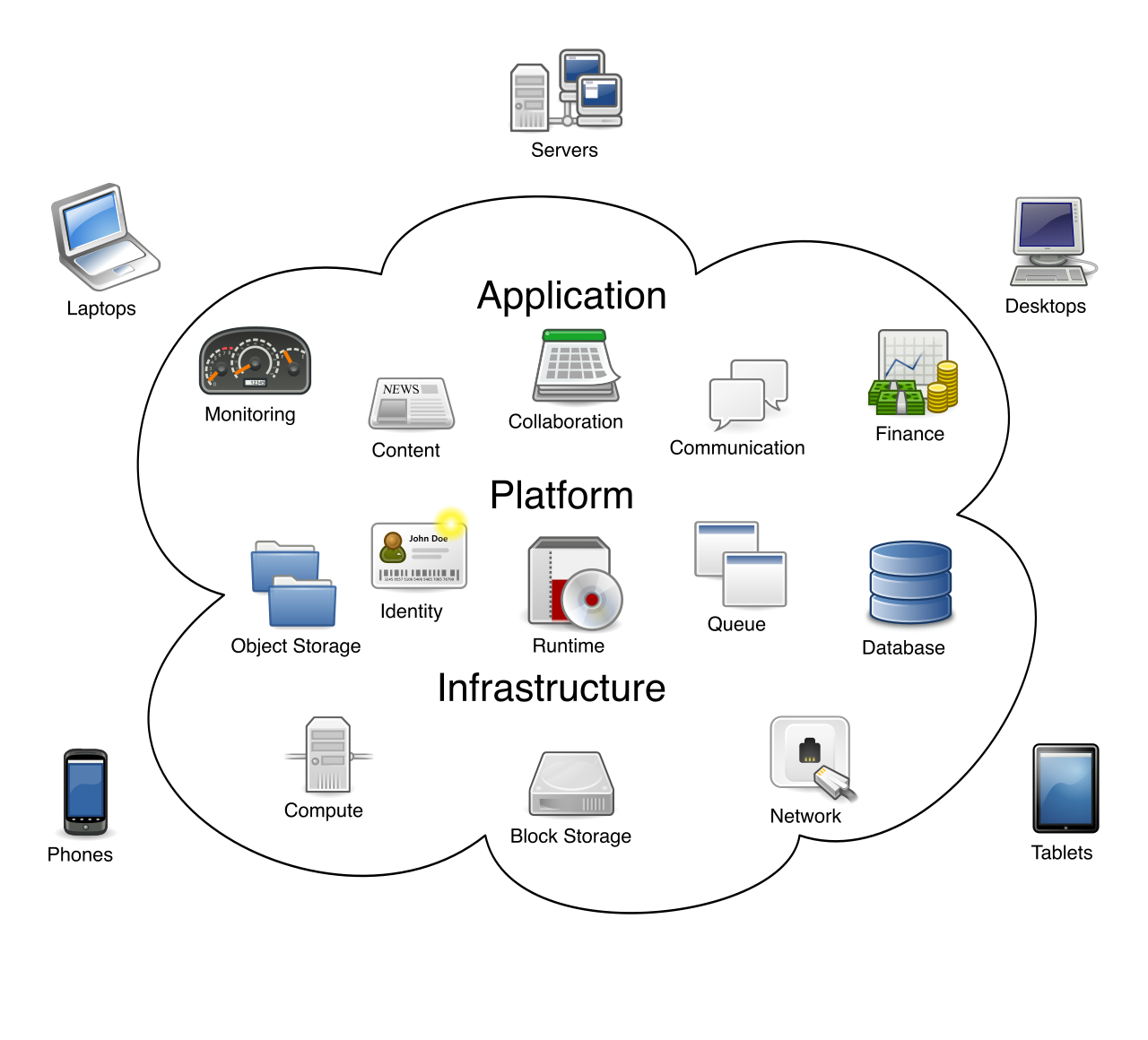
Cloud-Based Email Systems
Historically, organizations maintained large, noisy email servers in their own IT closets. Today, cloud-based email systems host mailbox data on remote servers managed by a third-party service provider. This eliminates the need for the organization to maintain physical email infrastructure.

When configuring these environments, you will primarily encounter two major enterprise ecosystems:
- Microsoft 365: In this environment, Microsoft Exchange Online is the cloud-based email server component of the Microsoft 365 productivity suite.
- Google Workspace: Conversely, Google Workspace utilizes Gmail as its enterprise cloud-based email service.
To access these systems, users have two primary pathways. The traditional method involves configuring a local desktop client (like Microsoft Outlook). However, modern environments heavily rely on browser-based access. Webmail interfaces allow users to access cloud email securely through a standard web browser without installing a local email client. This is a critical troubleshooting concept: if a user's desktop email client is failing to sync, your immediate diagnostic step should be to have them log into the webmail interface. If webmail works, the cloud infrastructure is healthy, and your problem is isolated to the local machine's software.
We encounter an immediate physics problem in modern IT: a user's cloud account may possess terabytes of storage capacity capacity, but their physical laptop might only have a 256GB Solid State Drive. If we simply downloaded everything from the cloud to the local machine, the drive would fill up and crash almost instantly.

To solve this, we use sync clients. Localized storage synchronization applications mirror files from a cloud server directly to a local device drive.
| Ecosystem | Primary Synchronization Tool | Integration Context |
|---|---|---|
| Microsoft | Microsoft OneDrive | Microsoft OneDrive is the default cloud storage synchronization tool integrated into the Windows operating system. |
| Google Drive for Desktop | Google Drive for Desktop provides local synchronization for user files stored in Google Workspace accounts. |
Managing Drive Space and Placeholders
To resolve the storage disparity between the cloud and the local disk, these applications utilize highly intelligent synchronization rules.
First, there is selective sync, which allows administrators or users to choose specific cloud folders to download to local storage. If a marketing team has a 500GB folder of video assets, a user can simply uncheck that folder in the sync settings, keeping it safely in the cloud and off their local drive.
However, modern operating systems take this a step further using a brilliant mechanism called "placeholders." Files On-Demand features display placeholders for cloud files within the local file system. To the user, it looks exactly like a normal file sitting in their Documents folder. It has an icon, a file name, and a file size. But it is effectively a ghost; it takes up zero bytes on the actual hard drive.
Files On-Demand applications download the actual file content to local storage only when the user opens the placeholder file. The moment the user double-clicks the file, the sync client rapidly pulls the data from the remote server, opens the document, and caches it locally.
Diagnostic Note: Caching cloud files locally allows users to view and edit documents without an active internet connection. If a user knows they are boarding an airplane, they must actively open or mark files for "offline use" beforehand so the sync client caches the real data locally.
Synchronization Conflicts and Resolutions
Because data can be cached and edited offline, we introduce the risk of temporal paradoxes in our file systems. What happens if User A edits a cached document on a flight to New York, while User B edits the exact same document on a flight to London?
When both users land and connect to Wi-Fi, cloud storage sync applications automatically upload locally saved changes to the cloud once an internet connection is restored. However, the cloud server now receives two contradictory versions of the same file.
This results in a synchronization conflict, which occurs when a shared file is edited simultaneously on multiple offline devices. As a support technician, you will frequently help users resolve these conflicts. The sync application will typically flag the file with a warning icon and generate a second copy (e.g., Budget_Project (User A's conflicted copy).docx), forcing the users to manually review and merge their distinct changes.
To prevent synchronization conflicts entirely, modern organizations rely on synchronous, cloud-native collaboration.
Instead of passing files back and forth, cloud-based spreadsheet applications allow multiple users to edit the same document concurrently over the internet. This is facilitated by a technology known as real-time co-authoring, which displays cursor movements and text changes from multiple concurrent users instantly. Because the authoritative version of the document lives entirely in RAM on the cloud server, there are no offline conflicts—every keystroke is resolved in real-time.
Synchronous Communication Platforms
The logic of real-time collaboration extends beyond documents and into human communication. Organizations utilize centralized communication hubs designed to unify disparate workflows.
- Microsoft Teams is a cloud-based collaboration platform offering text chat, video meetings, and integrated file sharing.
- Google Meet is the native videoconferencing application included in Google Workspace.

Endpoint Privacy and Media Routing
When troubleshooting videoconferencing tools, you must understand the intersection of cloud software and localized hardware security. Operating systems like Windows and macOS employ strict privacy sandboxes. By default, a cloud application cannot arbitrarily turn on a user's camera. Videoconferencing suites require explicit operating system permission to access local microphones and webcams. If a user complains that Google Meet "can't find my camera," your first step is checking the OS-level Privacy & Security settings, not the camera hardware itself.

Once connected, these platforms offer powerful data-routing features. Screen sharing features allow a meeting participant to broadcast their local desktop display to other attendees.
To maintain professional boundaries when working from remote or shared environments, these applications use edge-based AI image processing to alter the video feed. Virtual backgrounds in videoconferencing applications obscure the user's physical environment to enhance privacy.
None of the aforementioned systems matter if we cannot securely verify who is trying to access them. In the past, a user might have one username and password to log into their physical desktop, a different password for their email, and a third for their HR portal. This resulted in password fatigue, sticky notes on monitors, and massive security vulnerabilities.
The solution is unified identity management. Cloud identity synchronization links on-premises directory accounts with a cloud service provider's directory.
By bridging the local network's identity database (traditionally Windows Server Active Directory) with the cloud provider, identity synchronization allows a user to maintain identical login credentials across local and cloud environments.
We facilitate this synchronization using specific middleware tools designed by the cloud vendors:
- Microsoft Entra Connect synchronizes on-premises Active Directory accounts with Microsoft 365 cloud directories. (Note: You may see older documentation refer to this by its legacy name, Azure AD Connect).
- Google Cloud Directory Sync replicates local Active Directory user accounts into Google Workspace directories.
Once identities are unified, we can implement Single Sign-On (SSO), which allows users to authenticate one time to access multiple independent cloud applications. When a user logs into their laptop in the morning, SSO passes those secure authentication tokens seamlessly to their email, their cloud storage, and their videoconferencing software without requiring further passwords.

Because organizations no longer buy software on physical discs, they rent access to these cloud tools on a subscription basis. As an IT professional, managing these subscriptions is a core daily responsibility, as it directly impacts both the company's budget and the user's ability to work.
User licensing determines which specific cloud applications and administrative features an account is permitted to access. Not all licenses are equal. A frontline retail worker might be assigned a basic license granting only webmail access, while a data analyst is assigned a premium license that includes desktop applications and advanced security features.
Administrative Portals and Assignment Workflows
Administrators manage these allocations via centralized web interfaces.
- The Microsoft 365 Admin Center is the centralized portal used to manage user licenses for Microsoft cloud services.
- The Google Admin Console is the centralized portal used for managing licenses and users in Google Workspace.
Within these portals, cloud licenses are typically assigned on a per-user basis through a centralized web-based administrative portal.
However, manually assigning licenses for hundreds of new hires is inefficient and prone to human error. Instead, enterprise environments use group-based licensing, which automatically assigns cloud software licenses to users based on their directory group memberships. If you add a user to the "Sales Department" security group, the system automatically provisions them with the specific Microsoft 365 or Google Workspace license designated for the sales team.
Offboarding and License Lifecycle
The lifecycle of a cloud license is just as important during employee offboarding. When an employee leaves an organization, security and cost-savings must be executed immediately.
Revoking a cloud license immediately blocks the user's access to the associated software applications. The moment the license is stripped, the user's active session is terminated, and they can no longer log into their email or cloud storage.
But what happens to the massive amounts of data that user created? Removing a user's cloud license schedules the user's cloud-stored data for permanent deletion after a vendor-specified grace period (often 30 days). This grace period is a crucial safety net, allowing IT administrators time to back up the departed employee's OneDrive or Gmail data, or transfer ownership of critical files to a manager before the data is purged from the cloud servers forever.
Once the license is safely stripped from the departed user, the software lease isn't necessarily canceled. Instead, unassigned cloud licenses remain in the organization's active subscription pool for future allocation to new employees. Understanding this lifecycle—from initial sync, to access provisioning, to secure revocation—is what transforms a standard technician into an effective administrator of modern enterprise environments.