Basics of Scripting
Not sure you’re ready?
Take the ~3-minute readiness diagnostic and see where you stand.
Consider the sheer physical impossibility of manually updating five hundred computers scattered across a corporate campus. If an administrator must walk to every desk, log in, open a network drive, execute an installer, and reboot the machine, the workweek vanishes into tedious repetition. In systems administration, manual labor scales poorly and invites disaster.
The elegant solution to this physical bottleneck is scripting. Scripting automates repetitive IT tasks to reduce manual effort and minimize human error. By codifying our intentions into a text file, we transform a simple operating system into an obedient, tireless engine. When an IT professional understands how to write, read, and safely deploy scripts, they stop reacting to individual problems and begin orchestrating their environment at scale.
At its core, a script is simply a recipe—a set of instructions telling the computer exactly what to do, step by step, without requiring human intervention. In a modern IT environment, this capability is deployed across several critical, everyday workflows:
- Mapping Network Drives: When a user arrives in the morning and logs into their computer, they expect their department's shared folders to be instantly available. Login scripts are frequently used to automatically map network storage drives when a user authenticates to a workstation, abstracting the complex network paths away from the end user.
- Mass Deployment: Instead of interrupting users during their workday, administrators use scripts to silently initiate software updates across multiple computer endpoints simultaneously.
- System Maintenance: Scripts can be scheduled to automatically restart computers during non-business hours for maintenance purposes, ensuring that memory leaks are cleared and pending updates are finalized without disrupting productivity.
Because different operating systems and environments are built on different underlying architectures, we use distinct scripting languages to interface with them. You must be able to instantly recognize a script's purpose and native environment by its file extension.
| Extension | Language | Environment & Use Case |
|---|---|---|
| .bat | Windows Batch | A file with a .bat extension is a Windows Batch script. A Windows Batch script contains a sequence of standard Command Prompt commands executed in order. Consequently, Batch scripts are executed within the Windows Command Prompt environment. |
| .ps1 | Windows PowerShell | A file with a .ps1 extension is a Windows PowerShell script. Because it interfaces directly with the .NET framework, PowerShell scripts are commonly used to automate complex administrative tasks within modern Windows environments. |
| .vbs | Visual Basic Script | A file with a .vbs extension is a Visual Basic Script file. Visual Basic Script is a legacy scripting language historically used for Windows desktop automation before the advent of PowerShell. |
| .sh | Linux / Unix Shell | A file with a .sh extension is a Linux or Unix shell script. Because they rely on a different kernel architecture, shell scripts are executed within Linux or Unix command-line terminal environments. |
| .js | JavaScript | A file with a .js extension is a JavaScript file. While famous for running in web browsers, JavaScript is widely used for web development and system administration automation via environments like Node.js. |
| .py | Python | A file with a .py extension is a Python script file. Because it does not rely on a single operating system's native command line, Python is a cross-platform, general-purpose scripting and programming language. |
To read and write scripts effectively, you must understand the foundational logical constructs that exist across nearly every programming language.
Variables: The Containers of Automation
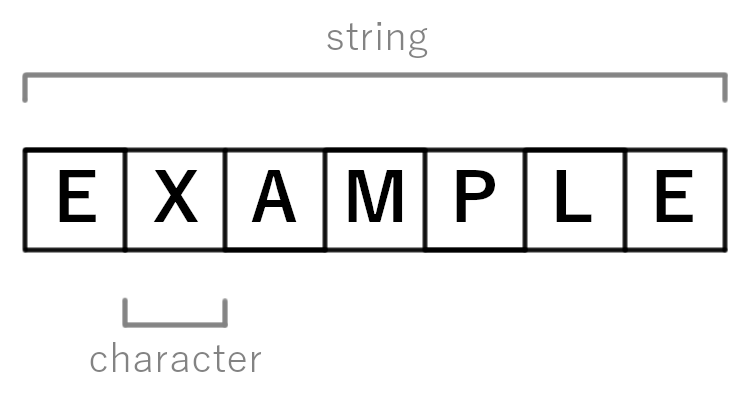
Imagine you are writing a script to create a backup file for a user. You cannot hardcode the name "Alice" into the script, or it will fail when "Bob" runs it. Instead, you use a variable. A script variable acts as a temporary storage container for holding data values during script execution.
Variables generally come in different data types depending on what they are holding:
- String variables store sequences of text characters within a script. (e.g.,
"C:\Backups\Alice", or an IP address like"192.168.1.50"). - Integer variables store whole numbers used for mathematical operations or counting within a script. (e.g.,
5, used to count how many times a script has attempted to reconnect to a server).
To make scripts universally applicable across an entire network, we rely heavily on environment variables. An environment variable provides a standardized way for scripts to access operating system configuration details. Rather than guessing where a user's documents are stored, environment variables store dynamic, system-wide values such as the current user directory path.
The syntax for calling these variables depends on the operating system:
- Windows environment variables are typically surrounded by percent signs in Batch scripts. (e.g.,
%USERPROFILE%). - Linux environment variables are typically preceded by a dollar sign in shell scripts. (e.g.,
$HOME).
Logic: Flow Control
Scripts are not limited to executing a flat, rigid list of commands. They can "think" and adapt to the system's current state using logical constructs.
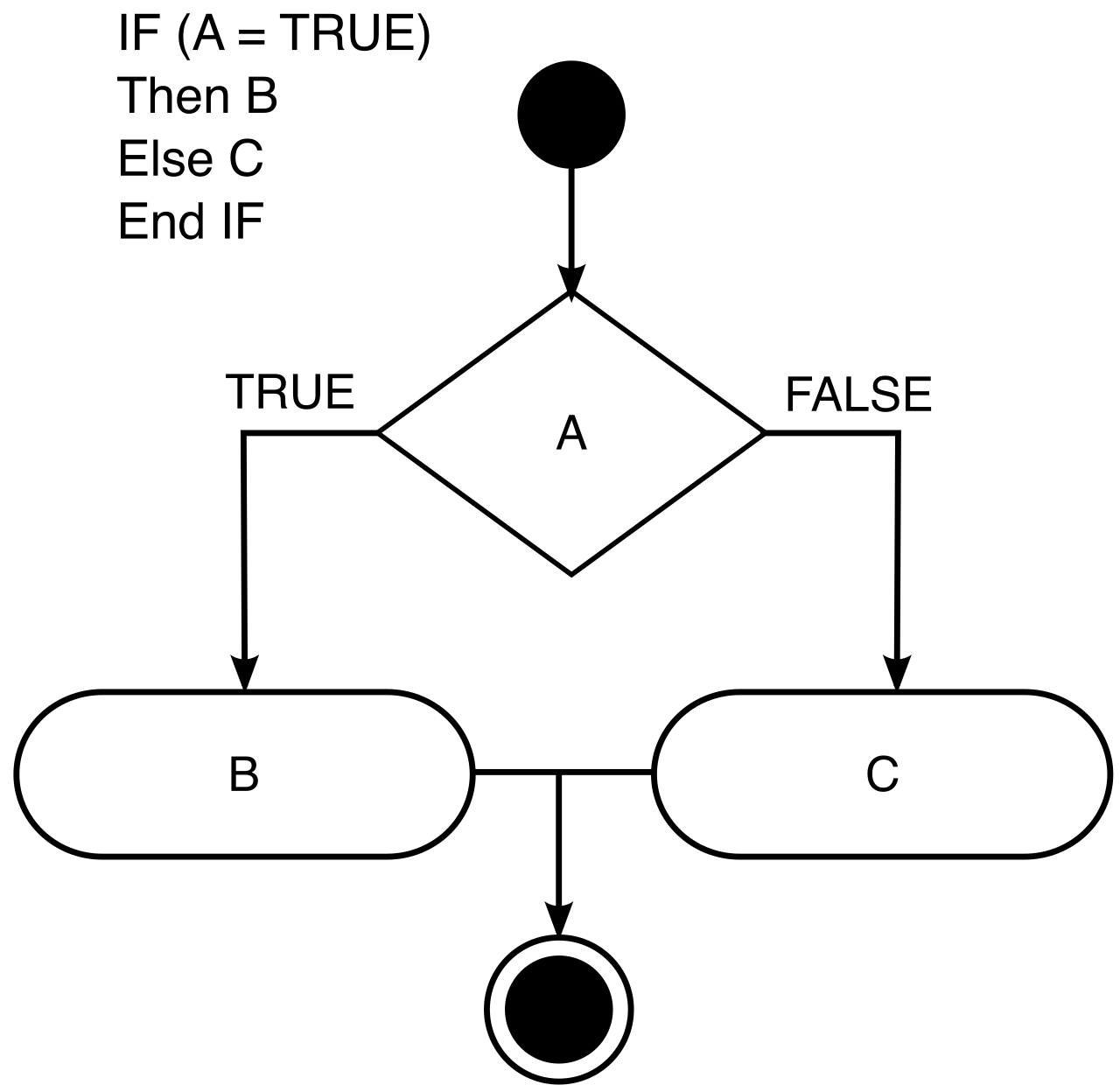
- A conditional statement allows a script to execute different code branches based on specific true or false criteria. (e.g., IF the folder exists, THEN copy the file; ELSE, create the folder first).
- A loop construct allows a script to repeatedly execute a specific block of code until a condition is met. (e.g., pinging a server continuously UNTIL it responds, then proceeding with the rest of the script).
Code Comments: Leaving Notes for the Future
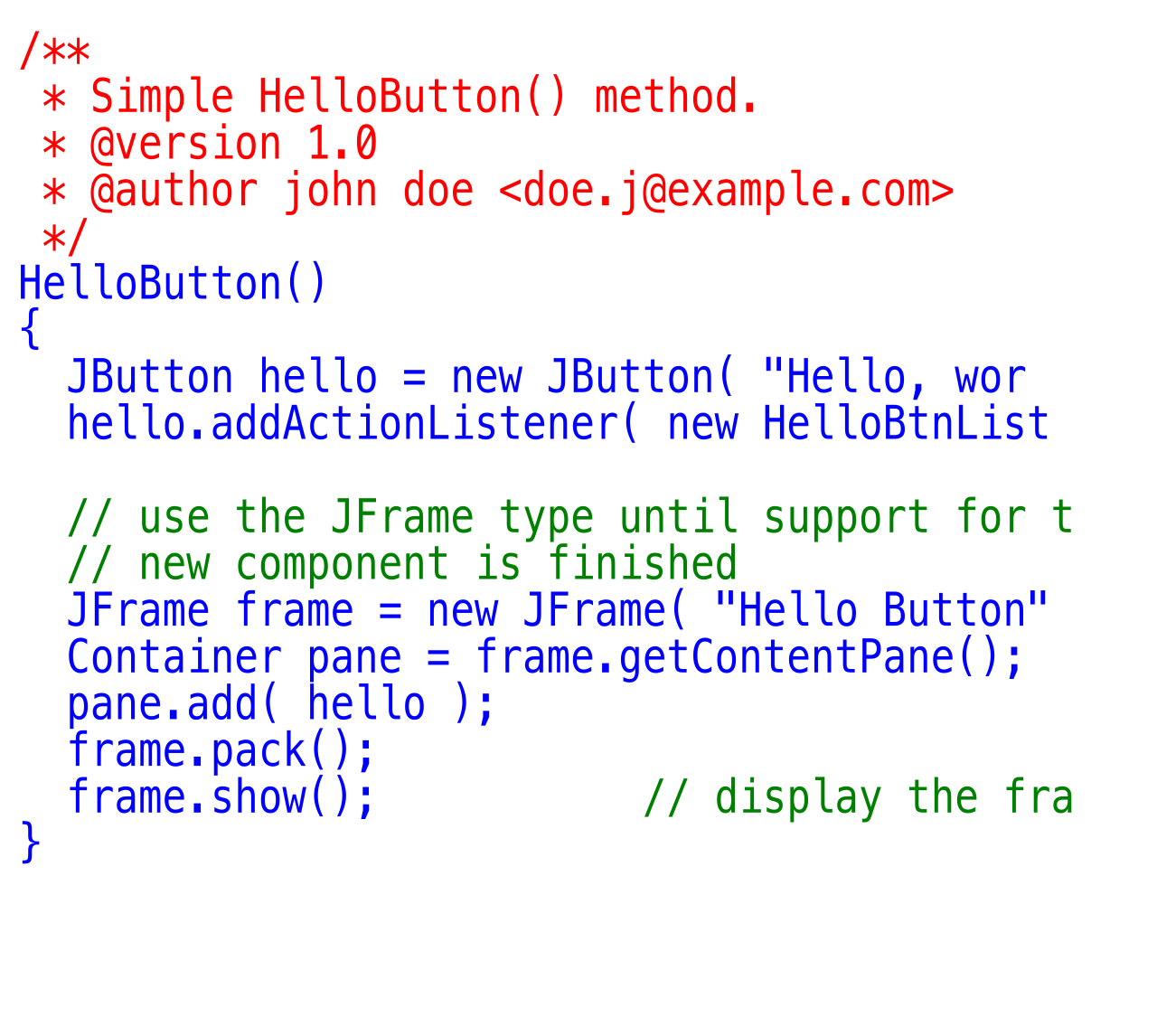
When you write a brilliant script today, you—or a colleague—will eventually need to update it a year from now. Without context, complex logic looks like hieroglyphics. Code comments provide human-readable explanations of the underlying script logic.
Because they are purely for the administrator's benefit, code comments are entirely ignored by the script interpreter during execution. Different languages use distinct symbols to declare that a line is a comment rather than an executable command:
- The REM command designates a comment line within a Windows Batch script. (Short for "Remark").
- The pound symbol designates a comment line in PowerShell scripts. (
#) - The pound symbol designates a comment line in Python scripts. (
#) - The pound symbol designates a comment line in Linux shell scripts. (
#) - Two forward slashes designate a single-line comment in JavaScript. (
//) - A single quotation mark designates a comment in Visual Basic Script. (
')
With the power to orchestrate thousands of machines comes the power to destroy thousands of machines simultaneously. A poorly written or maliciously obtained script is a severe threat to business continuity. Professional technicians strictly adhere to the following safety principles.
Sourcing and Testing
Never blindly trust code you find on an internet forum. Running unverified scripts from unknown sources can inadvertently install malware onto a system. Even if a script is well-intentioned, executing an untested script in a production environment can cause unexpected data loss or severe system crashes. A script designed to clean temporary files might possess a typo that deletes critical system directories instead.
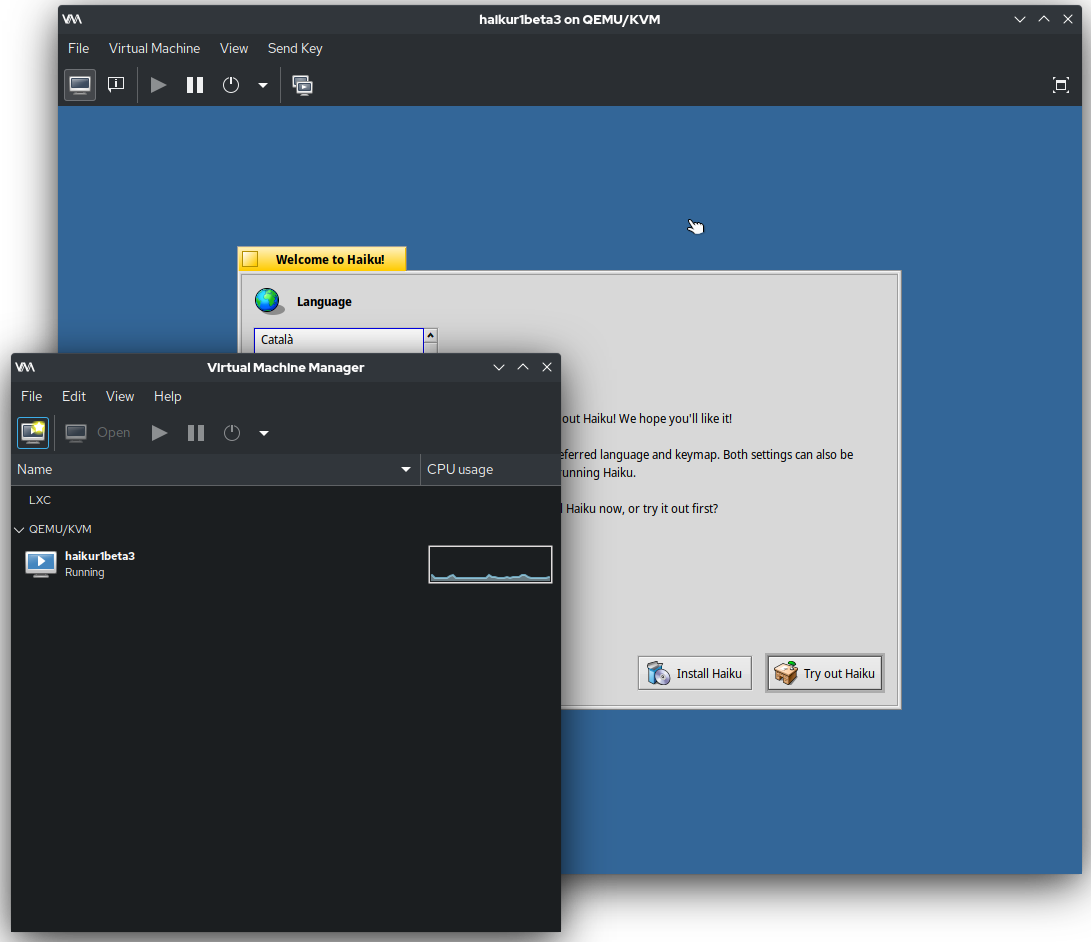
The Golden Rule of Deployment: IT professionals must test new scripts in an isolated sandbox or lab environment prior to live deployment. A virtual machine that mimics your production environment is the perfect testing ground.
Permissions and Execution Policies
A script inherits the permissions of the user running it. If you run a script as a Domain Administrator, that script has the power to alter the entire network. Scripts should always be executed using the minimum user permissions necessary to complete the designated task.
To prevent unauthorized scripts from running automatically, modern operating systems employ safeguards. For example, PowerShell execution policies can be configured to block the execution of unsigned or untrusted scripts. This prevents a user from accidentally double-clicking a malicious .ps1 file they received in an email and compromising their workstation.
Secret Management
Scripts often need to authenticate to servers or databases to perform their work. The amateur mistake is typing the required password directly into the script's text file. Hardcoding plaintext passwords directly inside a script file creates a severe security vulnerability. Anyone who gains read access to the script immediately gains the administrative password. Professionals use secure credential managers, encrypted vaults, or prompt the user to input the password at runtime rather than leaving secrets exposed in plain text.