Microsoft Windows Editions and Features
Not sure you’re ready?
Take the ~3-minute readiness diagnostic and see where you stand.
An operating system is the master orchestrator of a computer, serving as the definitive mediator between physical silicon and human intent. For an IT support professional, the operating system is not just an interface; it is the primary workspace where battles with hardware compatibility, network security, and user permissions are won or lost. Understanding the architectural differences between Microsoft Windows editions—and the exact hardware they demand—is not mere trivia. It is the fundamental geometry of modern endpoint management. When a workstation fails to boot, a user cannot access a shared server, or an organization mandates encrypted drives, the technician must immediately recognize the boundaries of the operating system sitting in front of them.
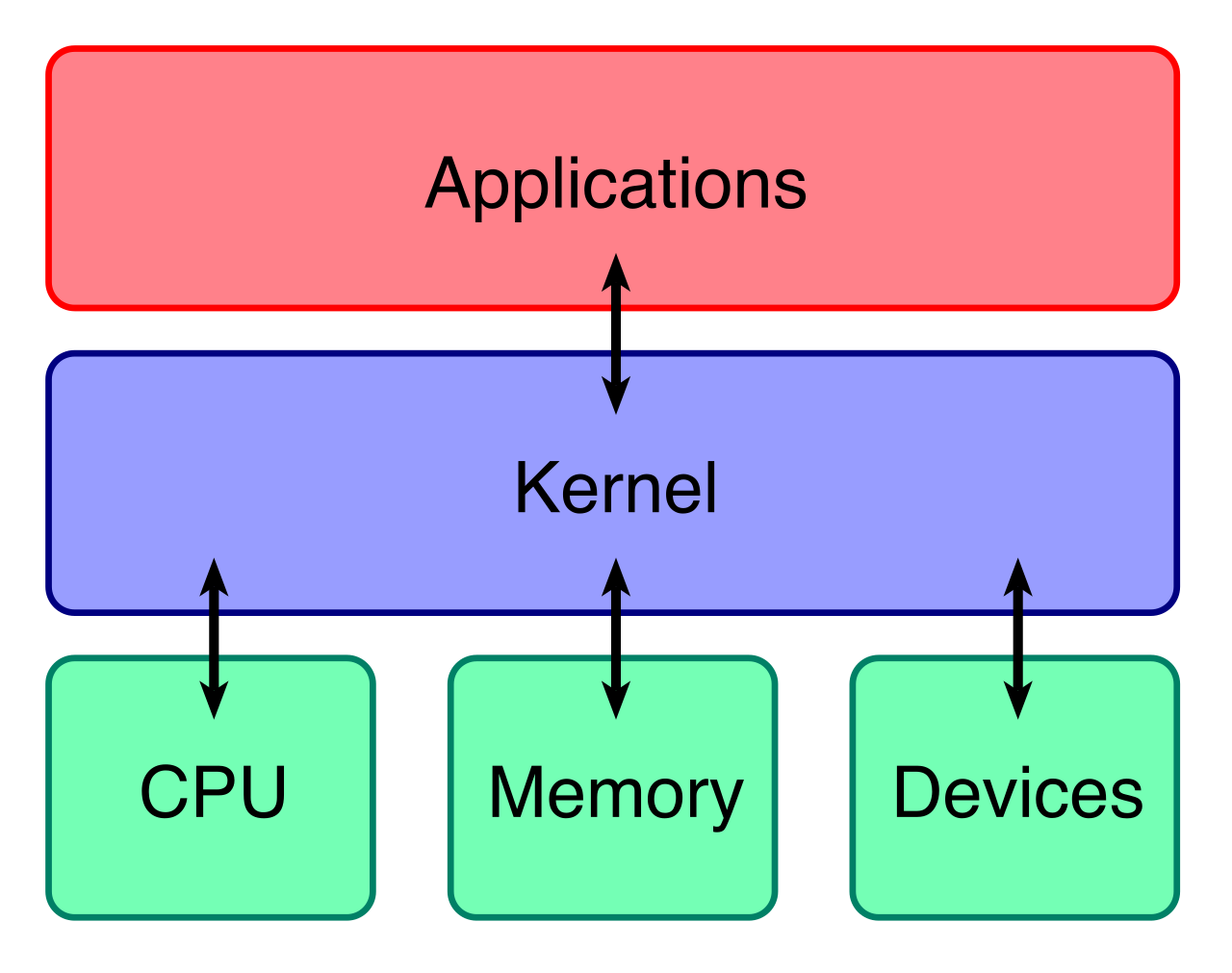
To understand why Microsoft enforces specific hardware requirements, we must look at the shifting philosophy of cybersecurity and system architecture. Windows 10 was built to bridge the gap between legacy hardware and modern computing. Windows 11, however, represents a hard line drawn in the sand: a mandatory leap into hardware-backed security and 64-bit architecture.
The Windows 10 Baseline: Accommodating the Past
Windows 10 was designed to run on a vast array of aging hardware. Because it supports both 32-bit and 64-bit architectures, its baseline requirements are highly forgiving.
- Processor & Display: It requires a processor speed of at least 1 gigahertz and a modest minimum display resolution of 800 by 600 pixels.
- Graphics: The graphics card only needs to be compatible with DirectX 9 or later.
- Memory (RAM): Windows 10 32-bit requires a minimum of 1 gigabyte of random access memory, while Windows 10 64-bit requires a minimum of 2 gigabytes of random access memory.
- Storage: Windows 10 version 1903 and newer requires a minimum of 32 gigabytes of storage space for new installations.
A Note on Maximum Memory: While the minimums are low, the architecture imposes strict ceilings. Windows 10 Home 64-bit supports a maximum of 128 gigabytes of random access memory. If you deploy a high-end engineering workstation, you must understand that Windows 10 Pro 64-bit pushes this boundary exponentially, supporting a maximum of 2 terabytes of random access memory.
The Windows 11 Baseline: Forcing the Future
With Windows 11, Microsoft eliminated support for older paradigms to ensure every machine operates within a secure, high-performance baseline.
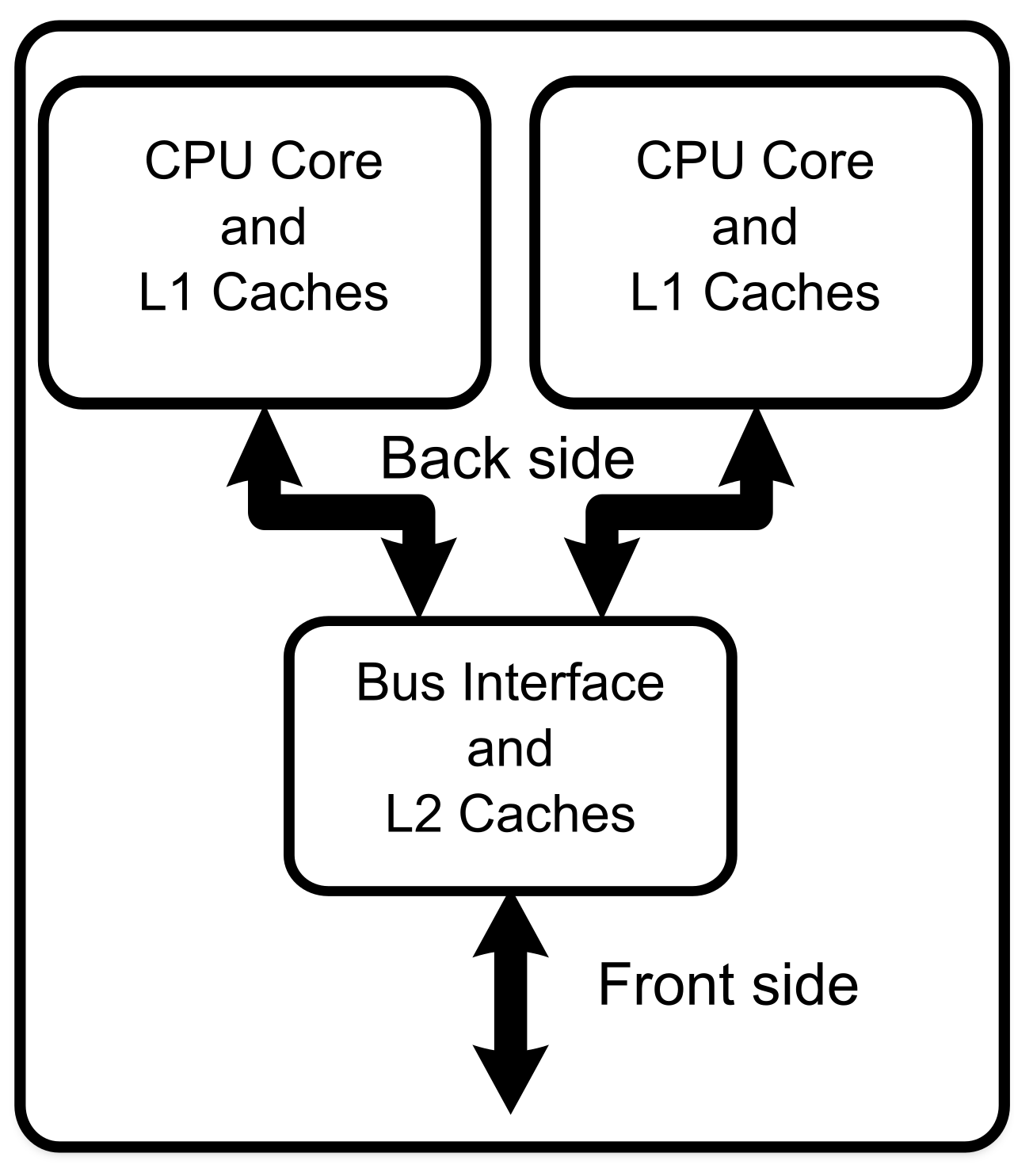
- Architecture & Processing: Windows 11 is only available as a 64-bit operating system. It requires a compatible 64-bit processor with a speed of at least 1 gigahertz, and crucially, it requires a processor with two or more cores.
- Memory & Storage: The memory floor is raised significantly: Windows 11 requires a minimum of 4 gigabytes of random access memory and a minimum of 64 gigabytes of storage space.
- Display & Graphics: The visual baseline is also modernized. Windows 11 requires a high definition display of at least 720p resolution, and it requires a display monitor greater than 9 inches diagonally. Under the hood, it requires a graphics card compatible with DirectX 12 or later.
The Hardware Security Mandate The most disruptive change in Windows 11 is its strict hardware security requirements, designed to prevent boot-level malware and tampering.
- Windows 11 requires Unified Extensible Firmware Interface (UEFI) system firmware, abandoning the legacy BIOS.
- It requires the system firmware to be Secure Boot capable, ensuring only trusted code executes during the boot sequence.
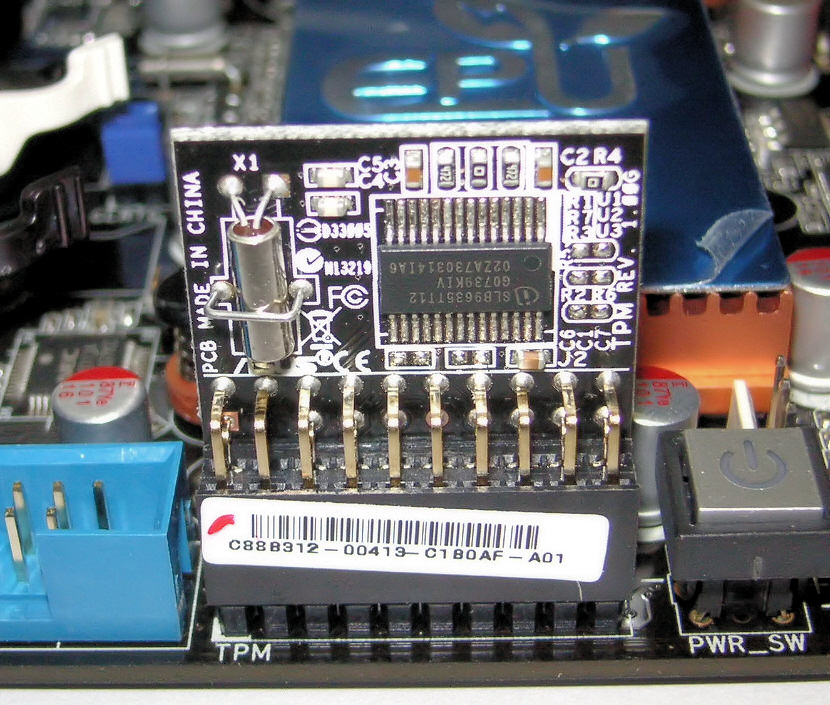
- Most notably, Windows 11 requires a Trusted Platform Module (TPM) version 2.0. This dedicated cryptoprocessor is essential for securely storing cryptographic keys, passwords, and certificates at the hardware level.
If you are setting up a home consumer device, be aware of a strict initialization requirement: The Windows 11 Home edition requires an internet connection during the initial device setup process, and it explicitly requires a Microsoft account to complete that setup. Local accounts cannot be used out-of-the-box for Windows 11 Home.
Before comparing the specific software editions, we must understand how computers talk to one another. In enterprise IT, how a machine authenticates its users dictates everything about your support workflow.
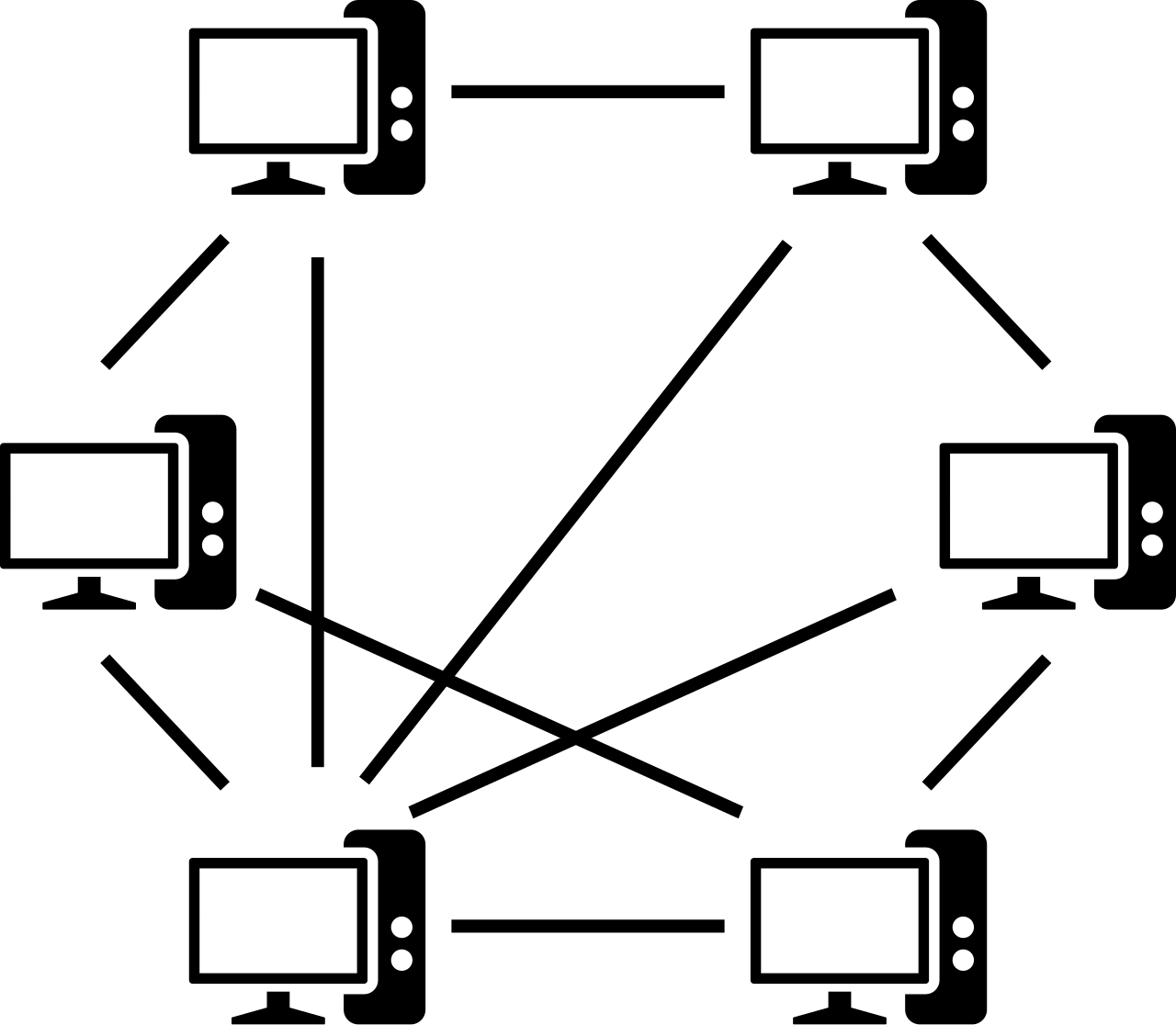
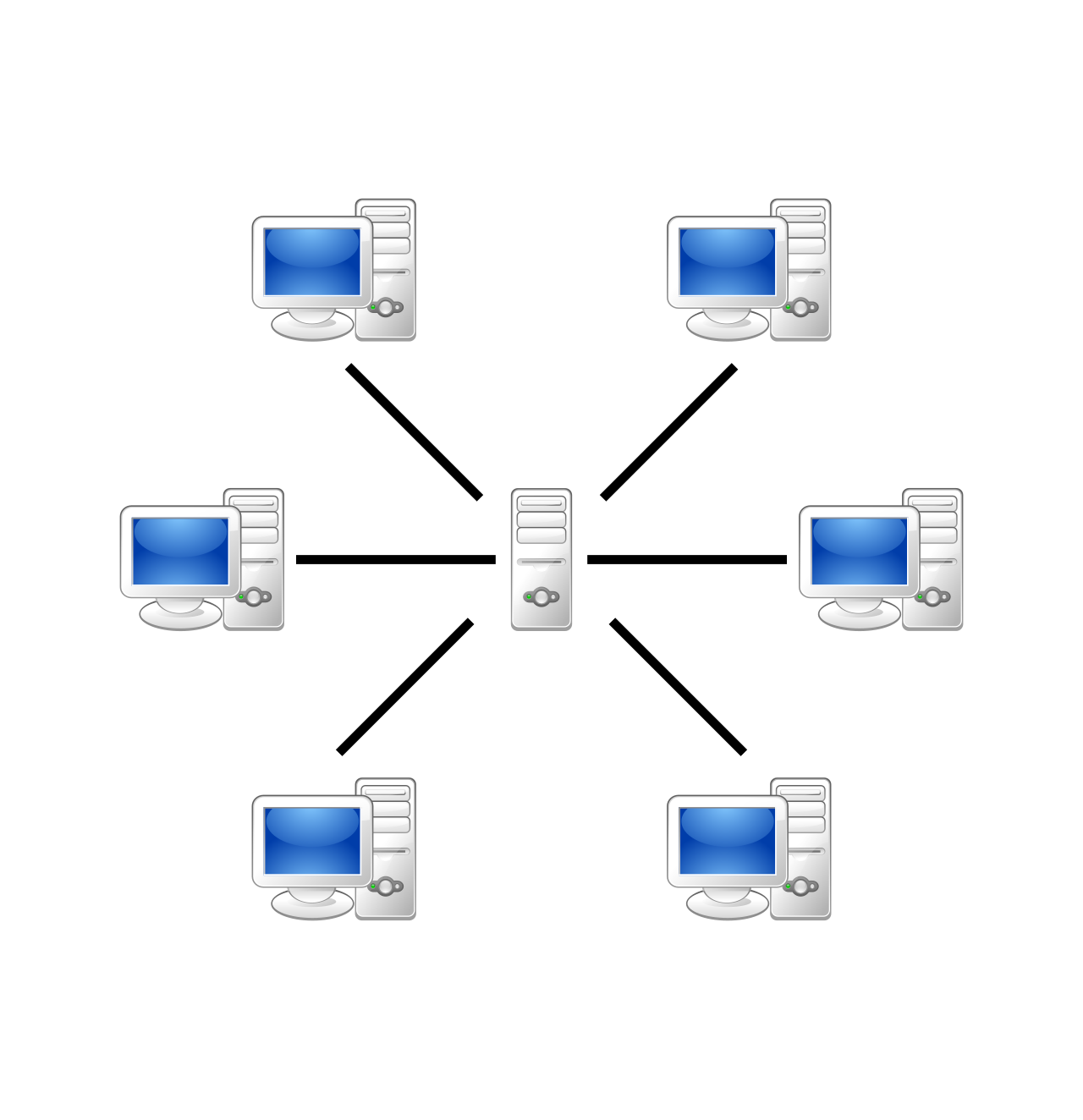
The Workgroup A Windows Workgroup is a decentralized peer-to-peer network without central authentication. Imagine a neighborhood where every house has its own distinct key. If a user wants to access five different computers, they must maintain five distinct sets of local credentials. This is perfectly adequate for a home or a tiny office, but attempting to manage a 500-computer workgroup is an administrative nightmare.
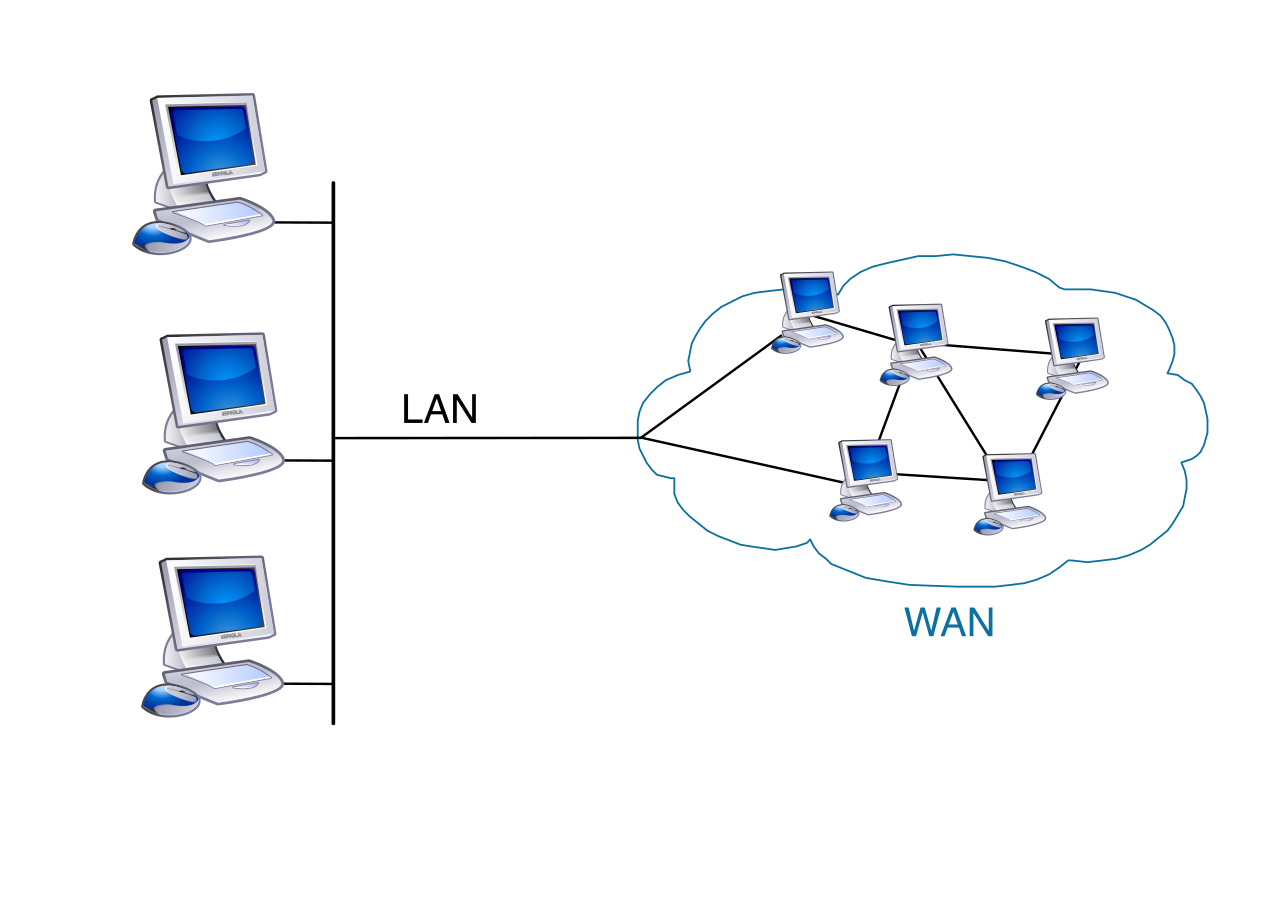
The Domain A Windows Domain provides centralized authentication and computer administration through Active Directory. Instead of hundreds of individual keys, imagine a highly secure gatekeeper at the center of the city. Users log in once using a domain controller, which verifies their identity and permissions across the entire network. Active Directory (AD) operates on local servers, while Azure Active Directory (Azure AD) operates natively in the cloud.
Microsoft segments its operating systems by capability and scale. Selecting the wrong edition for a user is like giving a race car driver a bicycle—the hardware might be great, but the feature set restricts the workflow.
Windows Home: The Consumer Foundation
Windows Home edition is designed primarily for individual consumer users. It focuses on basic productivity and entertainment, stripping away administrative tools to keep the environment simple.
- Networking: Windows Home editions cannot join an Active Directory domain, nor can they join an Azure Active Directory domain. They are strictly confined to Workgroups.
- Remote Access: While Windows Home editions can function as a Remote Desktop client to connect to other computers, they cannot host incoming Remote Desktop Protocol server connections. You can use it to dial out, but you cannot dial in.
- Security & Virtualization Lacks: Home users are restricted from advanced tools. Windows Home editions lack the Hyper-V virtualization feature, do not include the Windows Sandbox feature, and do not include the Group Policy Editor. Furthermore, Windows Home editions do not include the BitLocker Drive Encryption management feature.
Windows Pro: The Standard for Professionals and Small Business
Windows Pro edition is designed for small business users and advanced technical professionals. This is the absolute minimum tier required for corporate network management.
- Networking: Windows Pro editions support joining an Active Directory domain, as well as joining an Azure Active Directory domain.
- Administrative Control: Windows Pro editions include the Group Policy Editor for local configuration management, allowing IT to define precise behaviors on the machine.
- Remote Access: Unlike Home, Windows Pro editions can host incoming Remote Desktop Protocol server connections, allowing IT staff to remote into the machine for troubleshooting.
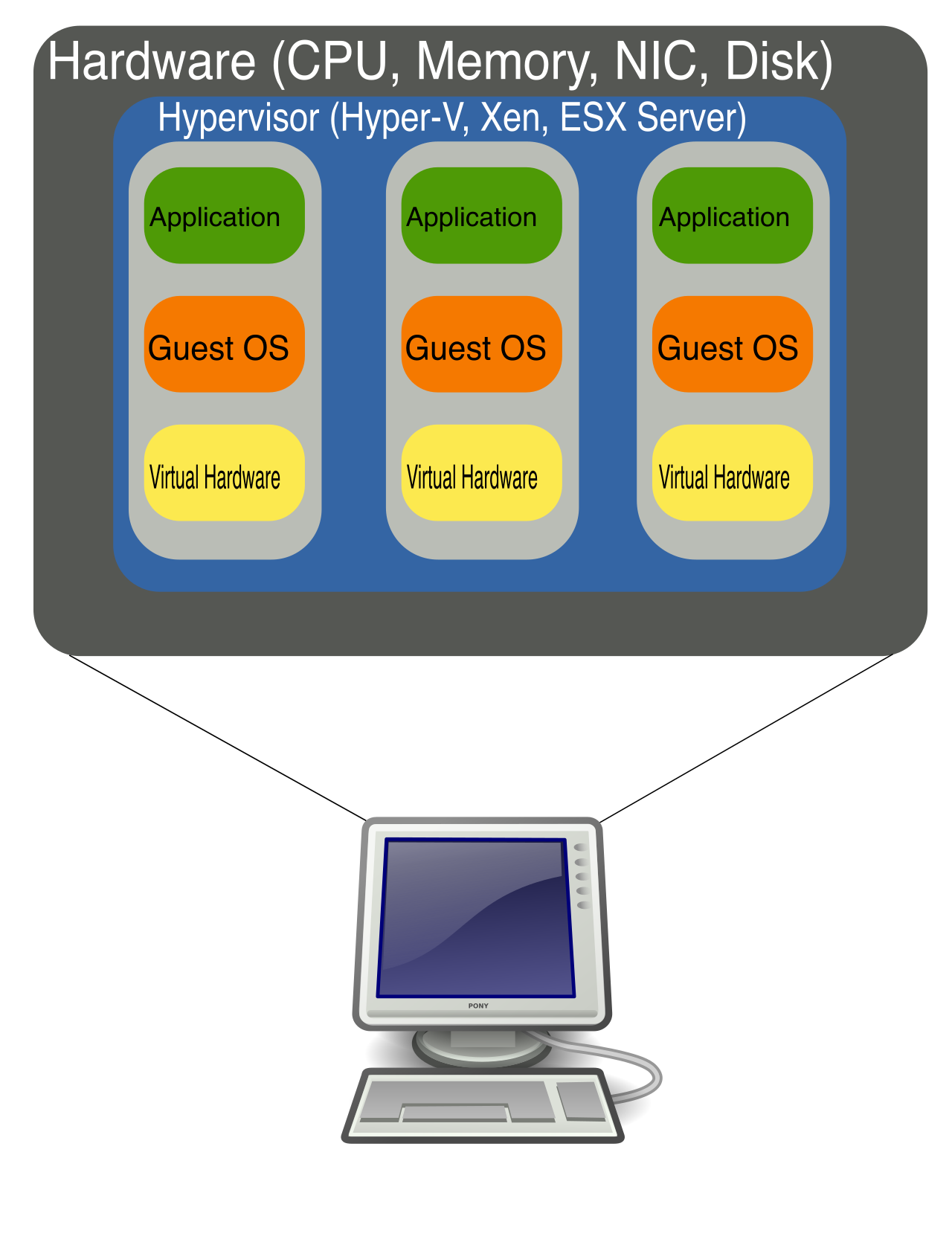
- Virtualization: Engineers and developers benefit heavily here. Windows Pro editions include the Hyper-V virtualization feature to create and run virtual machines natively. They also include the Windows Sandbox isolated environment feature—a brilliant tool that allows a technician to spin up a temporary, secure desktop to test suspicious software, which vanishes the moment it is closed.
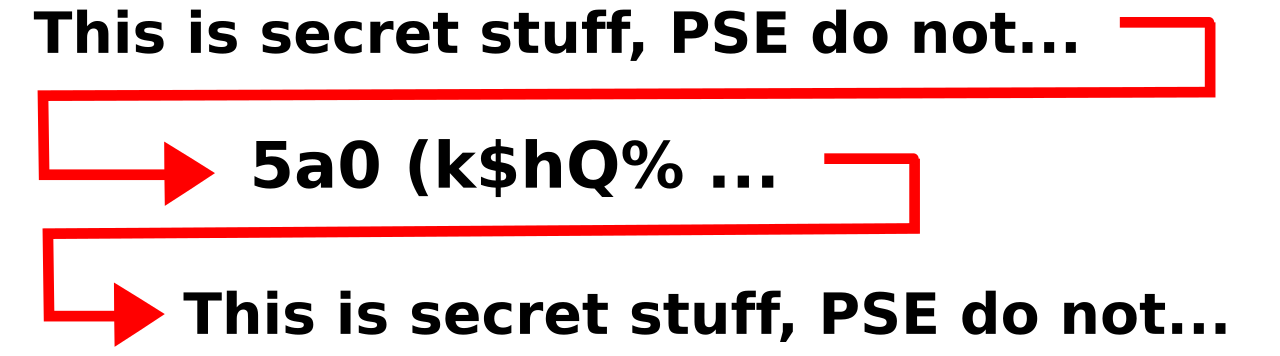
BitLocker Drive Encryption It is vital to understand the concept of data at rest. BitLocker Drive Encryption is a security feature that encrypts entire storage volumes to protect data at rest. If a laptop is stolen, the physical hard drive is useless to the thief because the data is mathematically scrambled. Windows Pro editions include the BitLocker Drive Encryption management feature, making it a critical requirement for corporate laptops.
Windows Enterprise and Education: The Organizational Giants
Windows Enterprise edition is designed for large organizations requiring advanced security and centralized management. You cannot simply buy this edition off a shelf; it is deployed via corporate volume licensing. Similarly, the Windows Education edition contains feature sets similar to Windows Enterprise but is licensed specifically for academic institutions like universities.
Enterprise editions encompass everything in Pro, but add tools designed for massive scale and advanced threat defense:
- Ultimate Networking: Windows Enterprise editions support joining both Active Directory and Azure Active Directory domains seamlessly.
- DirectAccess: Windows Enterprise editions support DirectAccess for remote network connectivity without utilizing a traditional virtual private network (VPN). It allows remote laptops to seamlessly connect to the corporate network the moment they have an internet connection, entirely transparent to the user.
- BranchCache: Imagine an office in London pulling a massive file from a server in New York. Instead of 50 users downloading the same file across the ocean, Windows Enterprise editions support BranchCache to optimize wide area network bandwidth across distributed offices. The first user downloads the file, and subsequent users pull it locally from the first user's cache.
- Advanced Threat Protection: Windows Enterprise editions include Credential Guard to protect authentication tokens from theft (preventing malicious actors from stealing active login sessions out of memory). Furthermore, Windows Enterprise editions support AppLocker for restricting unauthorized application execution, allowing administrators to definitively say, "Only these exact programs are allowed to run on company hardware."
Operating systems are not static; they must be upgraded or altered as user requirements change. IT professionals must master the workflow of OS migrations.
In-Place Upgrades vs. Clean Installations
There are two primary methods to transition an operating system:
- In-Place Upgrade: An in-place upgrade installs a newer Windows version directly over an existing installation. The beauty of this method is that an in-place upgrade preserves user files, applications, and operating system settings. The user comes back to their desk, and their workflow is exactly where they left it, just on a newer system.
- Clean Installation: A clean installation formats the storage drive and permanently deletes all previous operating system data. This is the "scorched earth" method, often required when resolving deep system corruption or moving backward in feature sets.
Moving Up and Down the Tiers
If a user purchases a retail laptop, it likely comes with Windows 10 Home. If they are suddenly hired by a company and need to join the domain, they need Pro. Fortunately, users can upgrade directly from Windows 10 Home to Windows 10 Pro by entering a valid product key. This acts as an instant, in-place upgrade unlocking the dormant Pro features.
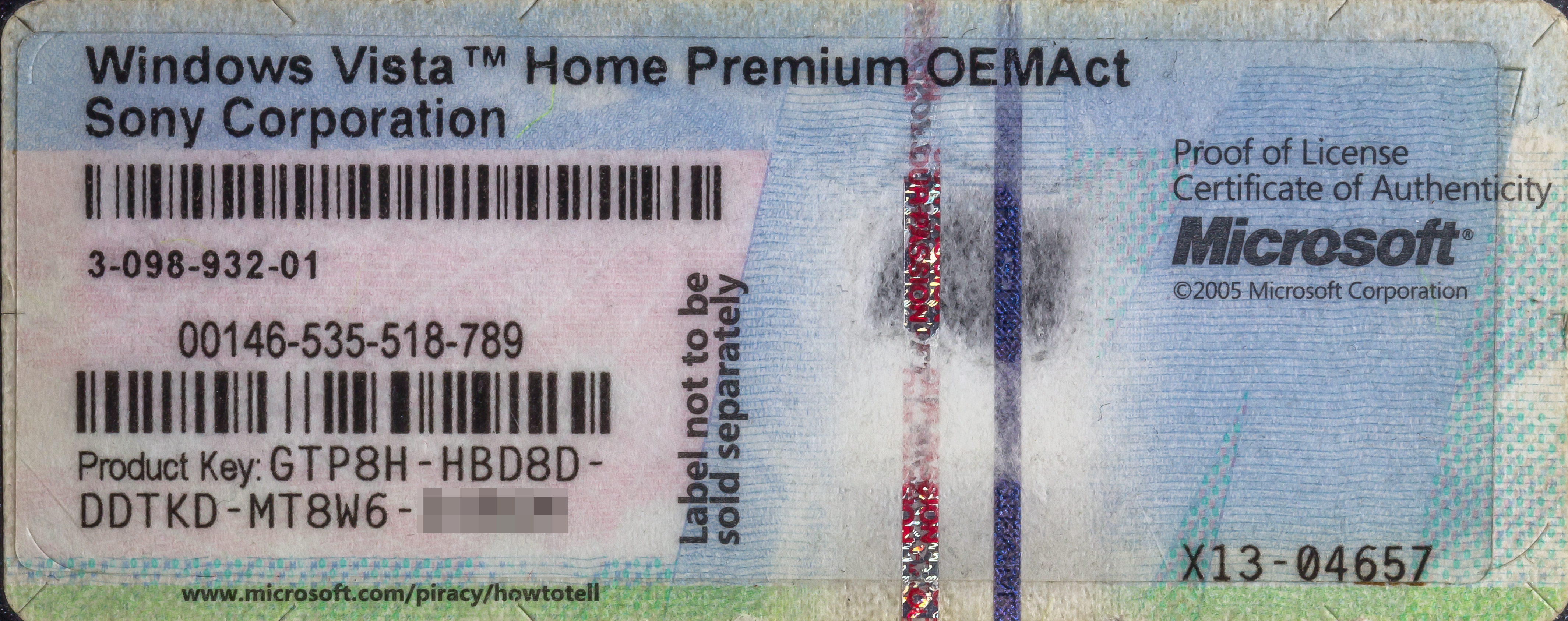
However, moving backwards is highly restricted. Users cannot perform an in-place downgrade from Windows 10 Pro to Windows 10 Home. If an organization sells a former corporate machine and wants to revert it to a Home license, downgrading from Windows Pro to Windows Home requires a full clean installation of the operating system.
Migrating to Windows 11
Transitioning from Windows 10 to Windows 11 is not guaranteed. A Windows 10 device must meet all specific Windows 11 hardware requirements to perform an in-place upgrade to Windows 11. If the machine lacks a TPM 2.0 chip or an approved 8th-generation or newer processor, the in-place upgrade simply will not execute.
Because manually checking RAM, TPM versions, and UEFI status across a fleet of computers is tedious, Microsoft provides the PC Health Check application to verify if a system meets the requirements for a Windows 11 upgrade. In the field, running this utility is step one before ever attempting a system rollout.
Understanding these boundaries—knowing precisely what hardware dictates what software, and what edition enables what features—is what separates a layman guessing at a keyboard from a professional engineering a solution. The operating system is your primary toolkit; know its parameters intimately.