PC Security Issues
Not sure you’re ready?
Take the ~3-minute readiness diagnostic and see where you stand.
A modern operating system is a highly choreographed ecosystem of trust, where services, applications, and network protocols communicate under the assumption of mutual legitimacy. When malicious software breaches this perimeter, it does not merely damage files; it subverts the very mechanisms the system uses to defend itself, diagnose problems, and communicate with the outside world. For an IT support professional, troubleshooting PC security issues is rarely a matter of running a single scan. It requires understanding the anatomy of an infection, recognizing how malware isolates its host, and mathematically proving where the chain of trust has been broken.
One of the most profound realizations in technical support is that modern malware often does not want to hide; it wants to be seen, provided it controls the narrative. A vast ecosystem of malicious software relies on psychological manipulation rather than pure technical exploitation.
You will frequently encounter users paralyzed by unexpected desktop alerts claiming the system is infected. These warnings are often generated by rogue antivirus software. To maximize their deception, rogue antivirus software mimics the visual appearance of legitimate security programs, utilizing familiar shield icons, progress bars, and localized language.
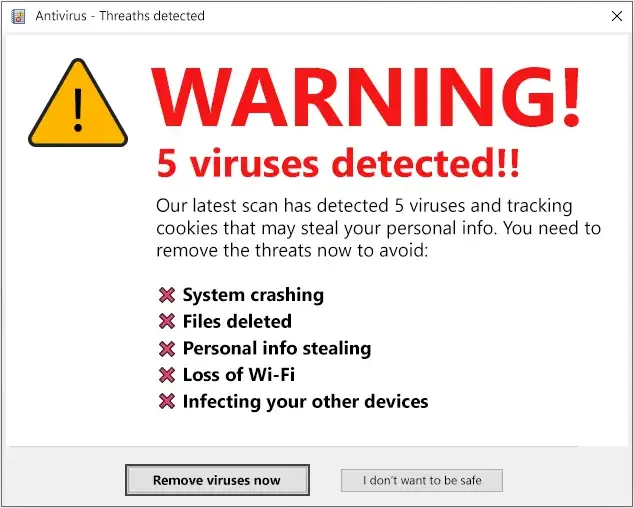
The purpose of these false antivirus alerts is twofold. First, false antivirus alerts are designed to scare users into downloading additional malicious software, framing the new payload as an "emergency update" or "cleaning tool." Second, false antivirus alerts often attempt to trick users into paying for useless remediation services.
However, not all alerts originate from an installed executable. Sometimes, the threat vector is entirely web-based. Unwanted operating system notifications can originate from malicious web browser extensions, or even from legitimate web features that have been weaponized. Website push notifications can be abused to display fake operating system-level security warnings right above the system tray, looking identical to native Windows notifications.
Diagnostic Heuristic: If a user reports relentless security pop-ups from the corner of their screen, check the web browser first. Disabling website notifications in browser settings stops fake security alerts generated by websites immediately, proving the "infection" was merely a browser permission exploit.
The web browser is the user's primary interface with the outside world, making it the most lucrative target for exploitation. When a user complains of a chaotic web experience, you are likely dealing with adware—a type of malware designed to display unwanted advertisements to the user. Frequent browser pop-ups are a primary symptom of an adware infection.
To maximize ad revenue, malicious software will attempt to control where the user goes. Browser redirection occurs when malicious software forces the web browser to navigate to unintended websites. This is achieved through specific configuration overrides:
- Browser redirection malware often alters the web browser homepage to a malicious webpage, ensuring the payload triggers every time the application opens.
- Browser redirection malware often modifies the default search engine in the web browser settings, allowing attackers to intercept search queries and serve monetized, often dangerous, results.
Users will inevitably attempt to navigate back to safety, but attackers anticipate this. Phishing websites often use typosquatting URLs (e.g., googIe.com instead of google.com) to visually trick users into believing the website is legitimate.

Furthermore, this malicious activity severely taxes system resources. Malicious browser extensions can cause severely degraded web browser performance, grinding tab navigation to a halt. Beyond performance, malicious browser extensions can inject unauthorized advertisements into otherwise legitimate websites, seamlessly overlaying fraudulent banners onto trusted news sites or banking portals.
The Cryptography of Interception
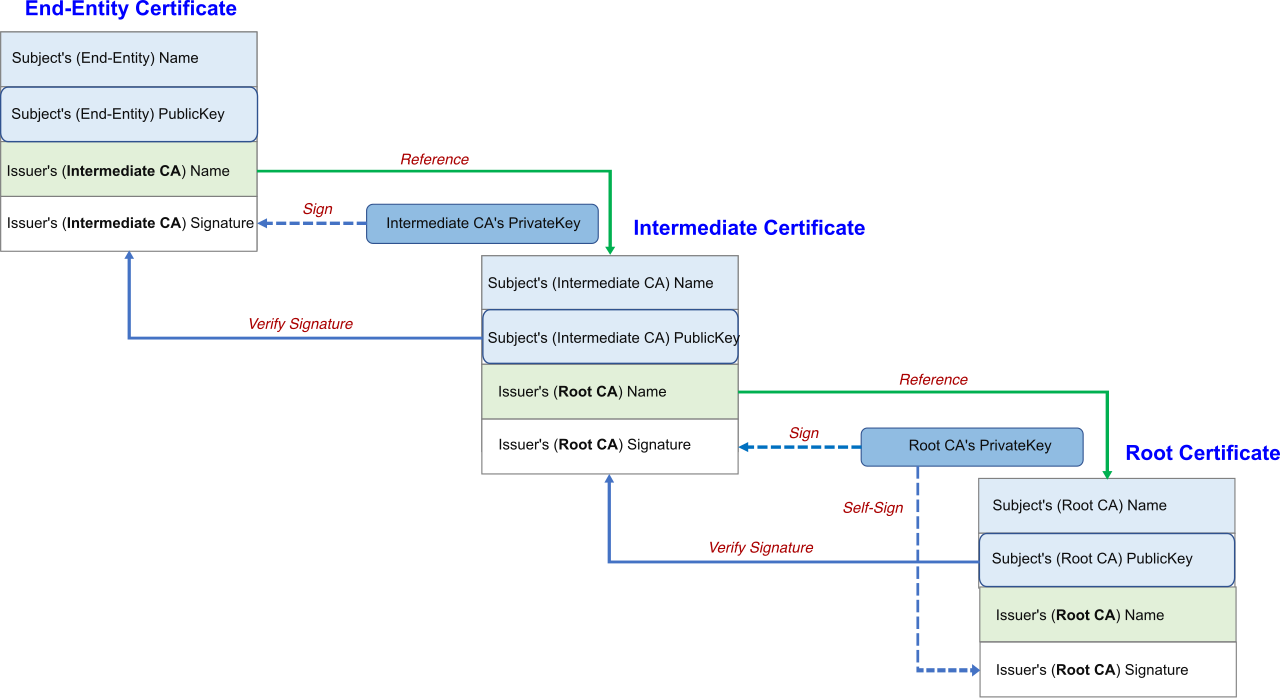
When users attempt to access secure, encrypted websites (HTTPS), they may suddenly face a wall of red error screens. Invalid security certificate warnings occur when a website SSL/TLS certificate is not trusted by a local root certificate authority.
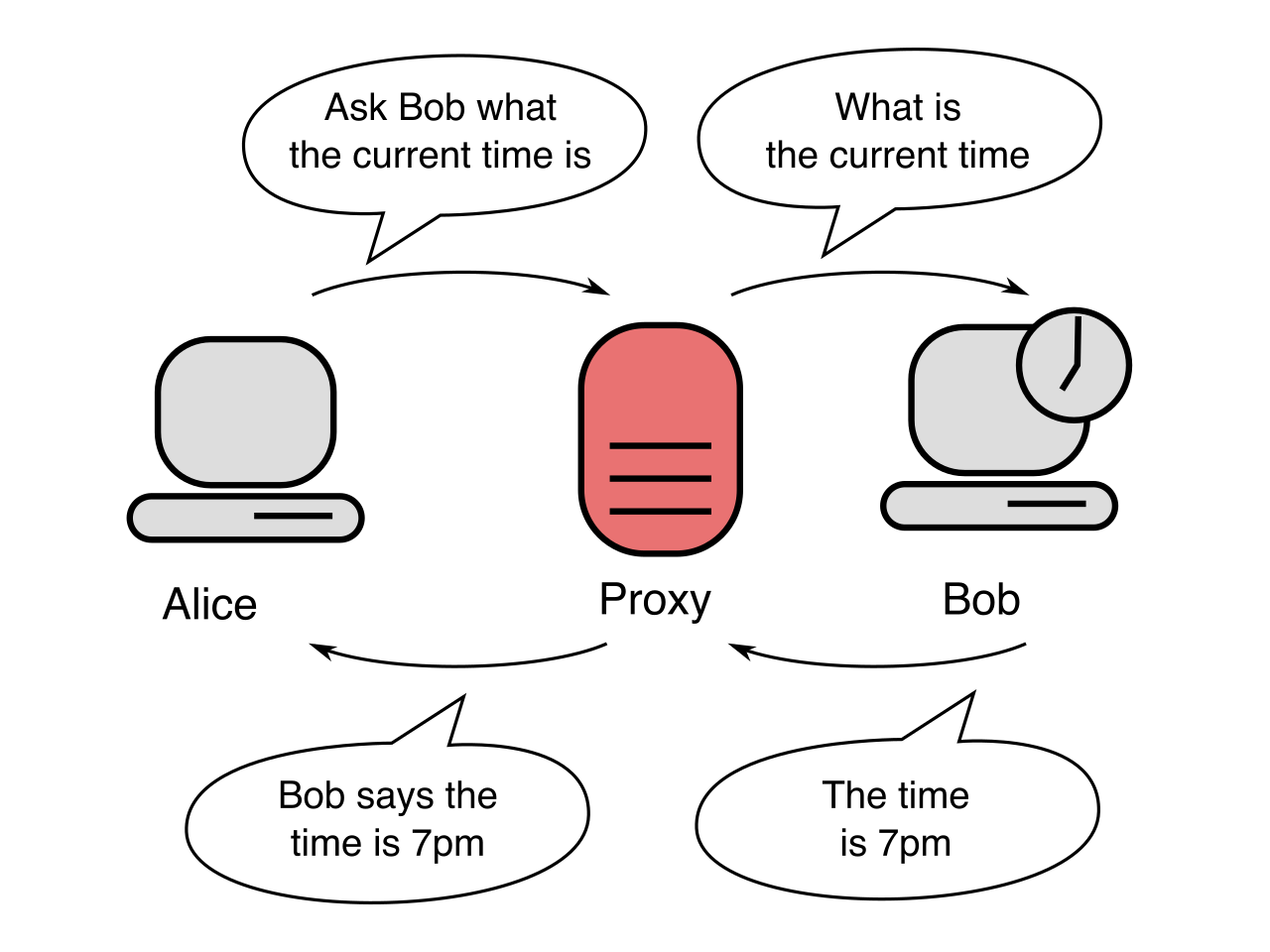
Why would this happen suddenly on trusted sites? Because malware acting as a local proxy can intercept secure HTTPS connections. By standing between the browser and the internet, the malware decrypts the traffic, reads it, and re-encrypts it using its own forged certificate. Malware acting as a local proxy triggers browser certificate warnings due to mismatched SSL certificates, as the browser rightly recognizes the local proxy's certificate as a forgery.
| Troubleshooting Step | Outcome & Rationale |
|---|---|
| Disable Extensions | Disabling unrecognized browser extensions is a key troubleshooting step for resolving browser redirection. It isolates user-installed code from the core browser engine. |
| Reset Browser | Resetting a web browser to default settings can remove malicious homepage modifications instantly. |
| Clear Local Add-ons | Resetting a web browser to default settings permanently removes all installed browser extensions, nuking persistent threats. |
| Check Pop-up Rules | Remember that browser pop-up blockers can be completely bypassed by malicious software installed locally on the computer; if local malware is generating the pop-up, web-level blockers are useless. |
If an invasive biological virus wants to survive, it must neutralize the host's immune system. Digital viruses operate on the exact same logic. When a computer is infected, the malware will systematically sever the machine's lifelines.
To maintain control, malware often disables network access to prevent the operating system from downloading antivirus updates. Antivirus software relies on definition updates to identify newly discovered malware threats. Without these updates, the AV engine is fighting yesterday's war. Therefore, a persistent failure to download antivirus definition updates can indicate an active malware infection blocking the network connection.
Furthermore, attackers know that a skilled technician might try to intervene. Malware often disables network access to prevent technicians from establishing remote support connections, forcing you to troubleshoot the machine locally.
The War on Windows Update
The operating system itself must be starved of patches. Malware often intentionally blocks operating system updates to keep known software vulnerabilities unpatched. It achieves this blockade through several mechanisms:
- Host File Hijacking: Malware often modifies the Windows hosts file to locally block network access to Microsoft update servers. By routing
update.microsoft.comto a local loopback address (127.0.0.1), the computer is mathematically blind to the existence of the update servers. - Service Sabotage: Malware can forcibly disable the Windows Update service to prevent the installation of security patches. If the underlying background service is stopped, the user interface will simply hang or fail.
When updates fail without obvious network manipulation, we must examine the mathematics of trust. Corrupted system certificates can prevent the operating system from successfully verifying Windows Update downloads. If the OS cannot mathematically prove the patch came from Microsoft, it will rightfully refuse to install it.
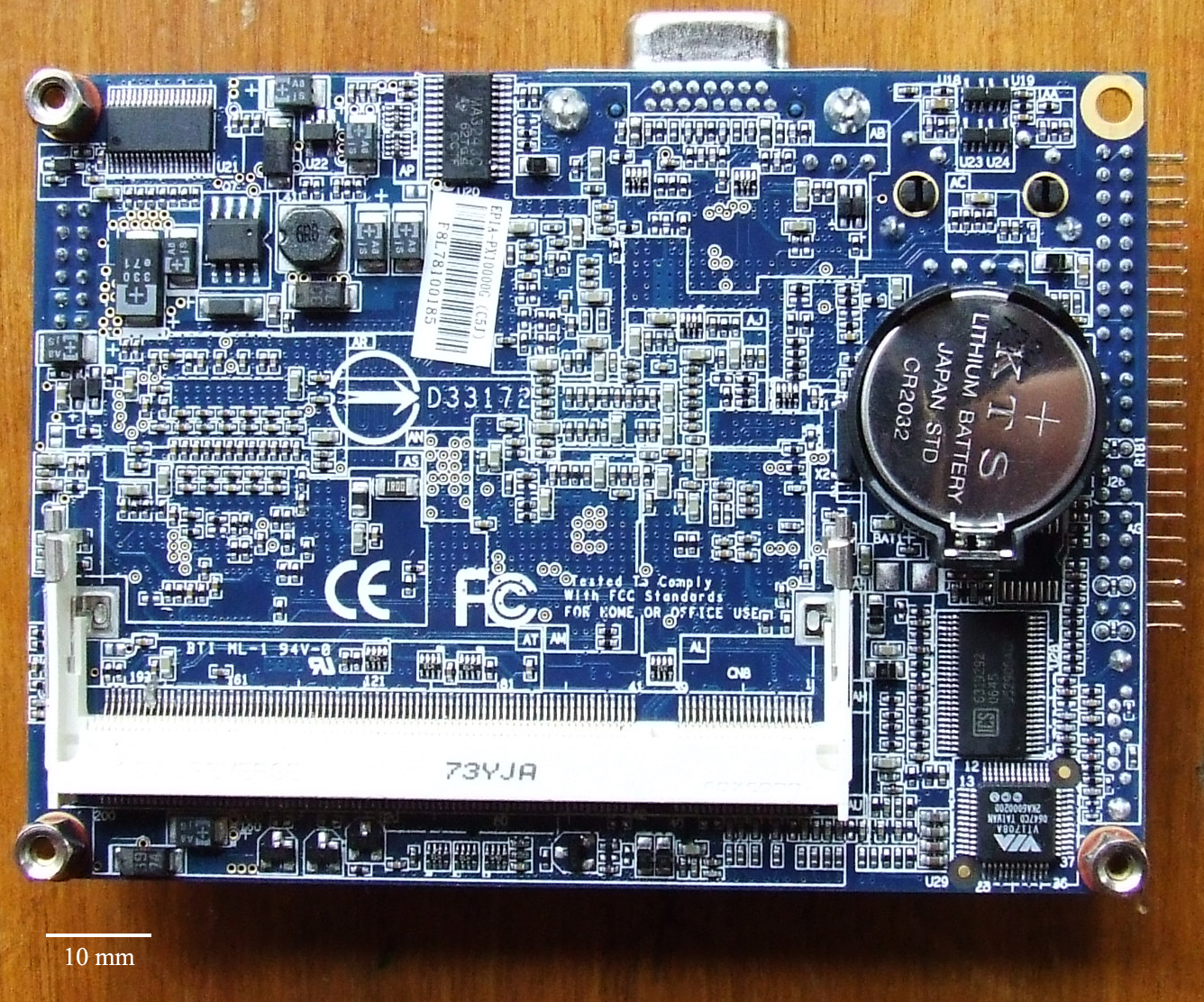
Often, the root cause of this cryptographic failure is mundane: time. An incorrect system date and time causes certificate validation errors during secure network connections. Because an X.509 certificate has a strict Valid From and Valid To timestamp, invalid timekeeping breaks the math. Consequently, an incorrect system date and time can cause operating system update failures due to expired certificate calculations. Invalid security certificate warnings occur when a website SSL/TLS certificate is mathematically expired—whether that expiration is real, or perceived due to a dead CMOS battery throwing the system clock back to 2012.
Pro-Tip for Technicians: When an update fails, do not guess. The Windows Event Viewer application logs system errors. Windows Event Viewer logs can help identify the exact background service failing during an operating system update, providing you with the exact faulting module or hex error code.
Once the system is blind, isolated, and unpatched, destructive payloads execute their primary objectives. You must be able to recognize the physical symptoms of different malware classes at the file level.
Ransomware is arguably the most devastating. Ransomware typically encrypts personal files to extort money from the user. To make the damage visually obvious to the victim, ransomware typically alters the file extensions of the files the malicious software encrypts (for example, turning budget.xlsx into budget.xlsx.locked).
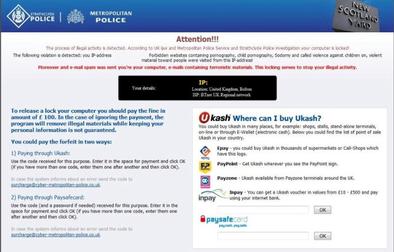
Other forms of malware aim for stealth rather than immediate extortion. Malware can alter file attributes to hide malicious executables from standard operating system file explorer views. Even if you are looking at the infected directory, you will not see the executable unless you have explicitly configured Windows to reveal hidden and system files.
As malware entrenches itself, system permissions will warp. Altered system file permissions are a common indicator of a malware infection, as the malicious code grants itself localized administrative rights while locking out the legitimate user.
If the malware is poorly coded, or explicitly designed for sabotage (like a wiper), you will see catastrophic file system failures. Renamed core system files are a common indicator of a destructive virus infection. Eventually, missing core system files can prevent the operating system from booting properly entirely, leading to a "Boot Device Not Found" or "NTLDR is missing" error.
Resource Exhaustion
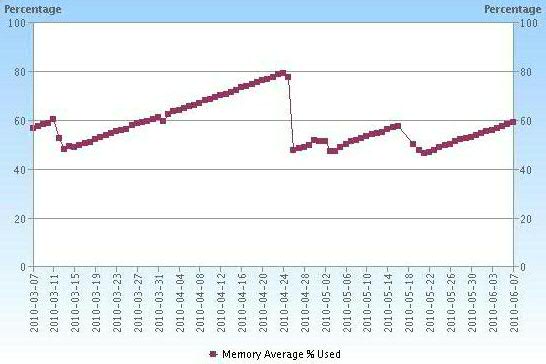
Malware is inherently inefficient and greedy. While investigating a slow machine, pay attention to the hard drive and memory. A sudden lack of free storage space can indicate malware actively replicating files across the hard drive, filling the disk with junk data or worm variants. Similarly, unexpected system lockups can be caused by malware consuming all available system memory through memory leaks or aggressive background crypto-mining.
Malware rarely wants to stay confined to a single machine. It seeks to replicate by weaponizing the user's trust network. If a user's machine or associated cloud identity is compromised, the attacker will pivot to their contacts.
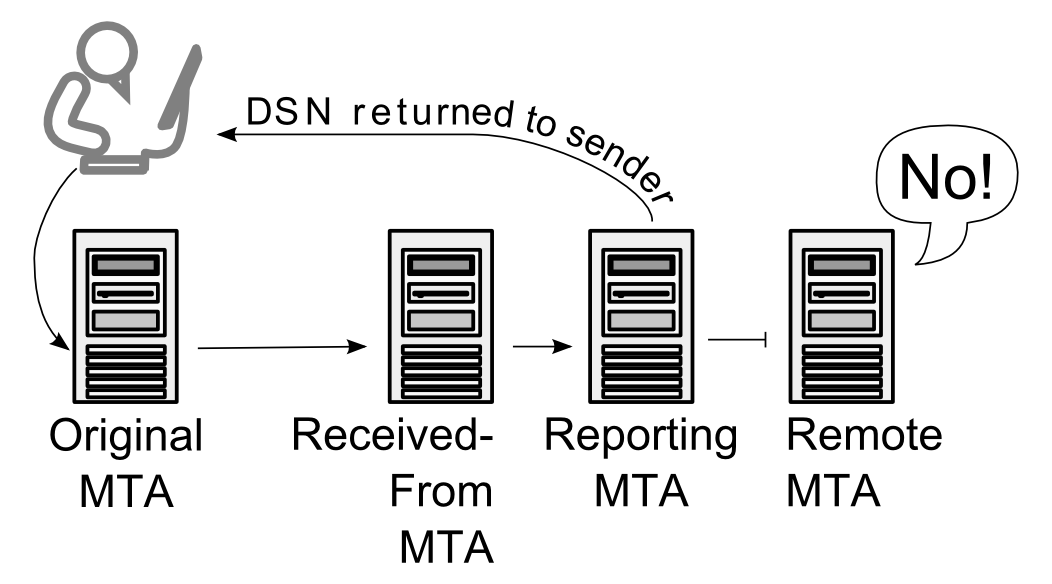
A hijacked email account often sends spam messages to the user's entire address book. Because the emails come from a recognized sender, the recipients are highly likely to click the malicious links. As a technician, your earliest warning sign of this lateral movement won't come from the sender, but from the mail server. Automated delivery failure replies from unknown recipients often indicate an email account has been compromised to send spam. The attacker is blasting thousands of emails, and the inevitable bounces are flooding back into the legitimate user's inbox.
When faced with an entrenched, actively hostile operating system, you must systematically strip away the malware's advantages.
Your first window into the enemy's operations is the Task Manager. Reviewing the Task Manager startup tab can reveal malicious programs configured to launch alongside the operating system. Disabling these rogue entries is your first step to regaining control.
However, many rootkits and advanced trojans protect their startup entries. To bypass this, you must change the rules of engagement by altering the boot state. Booting Windows into Safe Mode loads only essential drivers and essential system services. By stripping the OS down to its bare minimum, booting Windows into Safe Mode helps isolate malware by preventing malicious startup programs from executing automatically.
If the malware hooks itself so deeply into the kernel that even Safe Mode is compromised, you must attack it before the operating system exists in memory. A Windows Defender Offline Scan allows for malware removal before the main Windows operating system boots, utilizing a clean mini-environment (Windows RE) to scan the dormant hard drive.
Finally, when the malware is neutralized but the system configuration is left in ruins, you must repair the damage. System Restore can be used to revert operating system files to a specific state before a malware infection occurred, rolling back registry keys, drivers, and system configurations to a known good snapshot.
Sophisticated attackers, however, anticipate this recovery tactic. Malware often deletes Windows System Restore points to intentionally prevent system recovery, forcing the user to either pay the ransom or face a complete OS reinstallation.
Summary of the Professional Work Flow
To succeed in IT support, you must view a computer not as a static object, but as a living system. When symptoms appear—whether they are fake alerts, browser redirections, or failing updates—they are not random glitches. They are the systemic outcomes of unauthorized code manipulating network paths, cryptographic trusts, and file system rules. By tracing the symptoms back to their logical origins, you transition from merely guessing at solutions to scientifically disarming the threat.