Windows Command-Line Tools
Not sure you’re ready?
Take the ~3-minute readiness diagnostic and see where you stand.
A graphical user interface is merely a polite abstraction. When a user clicks a folder, drags a file, or connects to a Wi-Fi network, they are interacting with a veneer—a visual convenience that politely asks the operating system to execute a set of underlying commands. But when a system breaks, polite abstractions are useless. As an IT professional, you must bypass the dashboard and put your hands directly on the engine. The Windows command-line interface (CLI) is where the true mechanics of the operating system are exposed. By mastering the command prompt, you gain the ability to interrogate the network, manipulate file metadata, forcefully override configurations, and resurrect failing operating systems.
Before you can fix a machine, you must know how to move through it. The file system is a strict hierarchy, an inverted tree branching outward from the root drive down to specific subdirectories. In a graphical window, you double-click; in the command line, you must deliberately state your coordinates.
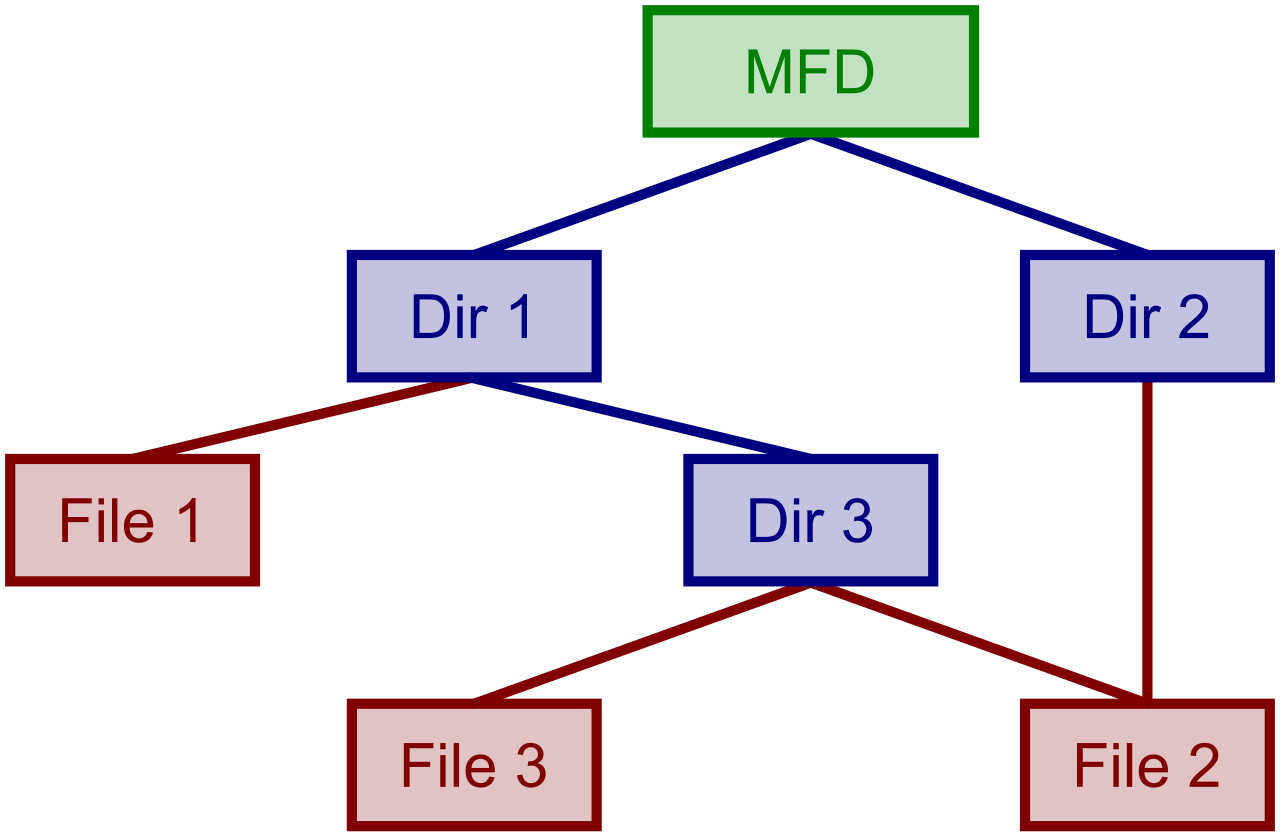
The cd command changes the current working directory in the Windows command prompt, effectively shifting your frame of reference. You are always "standing" in a specific folder. To see what surrounds you, execute the dir command, which lists files and subdirectories contained within the current working directory.
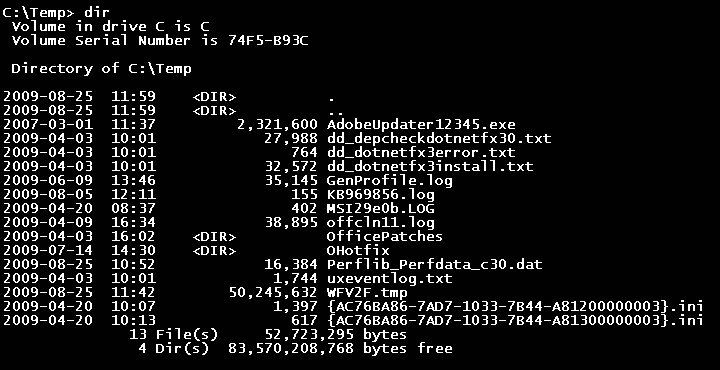
Navigation requires precision moving both down and up the hierarchy.
- Typing
cd ..in the Windows command prompt moves the current path up exactly one directory level. (Think of the two dots as stepping backward out of the room and into the hallway). - If you are buried deep in a file path like
C:\Users\Admin\Documents\Projects\2026\, typingcd \in the Windows command prompt changes the current directory directly to the root of the current drive (landing you instantly atC:\).
To alter the environment, you use core structural commands. The md command creates a new directory in the Windows file system, carving out new space. Conversely, the rd command removes a directory from the Windows file system. To clear out individual files rather than whole folders, the del command deletes one or more specified files from a directory.
The Universal Manual: You do not need to memorize every single modifier for these tools. Appending
/?to a Windows command line tool displays the help documentation and available execution switches for that specific tool. Executingdel /?reveals exactly how to force deletion of read-only files, a critical trick for stubborn malware remnants.
When a user submits a ticket stating "the internet is down," they are describing a symptom. Your job is to isolate the pathology. Is the machine lacking a valid IP address? Is the router dropping packets? Is the DNS server failing to resolve human-readable domain names? The CLI provides a suite of diagnostic instruments to answer these exact questions.
Self-Identity: The ipconfig Command
First, verify how the computer perceives its own connection. The ipconfig command displays all current TCP/IP network configuration values for the local network adapters. However, for a deep dive, executing the ipconfig /all command displays advanced network adapter information including the physical MAC address and assigned DNS servers.
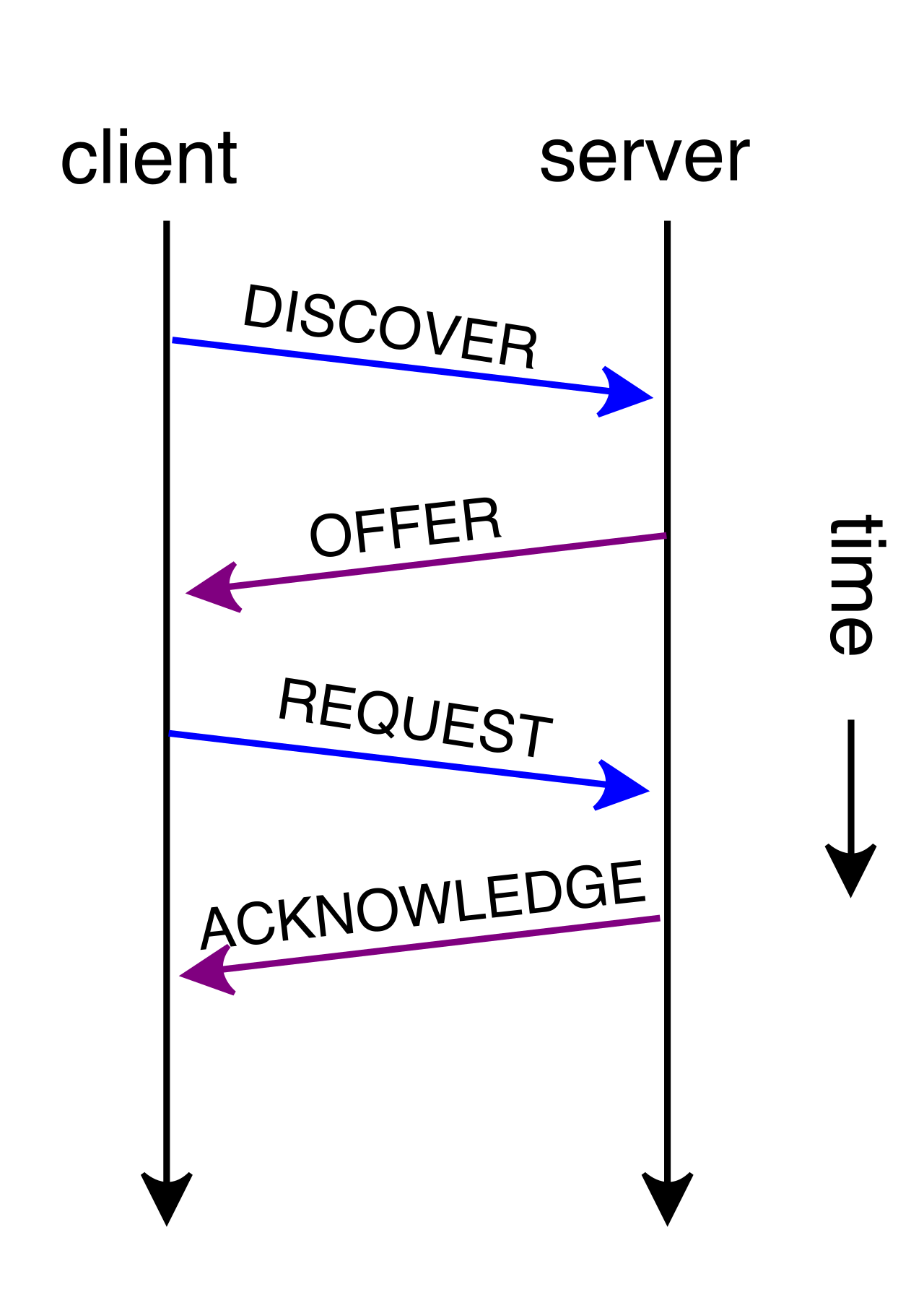
If a computer is holding onto a corrupted or conflicting IP address assigned by the DHCP (Dynamic Host Configuration Protocol) server, you must force it to let go and ask for a new one.
- The
ipconfig /releasecommand sends a message to the DHCP server to discard the current IPv4 address lease. The computer effectively drops its IP address. - Next, the
ipconfig /renewcommand requests a new IPv4 address lease from the local DHCP server, ideally securing a fresh, conflict-free address.
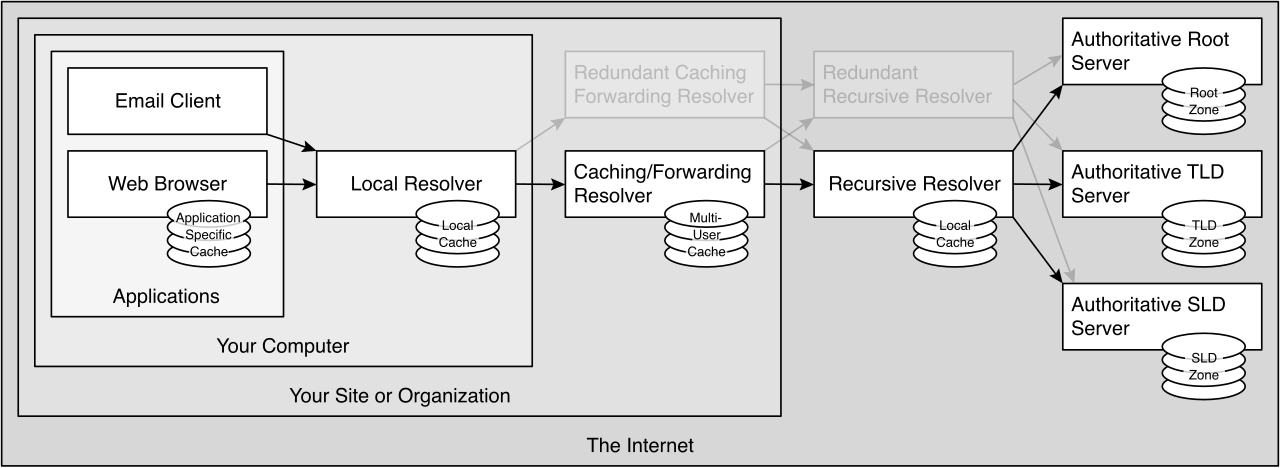
Sometimes the issue is not the IP address itself, but the phonebook the computer uses to find other websites. The ipconfig /flushdns command clears the local DNS client resolver cache to resolve domain naming issues. If a website recently migrated to a new server but the user's computer stubbornly tries to load the old, dead IP address, flushing the DNS forces the machine to ask for updated directions. Similarly, the nslookup command queries Domain Name System infrastructure to resolve an IP address to a hostname or to resolve a hostname to an IP address, allowing you to manually verify if the DNS server is providing correct answers.
Reachability and Pathfinding: ping and tracert
Once the local machine's identity is confirmed, test its ability to reach the outside world. The ping command verifies IP-level connectivity to another TCP/IP computer by sending ICMP Echo Request messages. It is digital sonar. You send a "ping," and the destination machine replies with a "pong."
- Standard ping sends four packets and stops. But if you are troubleshooting an intermittent connection drop—perhaps a loose Ethernet cable or a failing Wi-Fi access point—the
ping -tcommand sends continuous ping requests to the specified destination until manually interrupted by the user (usingCtrl + C).
If a ping fails, you must find out exactly where the connection died. Did it die at the local firewall, the ISP, or the destination server? The tracert command displays every router hop between the source computer and the destination IP address.
The Physics of Tracert: How does
tracertactually map these unseen hops? Thetracertcommand increments the Time-to-Live (TTL) value of packets to discover the path taken to a destination network.Imagine a packet as a traveler with a finite number of steps allowed.
tracertsends a packet with a TTL of 1. The very first router it hits decrements the TTL to 0, drops the packet, and sends back an error message: "Time Exceeded."tracertrecords the IP of that router. It then sends a second packet with a TTL of 2. The first router passes it, but the second router drops it and replies. By systematically incrementing the TTL,tracertforces every router along the path to reveal its identity until the final destination is reached.
Observing Active Traffic: netstat
Sometimes the threat is coming from within. If you suspect malware is quietly transmitting data, or you need to know if an application is actively listening for incoming connections, use the netstat command. It displays active TCP connections, listening network ports, and Ethernet statistics.
- The
netstat -acommand displays all active TCP connections and all listening TCP and UDP ports on the local machine. - Because resolving hostnames can be incredibly slow and sometimes obscure the true destination, the
netstat -ncommand displays active TCP connections using numerical IP addresses and port numbers instead of resolving hostnames. This provides instant, raw data you can cross-reference against known malicious IP blocks.
As an IT technician, you are frequently tasked with configuring new hard drives, recovering failing sectors, and migrating colossal amounts of user data securely.
Preparing and Healing Disks
When you plug a brand-new raw drive into a motherboard, the operating system cannot inherently read or write to it. It has no structure. The diskpart command is a text-mode command interpreter used to manage storage disks, partitions, and volumes. Because it has the power to instantly wipe out entire hard drives, the diskpart utility requires administrative command prompt privileges to execute successfully. Once the partition is created, the format command prepares a raw storage drive to hold data by creating a new file system (like NTFS or exFAT).
Storage drives degrade over time. Power outages corrupt files, and physical platters develop dead spots. The chkdsk command checks the file system metadata of a storage volume for logical and physical errors. It operates in two primary tiers of repair:
- Logical Repairs: The
chkdsk /fcommand fixes logical file system errors on the targeted storage drive. It repairs the index, the master file table, and directory structures. - Physical Repairs: The
chkdsk /rcommand locates bad sectors on a physical disk and recovers readable information into healthy sectors. It performs an exhaustive, block-by-block surface scan of the drive.
Executing the chkdsk /r command automatically implies and includes the file-fixing functionality of the /f switch. However, there is a strict operational rule: The chkdsk /f command requires exclusive access to the target storage volume to perform file system repairs. You cannot repair the floorboards while someone is standing on them. If you attempt this on the main C:\ drive, the chkdsk utility will schedule a disk scan to run automatically during the next system restart if the target volume is currently in use by the operating system.

Migrating Data: From Simple to Robust
When a user gets a new laptop, their data must be migrated flawlessly.
- The standard
copycommand duplicates files from one location to another without retaining advanced NTFS permissions. It is fine for moving a single PDF, but useless for corporate migrations where security permissions matter. - The
xcopycommand steps up the capability; it copies files and entire directory trees while retaining original file attributes. - However, the industry standard for enterprise data migration is
robocopy(Robust File Copy). Therobocopycommand is a robust file copying tool designed for reliable duplication of massive directory trees over network connections. Its greatest strength is its resilience. If someone trips over an Ethernet cable midway through a 500 GB file transfer, therobocopycommand can automatically resume interrupted file transfers after a temporary network disconnection. It simply waits, reconnects, and picks up exactly where it left off.
In enterprise environments, endpoints are not isolated islands; they are tightly governed by central corporate policies. Furthermore, local system files can become corrupted, and runaway applications can hijack system resources. You must know how to assert control over the operating system's configuration and processes.
Active Directory and Group Policy
In a Windows domain, user restrictions—such as mapping network drives, enforcing screen timeouts, or blocking the installation of specific software—are handled via Group Policy. When you make a change to an employee's access rights on the server, their laptop may not realize the rules have changed until its next automatic check-in.
To force the issue, the gpupdate command applies new or modified local and Active Directory-based Group Policy settings to the machine. If the machine seems to be ignoring the update due to cached optimization protocols, the gpupdate /force command ignores all background processing optimization rules and forcefully reapplies all Group Policy settings.
If a user complains they still lack access to a specific printer despite your server-side changes, you need to see what rules their specific machine is actually interpreting. The gpresult command displays the Resultant Set of Policy information for a specific user or computer. Executing the gpresult /r command displays Group Policy summary data and lists the specific Group Policy Objects currently applied to the system, allowing you to instantly pinpoint if a conflicting policy is overriding your configurations.
System Integrity and Repair
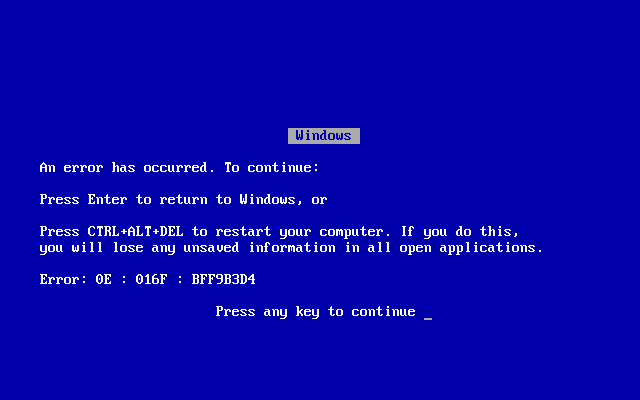
When a computer starts throwing bizarre blue screens or core Windows applications crash on launch, core OS files have likely been corrupted by a bad update, a sudden power loss, or malware.
Your first line of defense is the System File Checker. The sfc command scans all protected system files and replaces corrupted versions with a cached healthy copy hidden deep within the Windows architecture. To execute this immediately, the sfc /scannow command immediately initiates the scanning and repairing process for all protected Windows system files.
If the cached repository that sfc relies on is itself corrupted, you must repair the repository first. The Deployment Image Servicing and Management (dism) command services Windows images and repairs corruption in the underlying Windows component store. Once dism heals the underlying component store, sfc /scannow can successfully repair the outward-facing system files.
Process and Power Management
When a graphical application freezes, it often takes the entire desktop environment hostage. You cannot click the "X" to close it. Instead, you drop to the command line.
The tasklist command outputs a comprehensive list of all currently running processes and their associated memory usage on a Windows machine. Once you identify the rogue application's Process ID (PID) or exact image name (e.g., winword.exe), you execute the kill order. The taskkill command ends active processes by targeting either the numerical process ID or the executable image name. If the application is entirely unresponsive and ignoring standard close requests, the taskkill /f command forcefully terminates a running process without waiting for the application to close gracefully.
Finally, managing the physical power state of the machine via CLI is essential, especially when managing systems remotely over the network.
- The
shutdown /scommand performs a standard power off sequence for the local computer system. - The
shutdown /rcommand performs a full power off sequence and subsequently restarts the local computer system—vital for applying updates or registry changes. - To manage the timing of this event, the
shutdown /tcommand specifies the exact time delay in seconds before a scheduled system shutdown event occurs (e.g.,shutdown /r /t 3600reboots the machine in exactly one hour). - If you make a mistake or the user begs you for a few more minutes to save their work, the
shutdown /acommand aborts a previously initiated system shutdown timer, immediately canceling the countdown.
Mastery of these command-line tools separates the procedural technicians from the true diagnostic engineers. The GUI exists to make the computer easy to use; the command line exists to make the computer possible to fix.