Windows System Settings
Not sure you’re ready?
Take the ~3-minute readiness diagnostic and see where you stand.
An operating system is not merely a platform for launching applications; it is a sprawling, highly regulated corporate facility. As an IT support specialist, you are the facility manager. When a user cannot find a hidden configuration file, when a laptop battery drains inexplicably, or when a visually impaired employee requires immediate accommodations to perform their duties, you do not rewrite the operating system. You manipulate its environment. Windows system settings are the levers and dials that dictate how the OS interacts with human users, external networks, and physical hardware. Understanding these configurations separates a technician who randomly clicks through menus from an engineer who definitively architects a stable, secure, and accessible workstation.
How a user views and searches for their data dictates their productivity. Out of the box, Windows attempts to shield users from complexity, which often hampers a technician's ability to troubleshoot.
File Explorer Options
The File Explorer Options applet defines the rules of engagement for the graphical file system. At a fundamental level, you can configure whether folders open in the same window or a new window—a critical workflow preference for users managing complex directory structures. However, the true diagnostic power lies within the View tab and the Search tab.
The View tab contains the vital setting to show or hide hidden files, folders, and drives. By default, Windows obscures critical system directories (like AppData) to prevent accidental deletion by end-users. As a technician, you will frequently toggle this to access application logs and user profile configurations.
Furthermore, the View tab contains a setting to hide extensions for known file types. Hiding extensions for known file types is enabled by default in Microsoft Windows.
Security Warning: The default behavior of hiding extensions is a well-known vulnerability vector. A malicious file named
invoice.pdf.exewill appear to the user simply asinvoice.pdf. Disabling this setting is one of the first actions many security-conscious administrators take on a new machine.
Finally, the Search tab in File Explorer Options controls whether to search system directories and compressed files (like .zip archives). Searching inside compressed files takes significantly more computational power, so toggling this allows you to balance thoroughness with speed.
Windows Search Indexing
When a user types a query into the Start menu or File Explorer, Windows does not manually scan the hard drive sector by sector. Instead, it queries the Windows Search Index, an invisible background process that maintains a database of file properties to accelerate file searches.
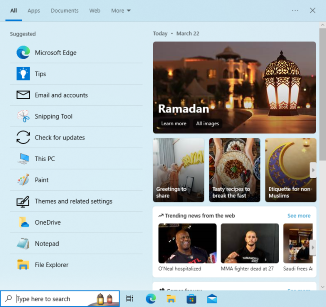
Using Indexing Options, administrators can add or remove specific folders from the Windows Search database. You might assume that indexing everything is the best approach, but indexing the entire primary hard drive degrades overall system performance, as the constant background disk I/O and CPU polling will severely throttle the machine.
When a user complains that recent files or Outlook emails are not appearing in search results, the index database has likely become corrupted. Navigate to the Advanced tab in Indexing Options, which provides a button to delete and rebuild the search index to resolve search errors.
A workstation is useless in isolation. Windows manages network connections by attempting to determine the trustworthiness of the local environment.
Network and Sharing Center
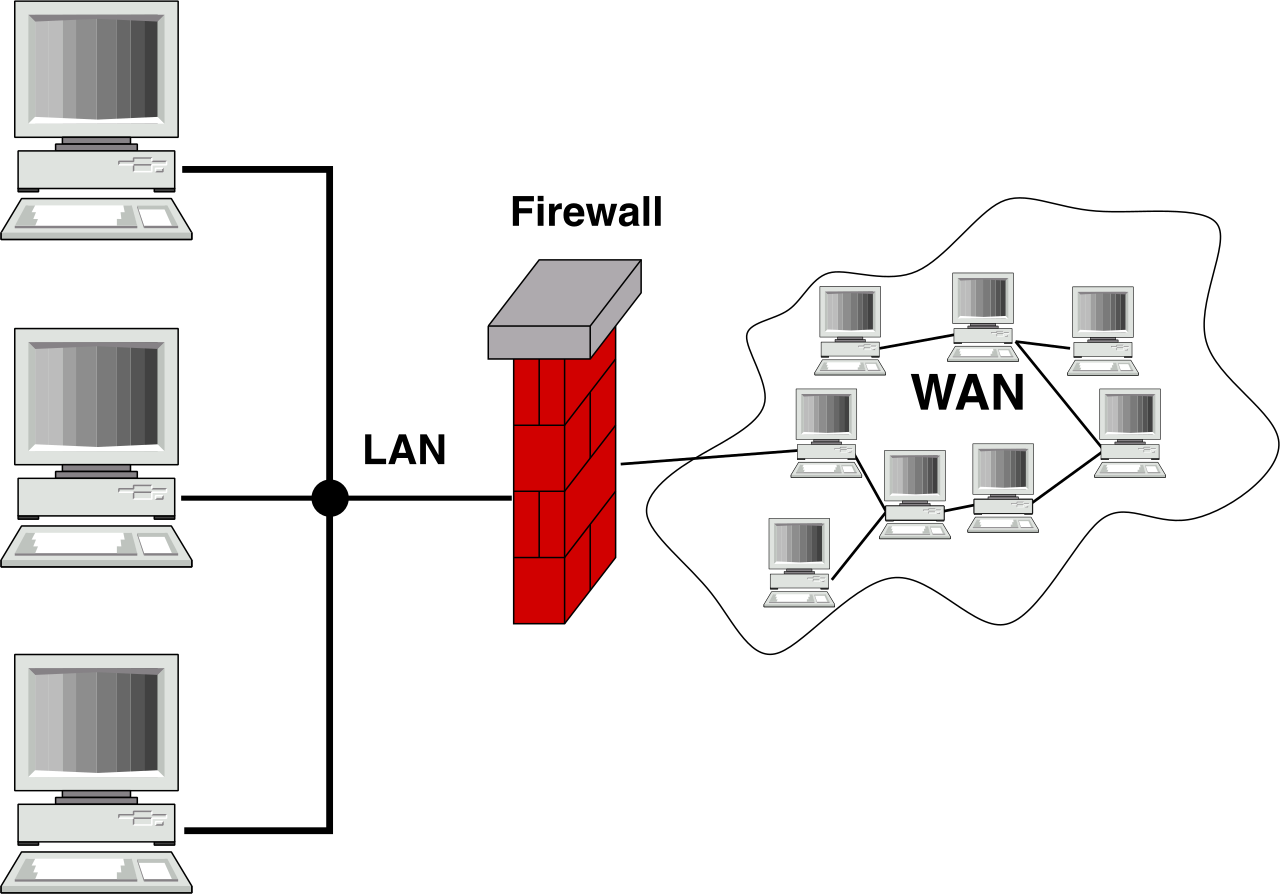
The Network and Sharing Center provides a centralized interface for viewing network status and active networks. When a machine connects to a new network, Windows categorizes the network connections into one of two primary profiles: Private or Public.
These profiles dictate the firewall's posture, specifically regarding network discovery—a feature that allows a Windows computer to detect other network computers and devices (such as printers and NAS drives).
| Network Profile | Default Behavior & Purpose |
|---|---|
| Private | Designed for trusted environments (home/office). A Private network profile allows network discovery and file sharing by default. |
| Public | Designed for untrusted environments (coffee shops/airports). A Public network profile disables network discovery to protect the computer from other devices on the same network. |
Beyond the broad profiles, the Advanced sharing settings in the Network and Sharing Center give you granular control over whether file and printer sharing is enabled, regardless of the active profile.
Internet Options
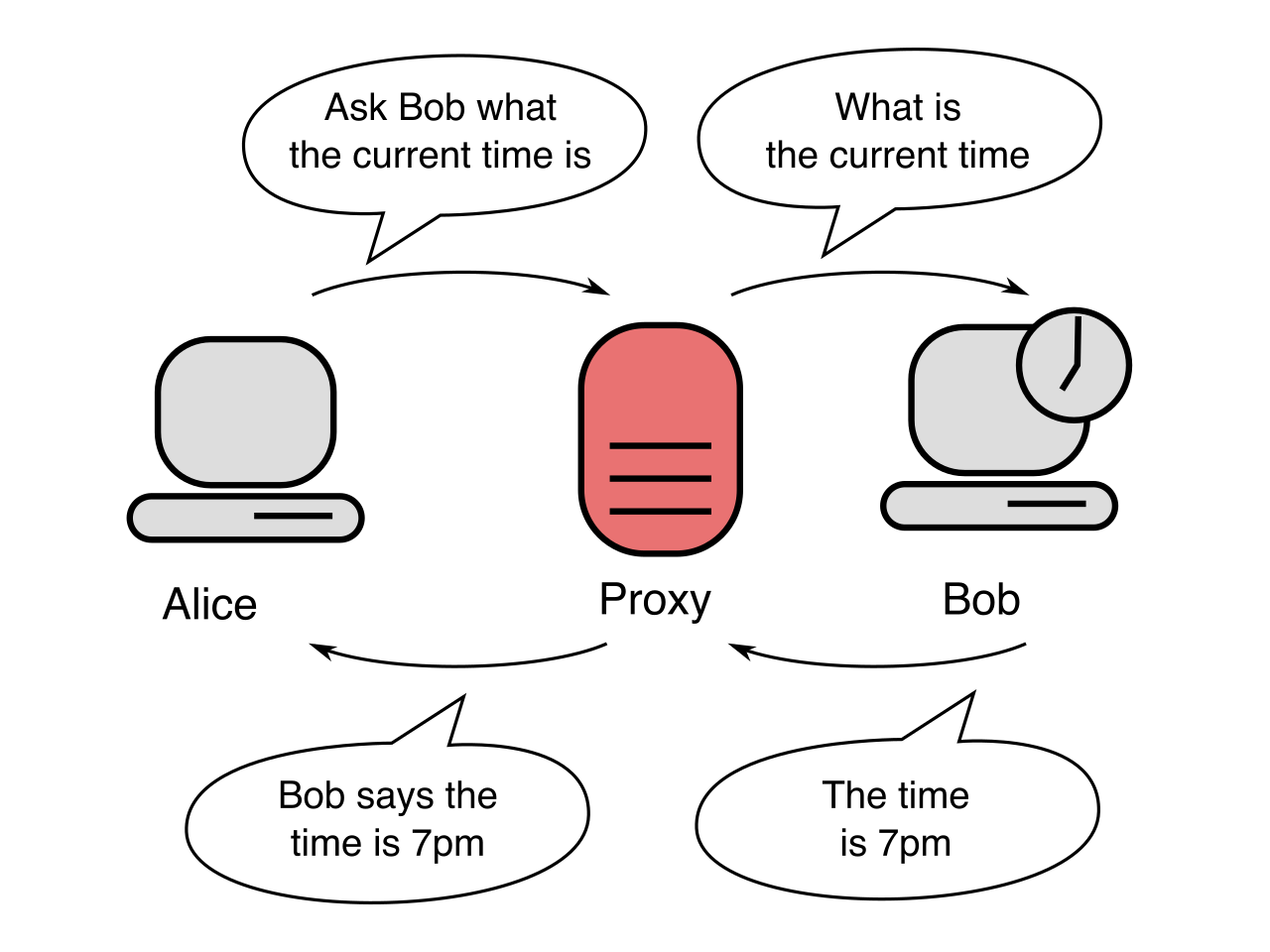
Though Internet Explorer has been retired, the Internet Options applet remains a critical control panel. Today, it configures legacy settings for Internet Explorer and, crucially, establishes general Windows network proxy behaviors utilized by the entire OS.
The interface is divided into several powerful tabs:
- Security Tab: This assigns websites to different security zones with customizable restriction levels. The four security zones in Internet Options are Internet, Local intranet, Trusted sites, and Restricted sites. If an internal company web application fails to run its scripts, adding its URL to the "Trusted sites" zone often resolves the issue.
- Privacy Tab: This tab governs browser boundaries, controlling cookie handling and pop-up blocker settings.
- Connections Tab: For a technician, this is the most critical area. It provides access to Local Area Network (LAN) proxy server settings. If a user cannot reach the internet while on a corporate VPN, this is where you verify their proxy configurations.
Modern computers do not simply turn on and off. They transition through highly engineered power states to balance readiness with energy conservation.
Power Plans
A Windows power plan is a collection of hardware and system settings that manages how the computer consumes power.
- The Balanced power plan scales CPU performance based on workload to optimize energy use. It ramps up the clock speed when rendering a video and drops it down when reading a static document.
- The High Performance power plan prevents the CPU from lowering its clock speed during idle periods. This uses maximum electricity and generates more heat, but eliminates the micro-stutter latency of waking the processor up—vital for specialized tasks like live audio engineering or real-time trading.
Administrators can also dive into advanced plan settings, such as USB selective suspend. This vital power-saving feature allows Windows to put individual USB ports into a low-power state to save energy.
Troubleshooting Tip: If a user's USB peripheral—like a barcode scanner or an external Wi-Fi adapter—randomly drops its connection, disabling USB selective suspend is your primary diagnostic step.
Additionally, the power settings menu allows administrators to assign sleep, hibernate, or shutdown actions to physical hardware buttons, ensuring that pressing the laptop power button doesn't accidentally hard-shutdown the device during a meeting.
Sleep, Hibernation, and Fast Startup
Understanding the distinction between suspended states is non-negotiable for an IT professional.
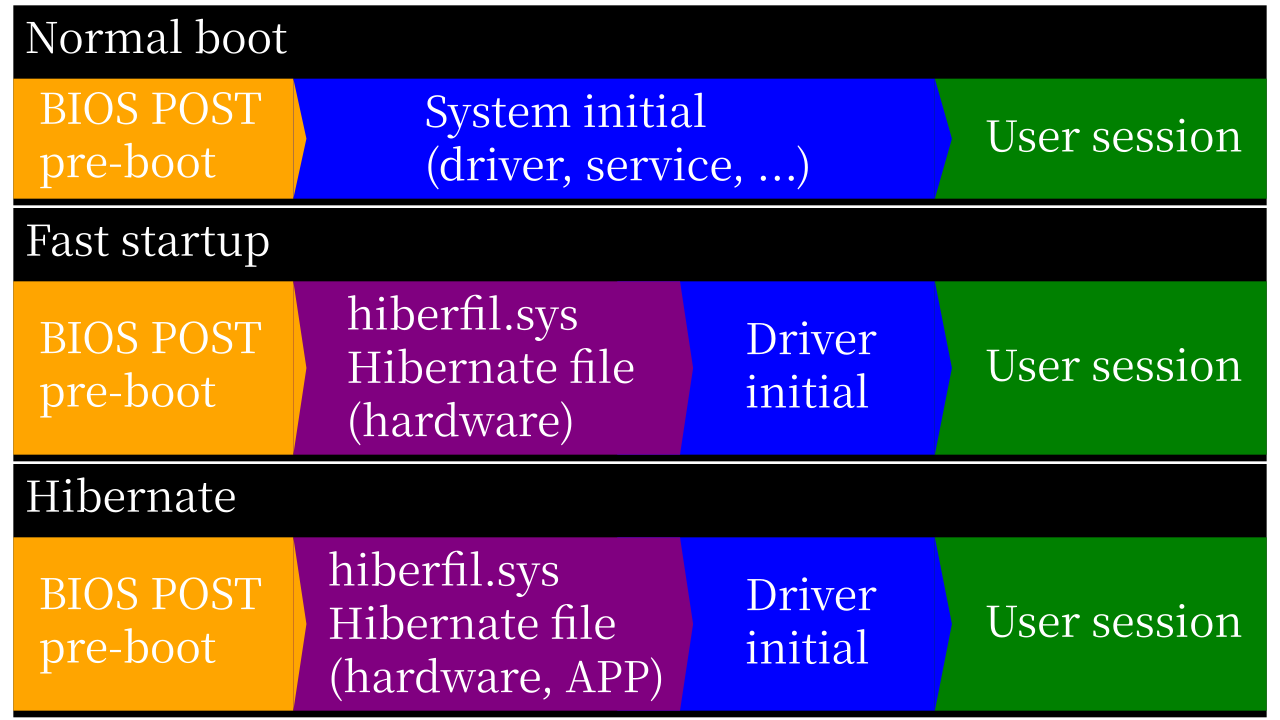
- Sleep mode keeps the current system session in Random Access Memory (RAM) and places the computer in a low-power state. It wakes up instantly, but if the battery dies, any unsaved work in RAM is lost.
- Hibernation takes a fundamentally different approach. It saves the current system session to the hard drive in a file named
hiberfil.sysbefore powering off the computer entirely. Consequently, hibernation uses zero power while preserving the system state. - Hybrid Sleep combines the two. It saves the system state to both Random Access Memory and the hard drive simultaneously. Common on desktop PCs, it allows instant wake from RAM, but if the building loses power, the session is safely restored from the hard drive.
- Fast Startup is Microsoft's modern compromise for boot times. It combines elements of a cold shutdown and the hibernation feature to reduce Windows boot times. When a user clicks "Shut Down," Windows closes all user applications but hibernates the core OS kernel, making the next boot significantly faster.
Technology must adapt to the human, not the other way around. The Windows Ease of Access center provides settings to accommodate users with vision, hearing, and mobility impairments. Knowing these tools allows you to instantly empower users to work without friction.
Vision Accommodations
- Magnifier: A Windows accessibility tool that enlarges specific parts of the screen, acting as a digital lens following the mouse cursor.
- Narrator: A built-in Windows screen reader that reads text aloud for visually impaired users, allowing them to navigate the OS entirely via audio cues.
Mobility Accommodations
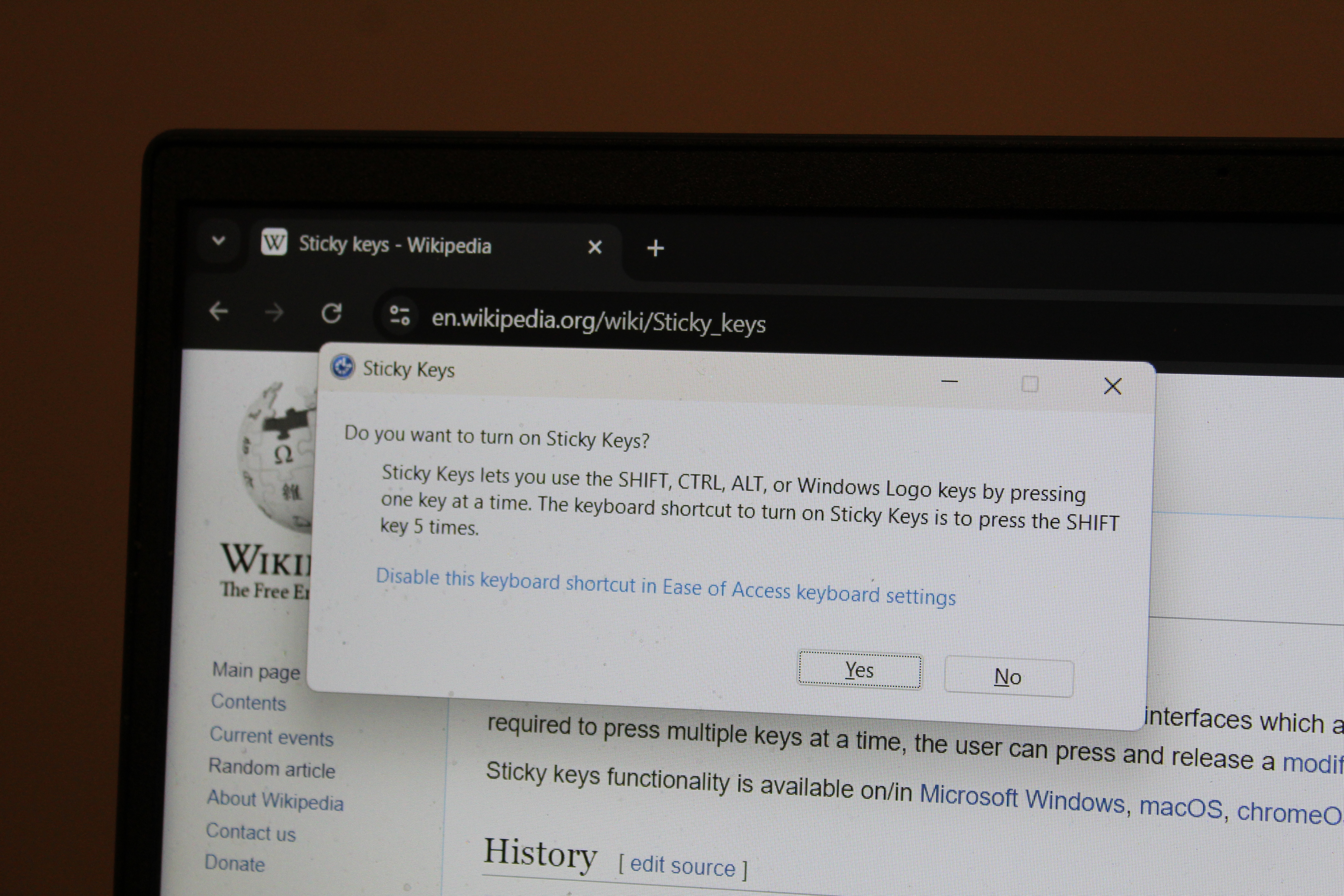
- Sticky Keys: Allows users to press modifier keys like Shift, Ctrl, and Alt one at a time instead of simultaneously. This is essential for users who physically cannot hold multiple keys to execute commands like
Ctrl+Alt+Delete. - Filter Keys: Tells Windows to ignore brief or repeated keystrokes to assist users with hand tremors, preventing accidental double-typing.
- Toggle Keys: Plays a sound when users press locking keys such as Caps Lock, Num Lock, or Scroll Lock, providing auditory feedback for state changes.
- On-Screen Keyboard: Provides a virtual keyboard that users can operate with a mouse, eye-tracking system, or other pointing device.
Hearing Accommodations
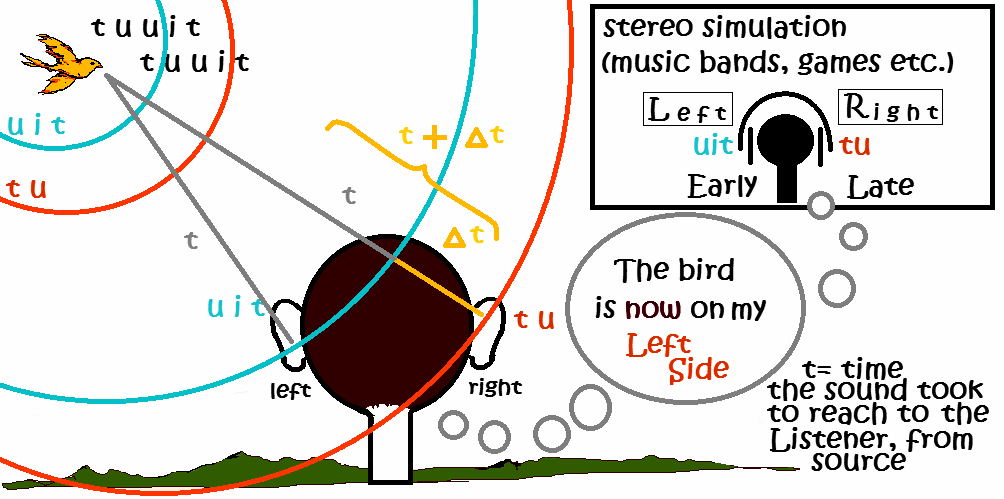
- Mono audio: Combines left and right audio channels into a single channel. This is crucial for users with hearing impairments in one ear, ensuring they do not miss directional audio cues engineered into stereo sound.
Enterprise endpoints are constantly communicating with Microsoft's servers. Managing what data leaves the machine, and when new data enters, is a core facet of endpoint administration.
Privacy and Diagnostic Data
Modern Windows Privacy settings allow administrators to restrict applications from accessing the camera, microphone, and user location. In a corporate environment with strict compliance requirements (like HIPAA or GDPR), auditing these permissions prevents unauthorized data leakage.
Simultaneously, Windows diagnostic data settings control the amount of system telemetry sent back to Microsoft.
- The Basic diagnostic data setting sends only essential security and reliability information to Microsoft, such as whether an update failed to install.
- The Optional diagnostic data setting sends extensive telemetry, including browsing history, app usage, and enhanced error reporting to Microsoft. In highly secure environments, this is strictly forbidden.
Orchestrating Windows Update
Updates are vital, but an update that forces a server reboot during a financial transaction is catastrophic.
Windows categorizes patches into two distinct delivery schedules:
- Quality updates deliver security patches and bug fixes to Windows on a monthly basis (colloquially known as "Patch Tuesday").
- Feature updates introduce entirely new Windows capabilities and are typically released on an annual basis.
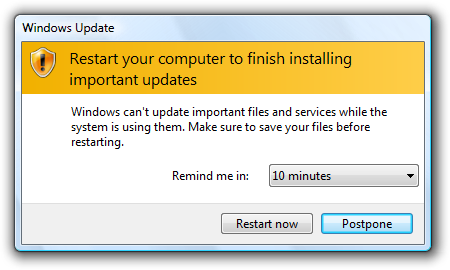
To prevent disruption, administrators configure Active Hours, which prevents Windows from automatically restarting to install updates during specified working hours. If a critical deadline approaches, Windows Update allows users to temporarily pause the installation of updates for up to 35 days.
Finally, downloading large updates across hundreds of machines can saturate a corporate network. Two settings exist to mitigate bandwidth exhaustion:
- Delivery Optimization allows a Windows computer to download updates from other computers on the local network instead of fetching them from the internet, drastically reducing external bandwidth usage.
- Metered connections prevent Windows from automatically downloading large updates over networks with data caps (such as when a laptop is tethered to a cellular 5G hotspot).
By mastering these settings, you transition from someone who merely uses Windows to someone who commands it. You ensure that the underlying operating system remains invisible to the user—quietly routing their packets, preserving their battery, accommodating their physical needs, and seamlessly maintaining its own security.