Windows Networking Features
Not sure you’re ready?
Take the ~3-minute readiness diagnostic and see where you stand.
Consider a standalone computer sitting on a desk. Without a network, it is little more than a highly sophisticated local calculator. The moment you connect a cable or authenticate to a wireless access point, you plunge that machine into an invisible, highly structured ecosystem of traffic, rules, and identities. As an IT support professional, your primary responsibility is not simply to ensure hardware powers on, but to ensure these machines can communicate securely, efficiently, and reliably within this ecosystem. To master Microsoft Windows networking is to understand the language of connection.
We will deconstruct this language into four foundational pillars: how machines group themselves to share resources, how they find each other, how they reach the outside world, and how they defend themselves from the chaos of the network.
Before computers can share files or printers, they must establish a framework for trust and administration. In the Windows ecosystem, this framework takes one of two forms: a Workgroup or a Domain.
The Peer-to-Peer Model: Windows Workgroups
Imagine a group of independent contractors sharing a coworking space. They might share a coffee machine or a printer, but everyone keeps their own keys, their own files, and manages their own security. This is exactly how a Windows workgroup operates—as a peer-to-peer network without centralized administration.
Out of the box, Windows computers default to a workgroup named WORKGROUP. In this environment, every machine is an island. Each computer in a Windows workgroup maintains its own separate local user database.
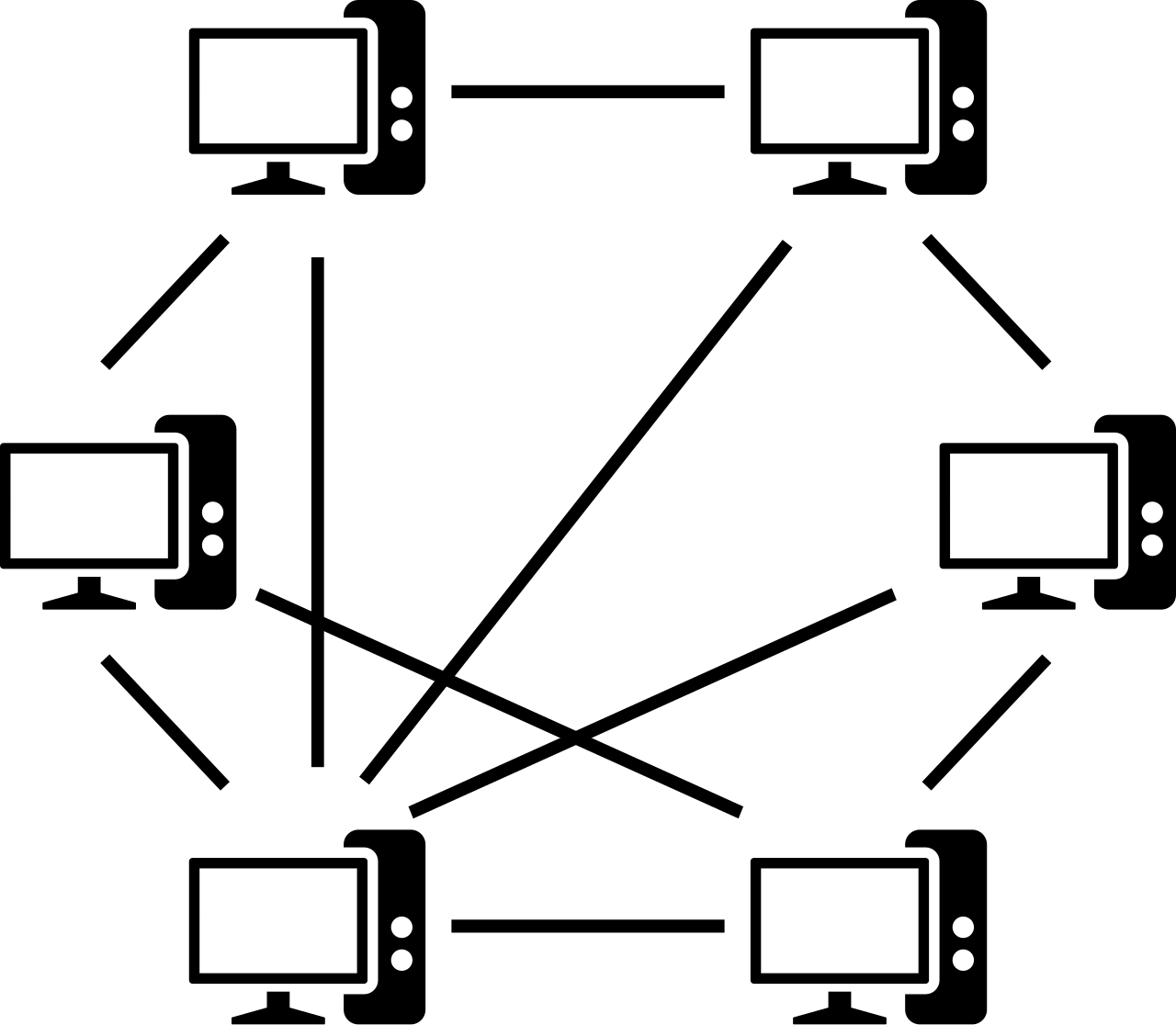
Why this matters for IT support: If you have ten computers in a workgroup and a user named Alice needs to access shared folders on all of them, you must manually create a local account with Alice’s username and password on every single machine. If she changes her password on one, the others do not automatically update. This administrative overhead makes workgroups suitable only for very small offices or home networks.
The Client/Server Model: Windows Domains
When an organization scales beyond a handful of computers, the peer-to-peer model collapses under its own administrative weight. The solution is the Windows domain, which operates as a client/server network with centralized security administration.
Instead of local databases handling everything, Active Directory Domain Services (AD DS) centralizes the management of network objects and credentials. When a user powers on their domain-joined workstation and presses [Ctrl+Alt+Delete](https://en.wikipedia.org/wiki/Control-Alt-Delete) to log in, the local machine doesn't verify the password. Instead, specialized servers called domain controllers handle the authentication of user logons for domain-joined computers.
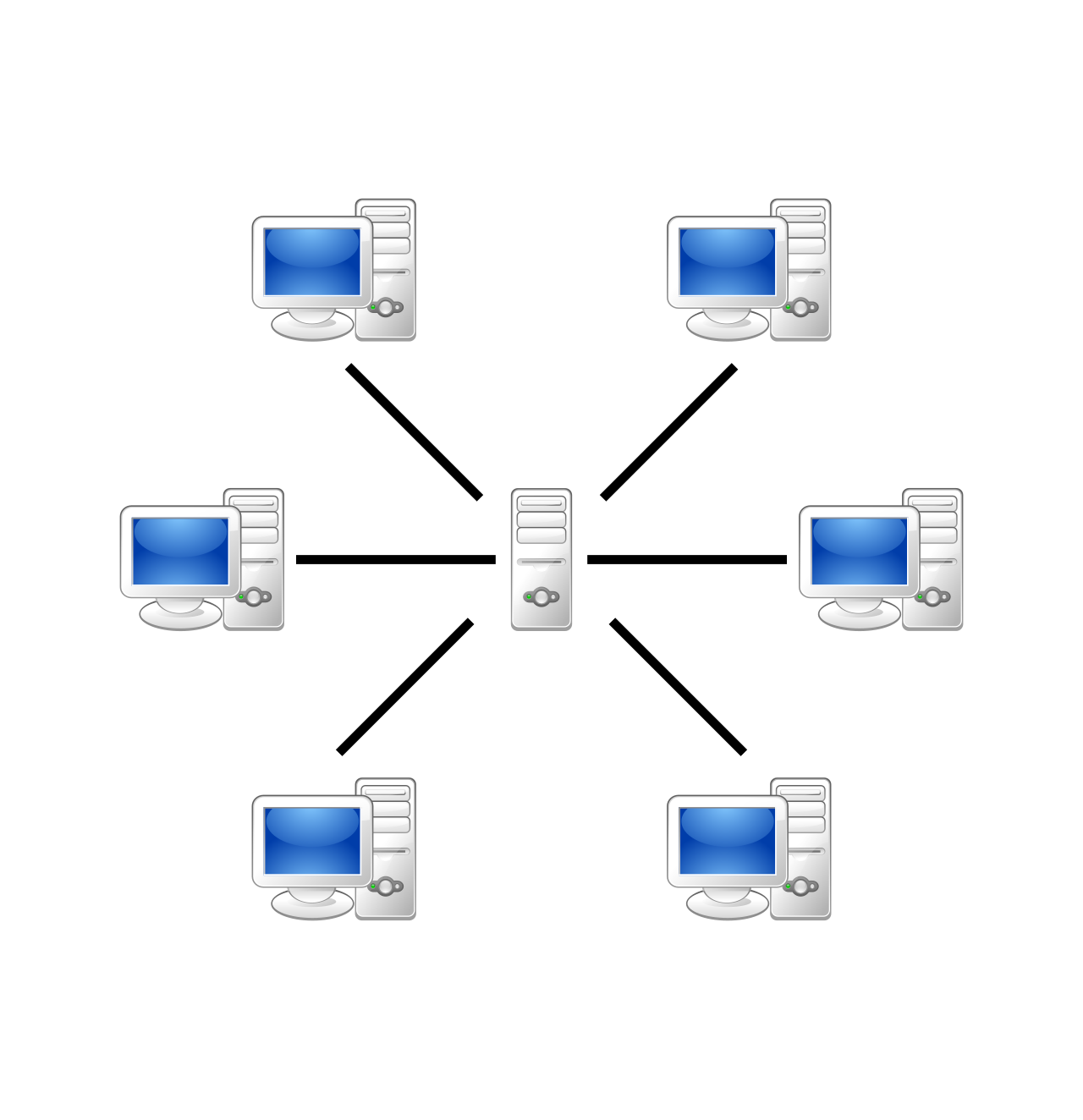
Because domain environments are designed for enterprise control, Microsoft restricts access to this feature based on the operating system tier:
- Joining an Active Directory domain requires Windows Pro, Enterprise, or Education editions.
- Windows Home editions cannot join an Active Directory domain. They are permanently relegated to workgroup networking.
Once trust architecture is established, a machine needs a mathematical identity to send and receive data. It needs an IP address.
The Dynamics of DHCP vs. Static Addressing
Assigning IP addresses manually is known as static IP addressing, which requires a network administrator to manually enter all network configuration parameters. While necessary for permanent infrastructure like servers or network printers, doing this for hundreds of roaming employee laptops is impractical.
Enter the Dynamic Host Configuration Protocol (DHCP), which automates the assignment of client IP configuration parameters. When a Windows machine boots up on a DHCP-enabled network, it essentially shouts into the void: "I am new here, I need an address!" The DHCP server responds by offering a DHCP lease.
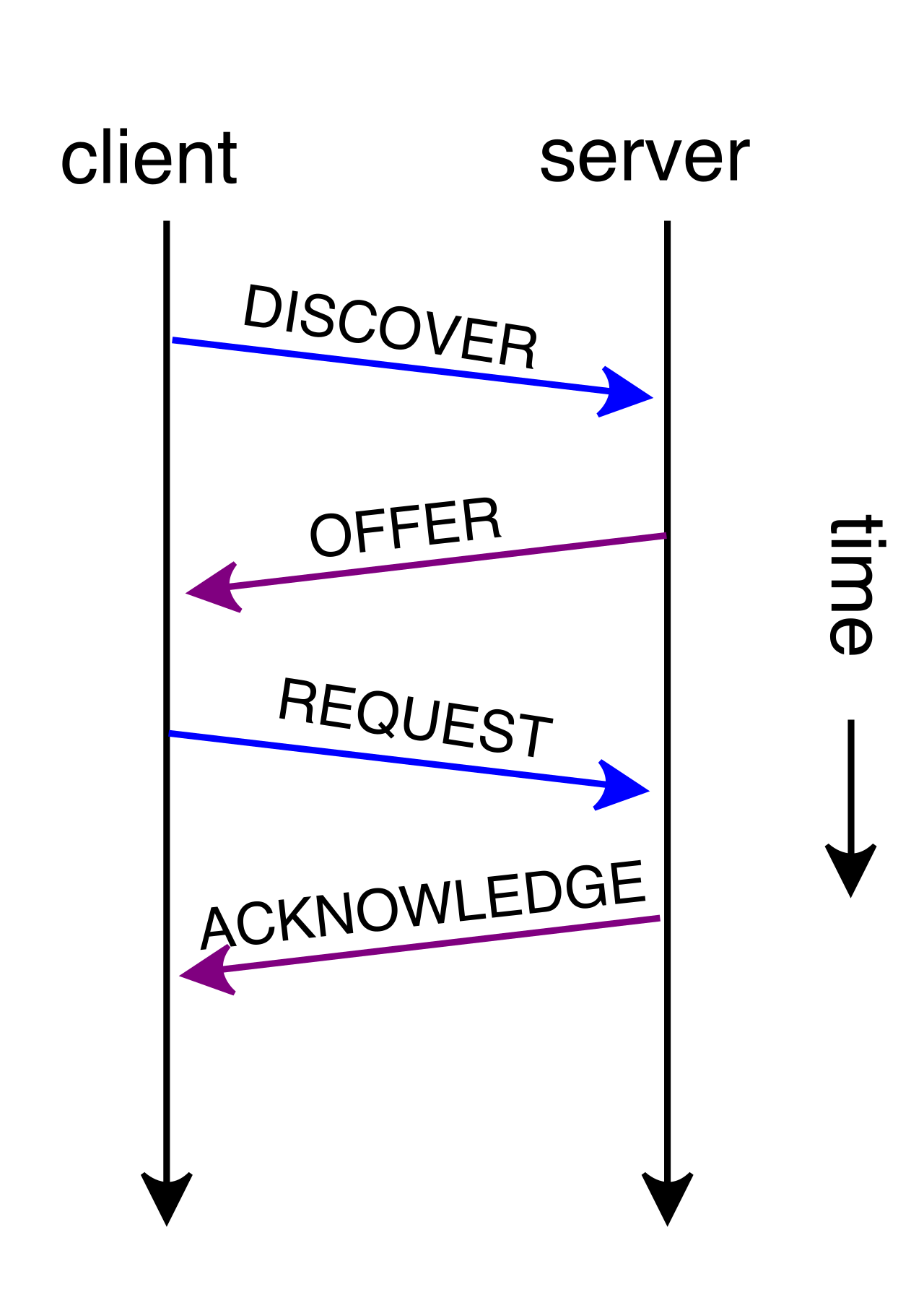
A complete DHCP lease provides a client with four critical pieces of information:
- IP Address: The unique numerical identifier for the device on the network.
- Subnet Mask: A mathematical boundary that defines which portion of an IP address represents the network identifier versus the host identifier. It tells the computer, "These IP addresses are in your local neighborhood; those are outside of it."
- Default Gateway: The IP address of the router. A default gateway provides a local network host with a routing path to external networks. If a destination IP is outside the subnet mask's neighborhood, the computer blindly hands the traffic to the default gateway to figure out the path forward.
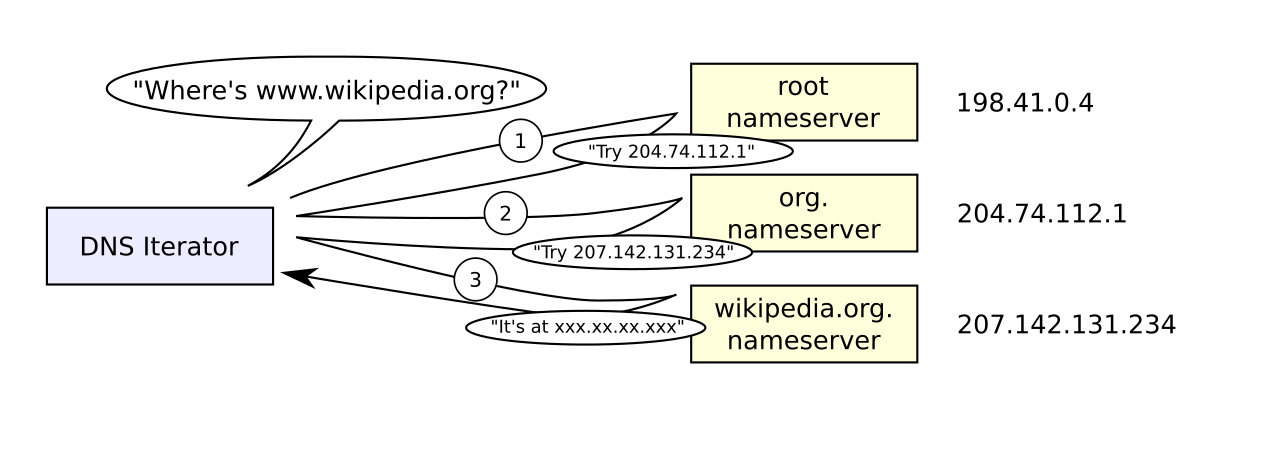
- DNS Server Addresses: Domain Name System (DNS) servers translate human-readable domain names (like
google.com) into machine-routable IP addresses. Without DNS, users would have to memorize sequences of numbers to browse the web.
When Automation Fails: APIPA and Alternate Configurations
As an IT technician, you will frequently encounter machines that have failed to obtain an IP address. How Windows handles this failure is highly predictable.
If a Windows client is set to use DHCP but the DHCP server is offline or unreachable, the OS initiates Automatic Private IP Addressing (APIPA). APIPA assigns an IP address in the 169.254.x.x range when a DHCP server is unreachable.
Troubleshooting Gold: If you run
[ipconfig](https://en.wikipedia.org/wiki/Ipconfig)at the command line and see an IP address starting with169.254., you instantly know the problem isn't the network card—the machine is physically connected but the DHCP handshake failed.
Sometimes, a user commutes between an office with DHCP and an industrial site where they must plug into a statically addressed control network. To prevent the user from constantly changing their IPv4 settings, you can utilize the Windows Alternate Configuration tab. This tab provides a secondary static IP setup if a primary DHCP server is unavailable, gracefully allowing the machine to adapt to both environments.
Modern computing rarely stays confined to a single physical office. We must extend the network securely over public infrastructure.
The Virtual Private Network (VPN)
When an employee works from a coffee shop, their data is traversing an untrusted network. A Virtual Private Network (VPN) creates an encrypted connection—a secure tunnel—over a public network to access private network resources.
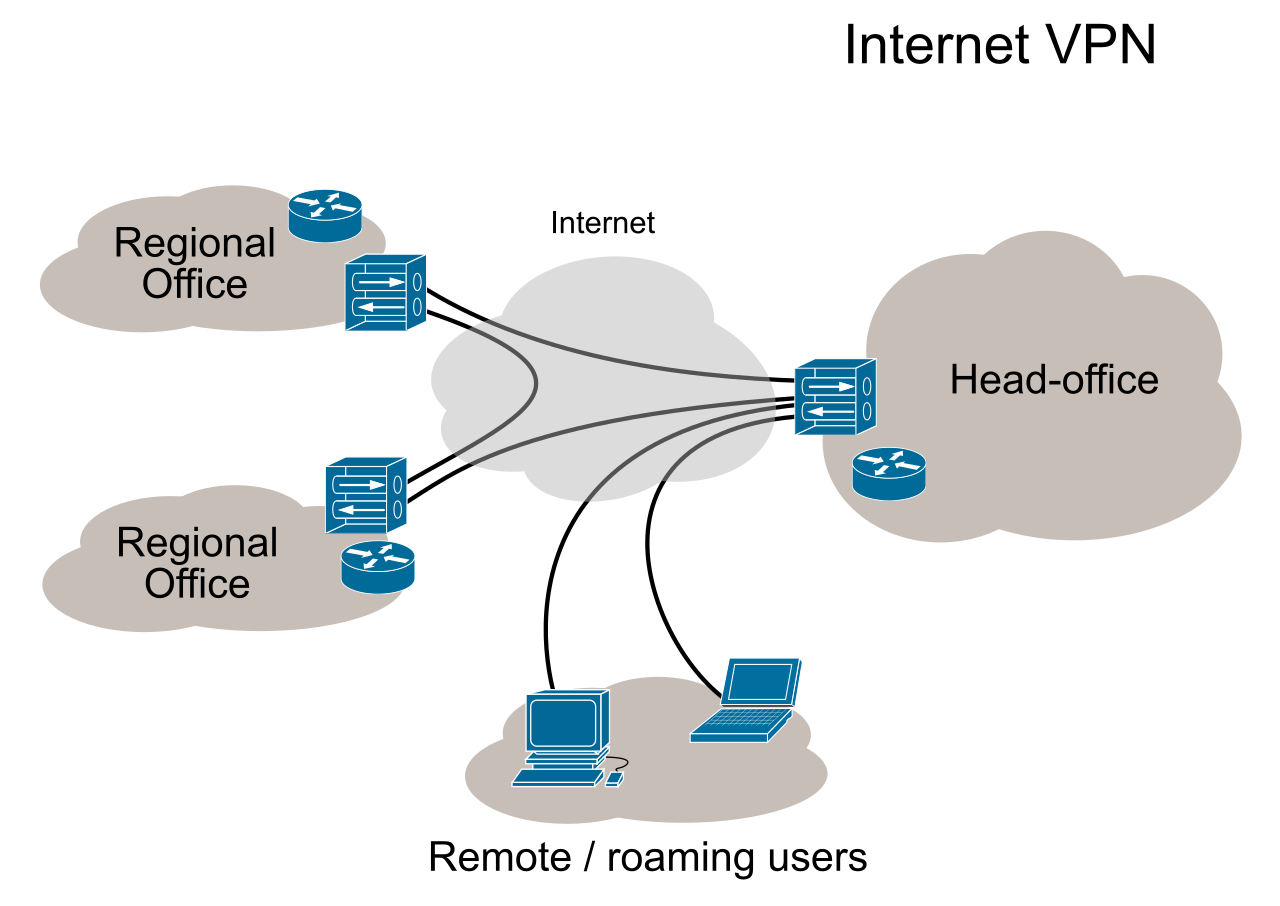
Windows does not require third-party software for basic tunneling. The built-in Windows VPN client natively supports a robust array of tunneling protocols including IKEv2, SSTP, L2TP/IPsec, and PPTP. (Note: PPTP is considered highly insecure today, but remains supported for legacy compatibility, whereas IKEv2 and SSTP offer modern, robust encryption.)
Mobile Connectivity: WWAN and Metered Connections
For professionals constantly in motion, Wi-Fi isn't always available. Wireless Wide Area Network (WWAN) connections utilize cellular provider infrastructure (4G LTE, 5G) to deliver internet access directly to the endpoint.
To use this feature, establishing a WWAN connection requires a compatible cellular modem installed in the device and an active subscriber identity module (SIM) provisioned by a cellular carrier.
Because cellular data often comes with strict usage limits, Windows includes metered connection settings. When a network is flagged as metered, Windows restricts background data usage on networks with data caps—halting large, non-critical Windows updates, OneDrive syncs, and background telemetry to prevent massive cellular overage charges.
The Proxy Server: The Intermediary
In heavily regulated corporate environments, client computers are rarely allowed to talk directly to the open internet. Instead, they use a proxy. A proxy server acts as an intermediary device for network requests from clients seeking external resources.
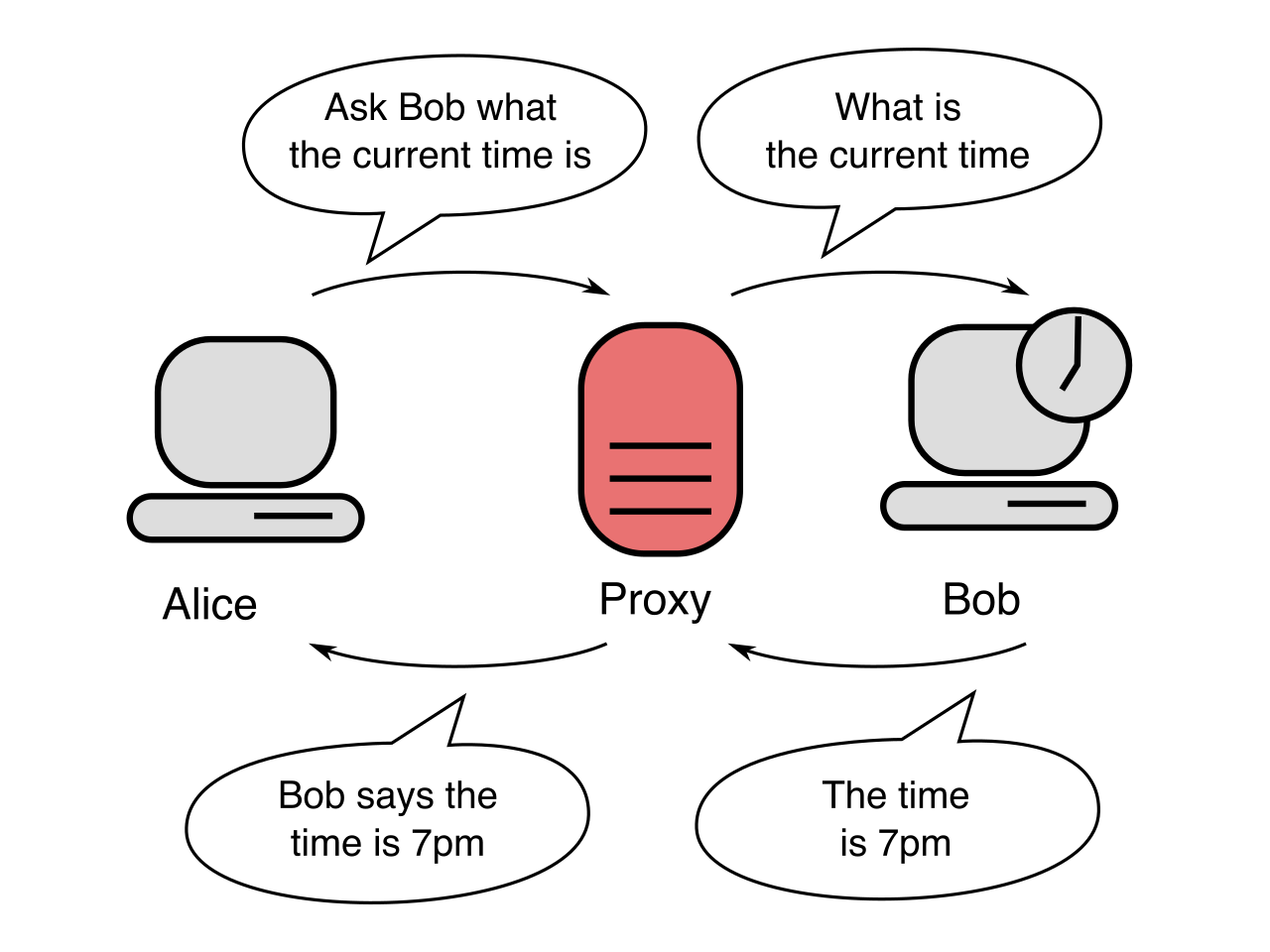
When a user types a URL, the PC sends the request to the proxy. The proxy checks corporate web-filtering rules, retrieves the webpage, and hands it back to the user. Windows proxy settings support manual server entry or automatic detection via the Web Proxy Auto-Discovery Protocol (WPAD). If WPAD is enabled, the browser automatically finds the proxy server on the local network and routes traffic through it without any manual technician intervention.
Finally, we must address local endpoint security. Connecting a machine to a network without a firewall is like leaving the front door of your house wide open in a busy city.
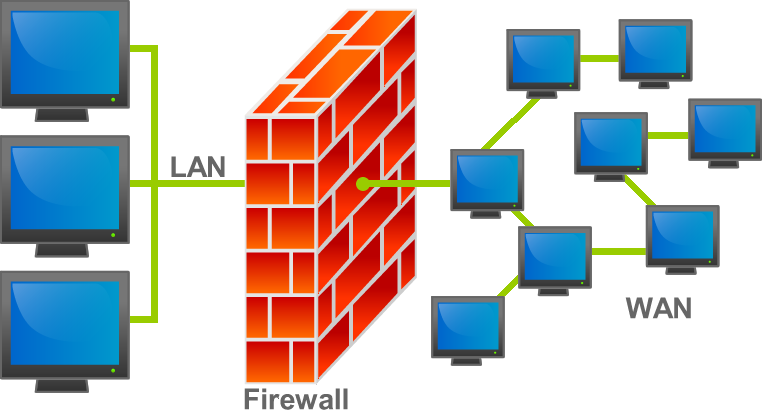
Windows Defender Firewall inspects and filters network traffic based on administrator-configured rules. It operates as a stateful host-based firewall, silently dropping uninvited traffic before it can interact with the operating system.
The Three Network Profiles
Windows recognizes that you need different levels of security depending on where you are. To manage this context, Windows Defender Firewall organizes security rules into distinct network profiles. Specifically, it utilizes three network profiles: Domain, Private, and Public.
| Network Profile | When it is applied | Security Posture & Discovery |
|---|---|---|
| Domain | Automatically applies when a Windows system authenticates to a domain controller. | Trusts the local network based on Active Directory policies. Managed entirely by Group Policy Administrators. |
| Private | Applies to trusted local networks (like a home office) chosen by the user. | Relaxed security that permits local device discovery (e.g., finding smart TVs, wireless local printers, or network-attached storage). |
| Public | Applies by default to any new, unauthenticated network (airports, hotels, coffee shops). | Applies strict traffic filtering on untrusted networks by explicitly blocking local network discovery. It renders your machine "invisible" to others on the same Wi-Fi. |
Carving Tunnels Through the Wall: Exceptions and Rules
There are times when the default firewall behavior blocks legitimate business operations. For example, if you install a specialized database application on a local machine, the firewall will initially block other computers from querying it.
To resolve this, we use firewall exceptions, which permit specified applications to bypass default traffic blocking rules. You can configure these exceptions globally for an application, or get granular by defining the direction of the traffic:
- Inbound Rules: Administrators create inbound firewall rules to permit incoming traffic directed to a specific local application. (e.g., allowing port 3389 inbound so an IT technician can Remote Desktop into the machine).
- Outbound Rules: Administrators create outbound firewall rules to prevent a specific local application from accessing external networks. (e.g., blocking an unapproved peer-to-peer file-sharing application from "phoning home" or leaking data to the internet).
Understanding this architecture—from the peer-to-peer simplicity of a Workgroup to the granular traffic control of an outbound firewall rule—is the difference between a technician who blindly clicks through menus, and a professional who systematically engineers connectivity. Master these layers, and the invisible network becomes a tool you can command.