macOS Desktop Operating System
Not sure you’re ready?
Take the ~3-minute readiness diagnostic and see where you stand.
To understand macOS as an IT professional is to recognize a brilliant piece of architectural misdirection. On the surface, the operating system presents an aggressively simplified, frictionless user experience. Beneath that surface lies a rigorous, POSIX-compliant Unix environment bound by strict security partitions and automated defense mechanisms. As an endpoint support technician, your job is to operate comfortably in the space between that polished graphical shell and the unyielding command-line core. You must understand not just how to click through menus, but how the operating system stores data, verifies software, isolates permissions, and defends itself against compromise.
Every operating system needs a method for organizing bits on a disk. If you are supporting a modern Mac equipped with a solid-state drive (SSD), you are working with the Apple File System (APFS). APFS is the default file system for modern macOS installations on solid-state drives, engineered specifically to handle flash storage efficiently with features like native encryption and rapid directory sizing.
Operating atop this file system is a strict hierarchical folder structure. You must know exactly where software and data live, because macOS enforces rigid boundaries between the user, the applications, and the system itself.
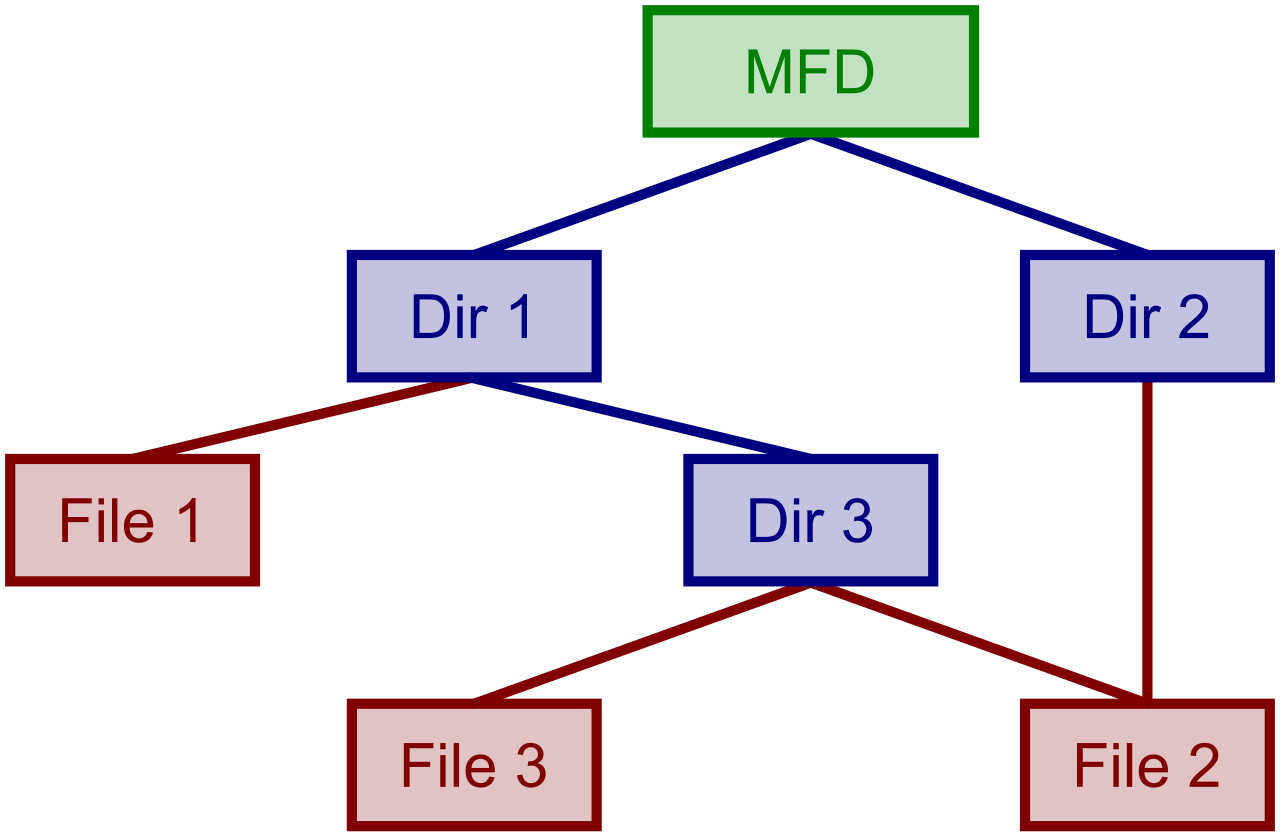
- The
/SystemFolder: This directory contains core operating system files that are protected from user modification. Even with administrative privileges, you cannot casually delete or alter files here. - The
/ApplicationsFolder: This directory stores software programs accessible to all users on the local machine. When you provision software for a shared workstation, it goes here. - The
/UsersFolder: This directory contains individual home directories and personal files for each system user account.
System Integrity Protection (SIP) Why can't an administrator touch the
/Systemfolder? Because of SIP. System Integrity Protection is a macOS feature that prevents unauthorized code or users from modifying core operating system folders. Think of it as a pane of bulletproof glass placed over the engine block. Even if a user accidentally downloads malware and grants it administrative rights, SIP prevents that malware from embedding itself into the foundational Unix layers of the machine.
The macOS environment is designed to keep users focused, but an IT professional must navigate it rapidly.
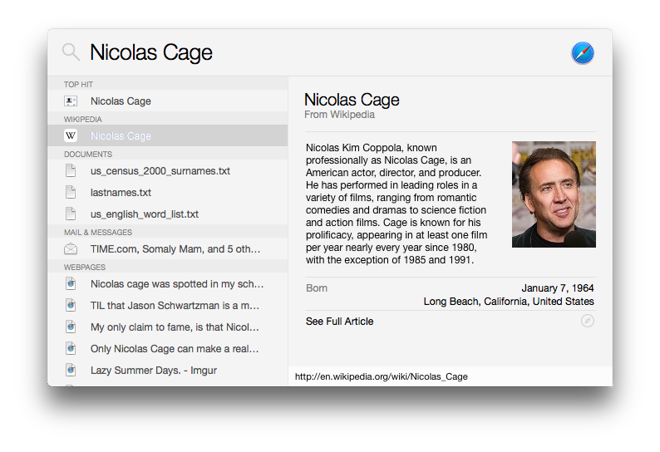
Finder is the default file manager and graphical user interface shell for the macOS operating system. It is your primary lens into the APFS file structure. But clicking through folders is slow. To locate files, system panes, or applications instantly, macOS relies on its nervous system: Spotlight. Spotlight is the system-wide desktop search feature built into macOS.
- Best Practice: Train your users (and yourself) to rely on the keyboard shortcut. The default keyboard shortcut to open Spotlight search in macOS is the Command key plus the Space bar.
When you have a dozen applications running and you need to untangle a user's workflow, you will rely on Mission Control. Mission Control is a macOS feature that provides a bird's-eye view of all open windows and desktop spaces to facilitate rapid navigation. From this view, you can manage Spaces. macOS allows users to create multiple virtual desktops called Spaces to organize open applications into distinct working environments—allowing a user to keep all email and chat windows in one Space, and specialized engineering or design software in another.
Software deployment on macOS functions completely differently than on Windows. You are not typically running an .exe file or an .msi database. You will primarily encounter two file extensions: .dmg and .pkg.
| Format | Nature of the File | Installation Mechanism |
|---|---|---|
.dmg | macOS applications are frequently distributed as Apple Disk Image files using the .dmg file extension. | A macOS .dmg file mounts as a virtual disk on the system to allow users to interact with the contained software. Installing a macOS application from a .dmg file typically requires dragging the application icon into the local /Applications folder. |
.pkg | macOS installer packages use the .pkg file extension. | A macOS .pkg file runs an automated installation script that places application files into specific designated directories across the file system. |
Think of a .dmg file like a sealed shipping crate. You open the crate (mount the disk), pull the tool out, set it on your workbench (the Applications folder), and throw the crate away. Conversely, a .pkg file is an automated installation crew. You execute the package, and scripts distribute various libraries, background services, and graphical interfaces exactly where they need to go in the system.
Uninstallation follows this same logic. Uninstalling a standard macOS application involves simply dragging the application icon from the Applications folder to the Trash. The operating system handles removing the application bundle. (Note: software installed via complex .pkg scripts often provides a dedicated uninstaller tool to clean up background services).
Gatekeeper
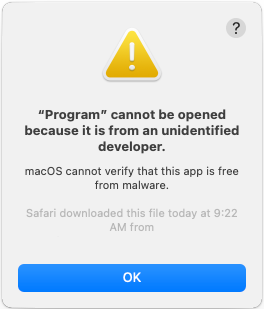
Users cannot just download and run anything they find on the internet. Gatekeeper is a macOS security feature designed to check downloaded applications for malicious content and verify developer signatures before execution. If a developer's cryptographic signature is invalid or absent, Gatekeeper halts the execution and alerts the user, functioning as a strict border checkpoint for executable code.
When an issue escalates to the help desk, you will inevitably need to adjust how the operating system behaves. System Settings is the central macOS application used to configure network settings, user accounts, and OS-level preferences.
- Note for the exam: If you are supporting legacy systems, be aware that Apple renamed the primary macOS configuration interface from System Preferences to System Settings starting in macOS Ventura.
A critical subset of this configuration panel is the macOS Privacy & Security settings. These menus control application access to hardware components like the microphone, camera, and location services.
Crucial IT Concept: Full Disk Access As an IT technician, you will install endpoint detection agents, backup software, and enterprise management tools. By default, macOS isolates applications from reading personal files. macOS Full Disk Access is a privacy setting that grants specific applications permission to access all user files on the storage drive. If you install an enterprise backup agent and fail to grant it Full Disk Access in System Settings, the backup will silently fail because the OS will blindfold the application.
When software misbehaves, macOS provides several specialized tools to restore order.
Application and Process Management
If a graphical application freezes, the user cannot simply "X" out of it. Force Quit is a macOS tool used to forcefully terminate unresponsive applications. The default keyboard shortcut to open the Force Quit window in macOS is the Command key plus the Option key plus the Escape key.
When you need granular control over the machine, network diagnostics, or script execution, you must bypass the GUI entirely. Terminal is the default macOS application used to access the command-line interface, granting you direct access to the underlying Unix architecture.
Storage and Credentials
To diagnose a failing drive or format a new flash drive, you will turn to Disk Utility. Disk Utility is a built-in macOS tool used to format, partition, and repair local and external storage drives. If a user complains about missing files, unexpected crashes, or slow load times, your first step is often to run First Aid. macOS Disk Utility includes a First Aid feature designed to check and repair file system errors on a targeted storage volume.
For credential management, macOS utilizes the Keychain environment.
- Keychain Access is the local macOS utility used to securely store passwords, certificates, secure notes, and encryption keys.
- iCloud Keychain securely synchronizes saved passwords and credentials across a user's approved Apple devices. If a user updates their Wi-Fi password on their iPhone, iCloud Keychain ensures their Mac automatically knows the new credential.
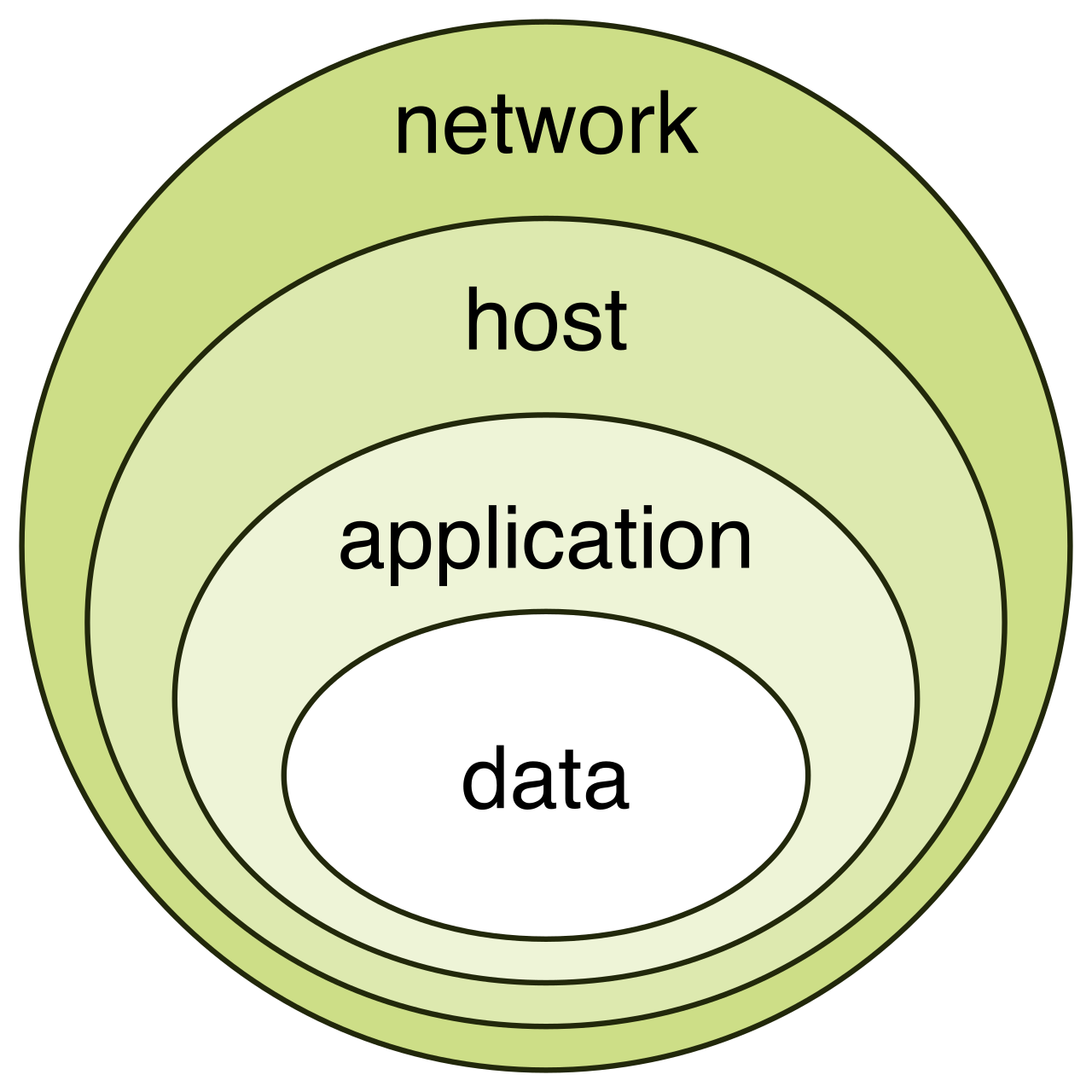
In the modern enterprise, physical hardware is cheap, but data is priceless. macOS includes built-in, automated features to ensure data persistence and system security.
Time Machine Backups
Time Machine is the native, built-in backup software utility for macOS. It acts as a continuous safety net for the user. Configuring macOS Time Machine backups requires a formatted external storage drive or a compatible network-attached storage (NAS) device.
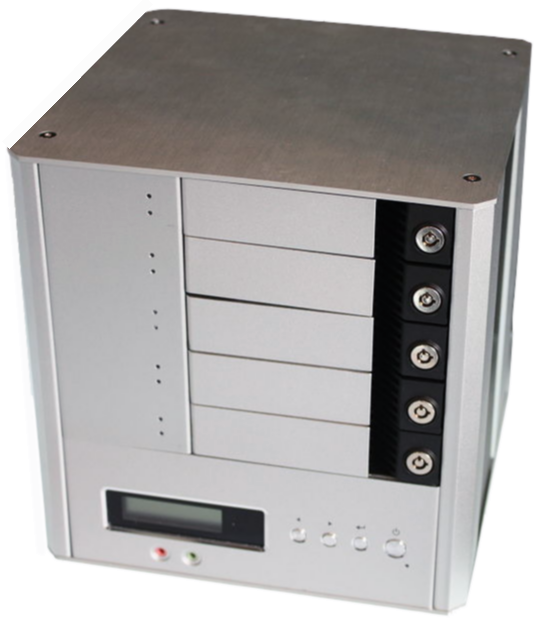
Once enabled, you do not need to schedule it. Time Machine creates:
- Hourly backups for the past 24 hours.
- Daily backups for the past month.
- Weekly backups for all previous months.
Storage isn't infinite. To manage capacity, Time Machine automatically deletes the oldest system backups when the designated backup storage drive becomes full.
Invisible Antivirus: XProtect
A common myth is that Macs do not get viruses. The reality is that Macs possess an integrated immune system. XProtect is the built-in antivirus technology in macOS that uses YARA signatures to detect and block known malicious software.
Unlike third-party antivirus suites that bombard the user with pop-ups and scanning progress bars, macOS XProtect operates continuously in the background without requiring user configuration or providing a visible graphical interface. It is completely silent, updating its threat definitions independently and blocking execution the moment a recognized malicious file touches the APFS drive.
Rapid Security Response
Historically, patching an operating system vulnerability required a massive, multi-gigabyte OS update, which users notoriously ignored to avoid downtime. Apple solved this with Rapid Security Response.
Rapid Security Response is a macOS feature that delivers urgent security updates without requiring a full operating system version upgrade. It is designed for surgical strikes against zero-day threats. Rapid Security Response immediately patches critical vulnerabilities in Safari, the WebKit framework, and core system libraries. Because these updates are tiny and highly targeted, macOS Rapid Security Response updates are applied automatically by default and typically take effect upon the next device restart, drastically reducing the window of time an endpoint remains vulnerable.