Windows Permissions and Active Directory
Not sure you’re ready?
Take the ~3-minute readiness diagnostic and see where you stand.
The modern corporate IT environment operates much like a sprawling, highly secure research facility. To maintain order, prevent data theft, and ensure that thousands of individuals can simultaneously access the exact resources they need without stepping on each other's toes, administrators rely on a layered architecture of identity management and cryptographic barriers. At the center of this architecture is Active Directory, acting as the facility's master ledger of trust. Surrounding the data itself are interlocking permission structures—NTFS and Share permissions—functioning as the physical locks on individual doors and filing cabinets. When a user double-clicks a file, the operating system instantly evaluates a complex mathematical intersection of user identities, group memberships, physical encryption keys, and network pathways to answer a single, binary question: should this action be allowed? Understanding how these components intersect is not merely an academic exercise; it is the fundamental vocabulary of enterprise IT support.
To understand how Windows protects data, we must first separate how data is accessed from where it is accessed. Windows relies on two distinct, overlapping systems of permissions: Share permissions and NTFS permissions.
Share permissions act as the external checkpoint to a network resource. By definition, Share permissions only govern access when files are accessed over a network. If a user walks up to a server room, physically sits at the console, and opens a folder, the operating system bypasses Share permissions entirely; Share permissions do not apply to users logging in locally to the machine.
NTFS permissions, embedded deep within the New Technology File System, are the definitive locks on the file itself. Unlike Share permissions, NTFS permissions govern access to files and folders for local users and NTFS permissions govern access to files and folders for network users. They are absolute.
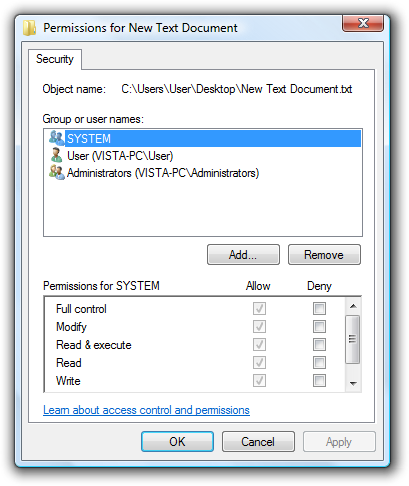
When a remote user connects to a shared folder, the operating system evaluates both sets of rules.
The Golden Rule of Permission Conflict: The most restrictive permission applies when a user has conflicting NTFS and Share permissions.
If a user’s Share permission grants them "Full Control" over the network, but the underlying NTFS permission only grants them "Read" access, the resulting effective permission is exactly what the rule states: Read. The narrowest bottleneck always dictates the flow of access. Furthermore, when resolving multiple NTFS rules applied to different groups a user belongs to, Explicit Deny permissions always override Explicit Allow permissions in NTFS. A single "Deny" rule on a folder acts as a cryptographic stop sign, instantly halting access regardless of how many other groups grant that user permission.
The Physics of Inheritance: Moving vs. Copying
In a file system, permissions flow downward like gravity. Child objects automatically inherit NTFS permissions from the parent folder. However, what happens when a user moves or copies a file? IT technicians frequently troubleshoot scenarios where a file "mysteriously" loses its permissions. This is not a mystery; it is the mechanical result of how the file system writes data.
When you copy a file, you are creating a brand-new object in the destination directory. Therefore, copying a file to a new folder causes the file to inherit the destination folder's permissions.
Moving a file, however, operates differently depending on the physical drives involved:
| Action | Destination | Resulting Permissions | Why? (Under the Hood) |
|---|---|---|---|
| Move | Same Volume (e.g., C:\ to C:) | Retains the file's original NTFS permissions. | The file doesn't actually move. Windows simply updates a pointer in the Master File Table. The original object, and its original permissions, remain perfectly intact. |
| Move | Different Volume (e.g., C:\ to D:) | Inherits the destination folder's permissions. | Moving across drives forces Windows to execute a "Copy-then-Delete" operation. Because a new object is created on the new drive, it adopts the new environment's rules. |
Beyond permissions, every file possesses innate characteristics called attributes. These toggles dictate how the operating system itself interacts with the file, independent of who is logged in.
- The Read-only file attribute prevents users from modifying the contents of a file.
- The Hidden file attribute conceals the file from default directory listings, keeping configuration files out of the way of standard users.
- The System file attribute marks a file as critical for operating system functionality. Windows heavily guards these files, hiding them even if the user has opted to view standard "Hidden" files.
- The Archive file attribute indicates that a file has been modified since the last backup. When backup software runs, it looks for files with this "flag" raised, backs them up, and then lowers the flag.
Permissions only protect data while the operating system is running and enforcing the rules. If a bad actor steals a laptop, removes the physical hard drive, and plugs it into their own machine, Windows permissions are entirely bypassed. To combat hardware theft, we must turn to cryptography.
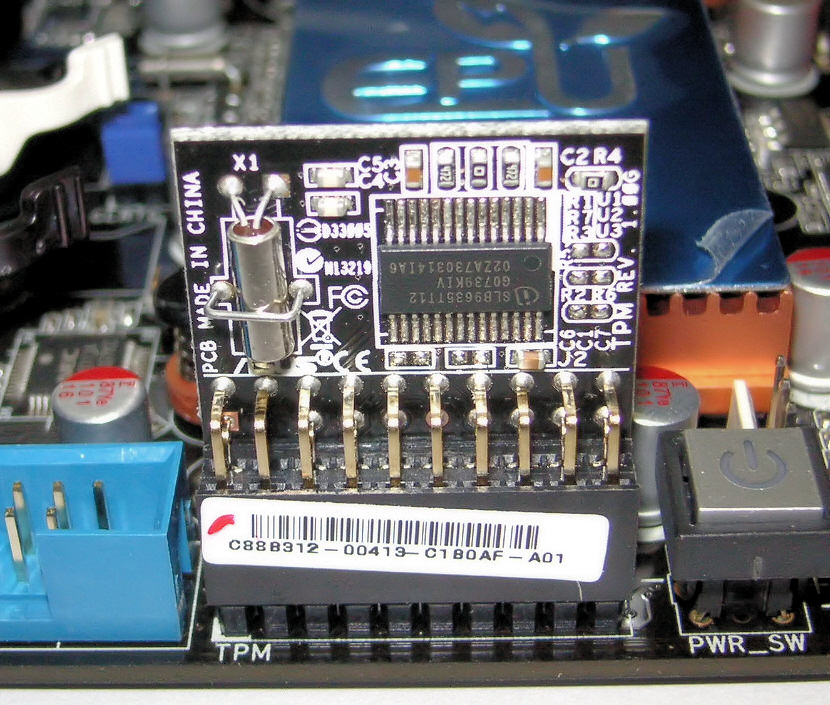
BitLocker provides full volume encryption for Windows operating systems. It mathematically scrambles every sector of the hard drive. To do this seamlessly without forcing the user to type a decryption key on every boot, BitLocker relies on a Trusted Platform Module (TPM) chip to store cryptographic keys securely. The motherboard's TPM chip verifies that the hardware hasn't been tampered with before quietly releasing the key to unlock the drive during the boot process.
Because removable media like thumb drives lack TPM chips, Windows utilizes a sister technology: BitLocker To Go provides encryption for removable storage devices. Most commonly, BitLocker To Go supports encryption on USB flash drives, relying on a user-generated password rather than hardware-bound keys.
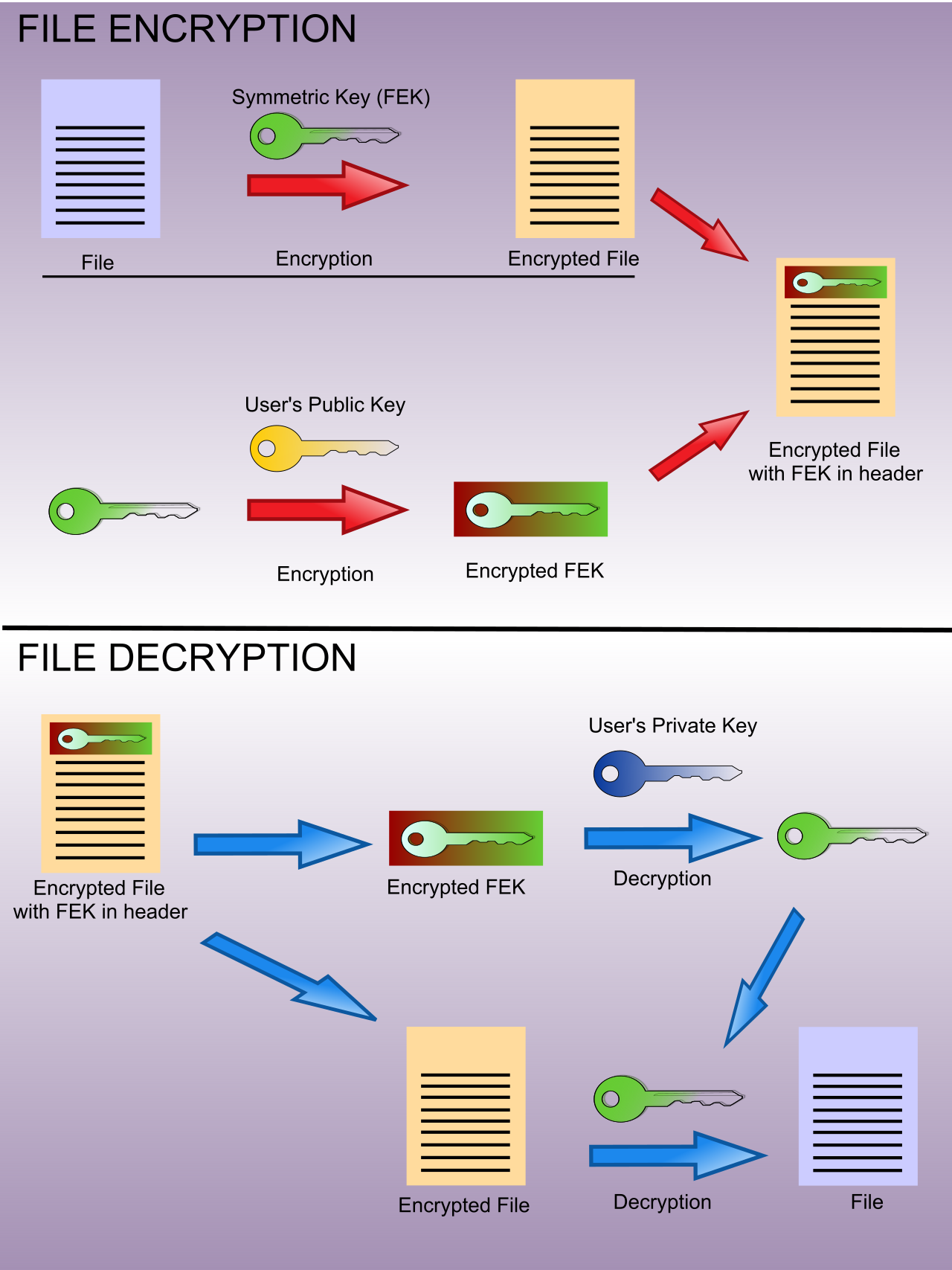
While BitLocker encrypts the entire house, the Encrypting File System (EFS) provides file-level and folder-level encryption in Windows. EFS is highly granular but comes with a massive operational caveat that support technicians must deeply respect: EFS encryption keys are tied directly to the specific Windows user account that encrypted the file.
Critical Support Warning: Because the cryptography is bound to the user's unique security identifier, another user cannot access EFS-encrypted files even with local administrator privileges. If a technician deletes a corrupted user profile without first backing up their EFS certificate, those encrypted files are mathematically permanently destroyed.
Managing local accounts, permissions, and encryption keys on a single computer is simple. Doing it across 5,000 workstations is impossible without a centralized brain. Active Directory provides centralized authentication and authorization for Windows networks.
When a computer becomes part of this enterprise network, it undergoes a cryptographic handshake to establish trust. To initiate this, a Windows computer must be configured with a DNS server that can resolve the Active Directory domain controller. If DNS cannot point the computer to the domain controller, the handshake cannot even begin.
Once communication is established, joining a computer to an Active Directory domain requires administrative credentials for the domain. You are effectively asking the master ledger to create a new, trusted computer object. Because this fundamentally rewrites the local security authority of the machine, a system reboot is required to complete the process of joining a Windows computer to a domain.
With trust established, administrators can automate the user experience. Active Directory logon scripts automatically execute commands when a user signs into the domain. In a practical support environment, logon scripts are frequently used to map network drives for users, ensuring that the "Sales" folder always appears as the S:\ drive the moment a sales representative logs in.
If Active Directory is the ledger of identity, Group Policy is the centralized rulebook of behavior. Group Policy allows administrators to centrally manage Windows settings across multiple computers.
Instead of walking to 5,000 machines to adjust security parameters, an administrator configures a policy object once on the domain controller. For instance, Group Policy can enforce password complexity requirements across all domain computers, ensuring every user utilizes alphanumeric characters and symbols.
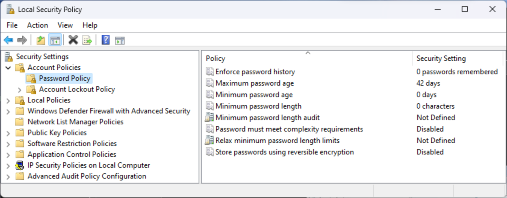
When troubleshooting why a specific policy hasn't taken effect on a user's machine, technicians rely on two indispensable command-line tools:
- The command
gpupdate /forceforces an immediate application of new Group Policy settings, bypassing the standard background refresh interval. - The command
gpresultdisplays the Group Policy settings currently applied to a user or computer, allowing the technician to see exactly which rules are winning out in real-time.
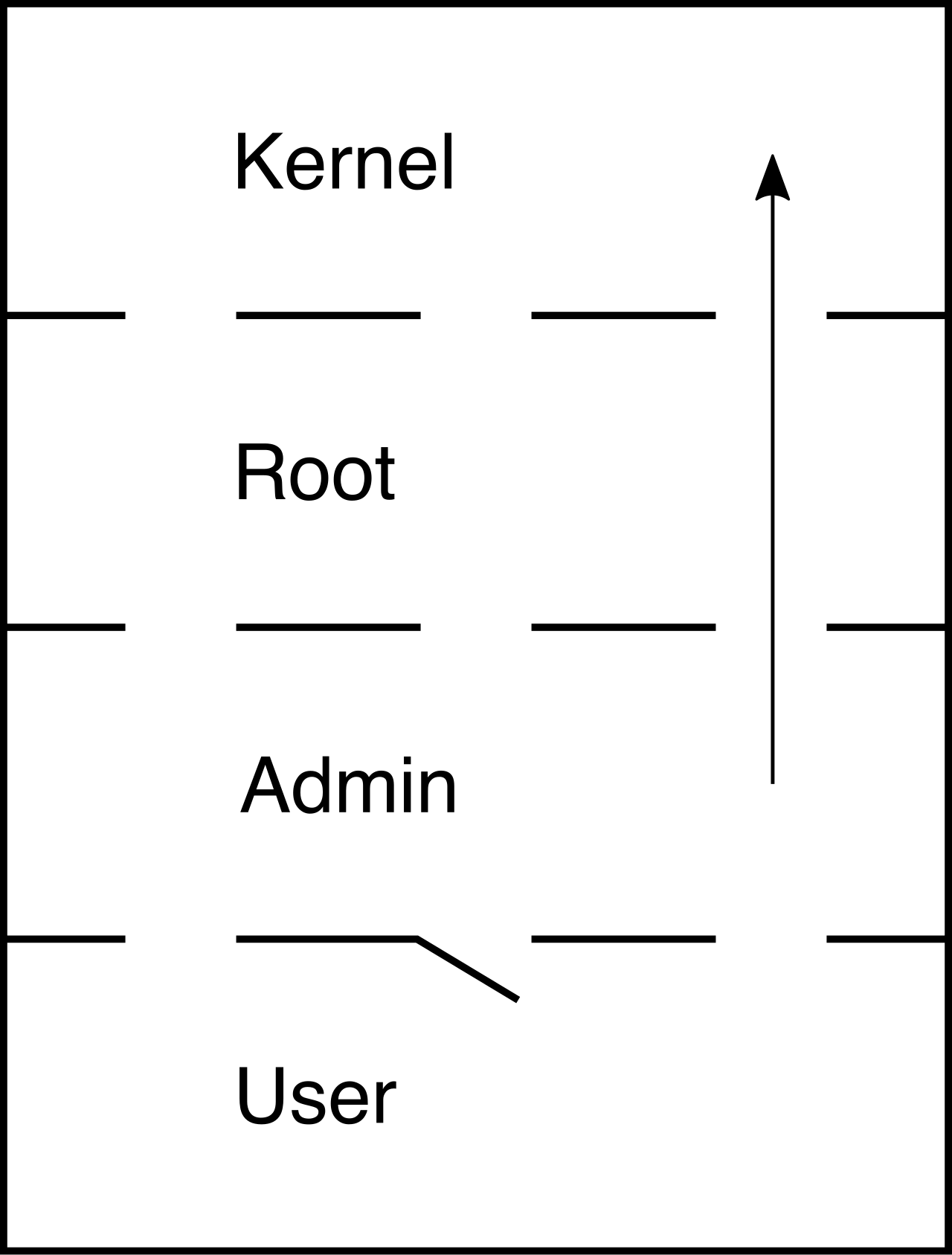
Even with Active Directory and Group Policy perfectly configured, a local vulnerability remains: if malware executes while an administrator is logged in, that malware historically inherited all the administrator's powers. To isolate this threat, Microsoft introduced a mechanism of continuous consent.
User Account Control (UAC) is a security feature that prevents unauthorized changes to the Windows operating system. By default, Windows strips administrative powers from every user at login, issuing them a "Standard" security token.
When a system-level change is requested, UAC pauses the operating system and demands verification:
- UAC prompts standard users to enter administrator credentials before allowing system-level changes.
- UAC prompts logged-in administrators for consent via a Yes or No dialog box before executing elevated tasks.
The administrator doesn't need to retype their password, but they must physically click "Yes." This human interaction ensures a malicious script cannot silently elevate itself in the background.
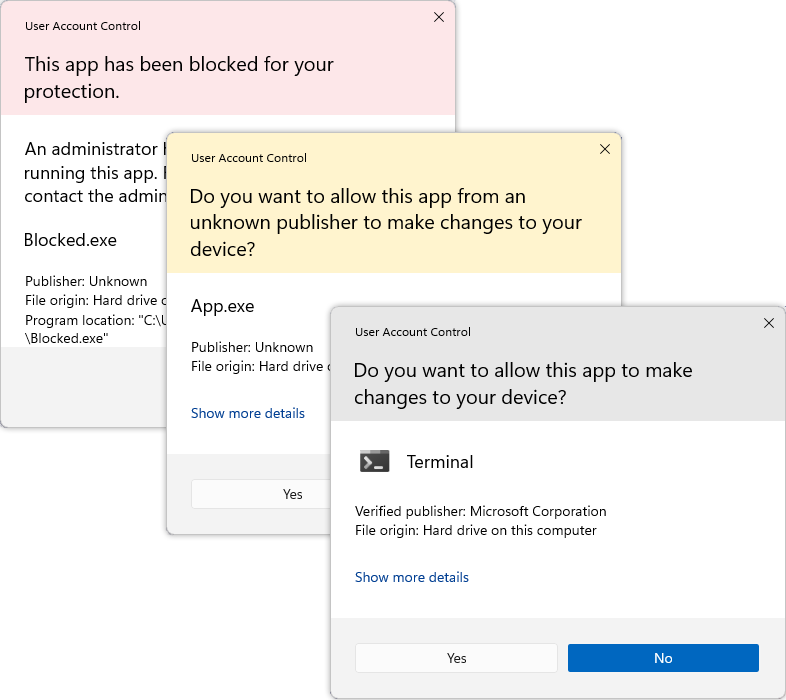
When a technician explicitly needs a tool to operate with full administrative power, they utilize a specific context menu option. The Run as Administrator option executes an application with an elevated security token. By generating this token, running an application as an administrator bypasses the standard user security restrictions for that specific program, granting the application full, unhindered access to the registry, file system, and network architecture.