Enterprise cloud migration often involves relocating the data and workloads of entire physical datacenters filled with thousands of interconnected rackmount servers.
To bridge the gap between on-premises environments and the cloud, Microsoft Azure provides a spectrum of tools. Some are designed for surgical, high-speed file transfers over the internet. Others act as intelligent bridges that trick local networks into utilizing limitless cloud storage. And when the physics of the internet completely fail us, Azure provides physical, armored appliances to move data offline.
Understanding how to choose among AzCopy, Azure Storage Explorer, Azure File Sync, Azure Migrate, and the Azure Data Box family is fundamental to any cloud migration strategy. Let us examine the mechanics, the use cases, and the business value of each.
When an organization needs to move data over an existing internet connection, the primary enemy is inefficiency. If a software tool processes files sequentially, or if a user interface consumes too many system resources, the transfer takes longer, tying up critical network bandwidth.
To solve this, Azure provides a foundational transfer engine and a visual tool built on top of it.
AzCopy: The High-Performance Engine
At the foundation of Azure's data movement tools is AzCopy.
AzCopy is a command-line utility used to copy data into and out of Azure Storage.
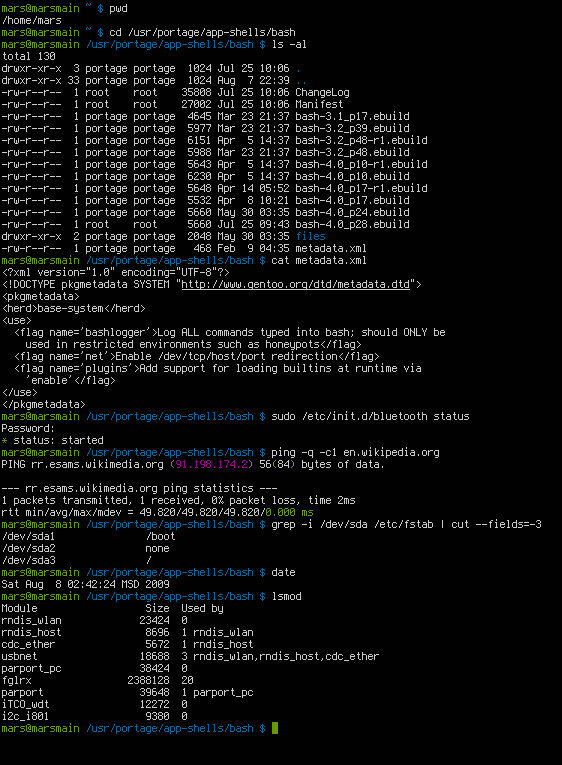
Because it operates from the command line, it strips away the overhead of a graphical interface, making it incredibly lightweight and scriptable. System administrators and automated deployment pipelines rely heavily on AzCopy for repetitive, scheduled data transfers.
Command-line interfaces strip away visual rendering overhead, allowing tools like AzCopy to dedicate maximum system resources to high-speed data transfer.
AzCopy is highly versatile. It supports data transfer for Azure Blob storage, Azure Files, and Azure Table storage. But its true power lies in how it moves data. AzCopy provides high-performance data transfer by utilizing background server-sidesynchronization. When you use AzCopy to move data between two different storage accounts within Azure, the utility does not download the data to your local machine and push it back up to the destination. Instead, it instructs the Azure servers to copy the data directly across Azure's high-speed internal backbone. Even for local-to-cloud uploads, it achieves high throughput by intelligently chunking files and parallelizing the transfer.
Azure Storage Explorer: The Visual Interface
While AzCopy is powerful, command-line interfaces are not accessible or ideal for everyone. A project manager conducting an audit, a finance professional reviewing exported billing data, or an IT generalist managing day-to-day folder structures needs to see the data they are manipulating.
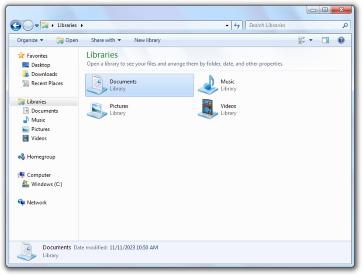
Rather than typing complex command strings, users can visually navigate their storage accounts, creating folders, uploading files, and modifying access policies just as they would using File Explorer on a personal computer.
Azure Storage Explorer provides a graphical interface similar to standard operating system file managers, making cloud storage intuitive without the need to write scripts.
Importantly, Azure Storage Explorer does not reinvent the wheel for data transfer. Instead, Azure Storage Explorer relies on the AzCopy engine under the hood to perform efficient data transfer operations. You get the raw horsepower and optimized parallelization of AzCopy, wrapped in a user-friendly visual dashboard. Furthermore, because modern IT environments are diverse, Azure Storage Explorer is available for Windows, macOS, and Linuxoperating systems, ensuring that anyone in the organization can interact with Azure Storage regardless of their hardware.
Consider a classic problem encountered by nearly every growing business: the local file server is running out of hard drive space.
Historically, the IT department had two terrible choices. First, they could buy expensive new hardware, wait weeks for it to arrive, schedule downtime, and migrate the data. Alternatively, they could force users to access files directly from a cloud server over a VPN, resulting in crippling latency where opening a simple Excelspreadsheet takes thirty seconds.
Azure File Sync offers an elegant, "best of both worlds" solution.
Azure File Sync centralizes an organization's file shares in Azure Files, while keeping a seamlessly integrated local copy on your existing hardware.
How Azure File Sync Works
Instead of ripping out your existing hardware, Azure File Sync transforms an on-premises Windows Server into a fast local cache for Azure file shares.
Imagine a massive corporate library. The library's total collection contains millions of books (stored in Azure Files), but the local branch only has a few shelves (your on-premises server). Azure File Sync cloud tiering frees up local storage space by keeping only frequently accessed files on local servers.
If an accountant accesses a Q3 financial report every day, that file lives locally on the physical server. If they try to open a five-year-old tax return, the file appears to be local, but the moment they double-click it, the Windows Server instantly fetches it from Azure.
For the end-user, this transition is completely invisible. Azure File Sync enables users to access cloud-hosted files with the same performance as a local file server, while the organization enjoys the practically infinite capacity and centralized backup capabilities of Azure.
Moving individual files or syncing folders is relatively simple. But what if a business has decided to close a physical datacenter entirely? They must move hundreds of running servers, interconnected applications, and massive databases without breaking the business. This requires sophisticated planning.
Azure Migrate is the architectural control center for this endeavor.
Azure Migrate provides a centralized hub to assess and migrate on-premises servers, infrastructure, applications, and data to Azure.
The Assessment Phase: Look Before You Leap
You cannot migrate what you do not understand. In legacy datacenters, there are often "ghost servers"—machines running in a closet that nobody remembers, but that secretly power a critical business application.
To solve this, Azure Migrate discovers on-premises infrastructure to determine technical readiness for a cloud migration. It deploys lightweight appliances into your local network that silently map out exactly what hardware you have, what software is running, and which servers communicate with one another.
Crucially for project managers and financial stakeholders, Azure Migrate generates cost estimates for running an organization's on-premises workloads in Azure. It tells you exactly how much CPU and memory your servers actually use, recommending the most cost-effective cloud virtual machines. Instead of guessing your future cloud bill, you proceed with mathematical certainty.
The Migration Phase
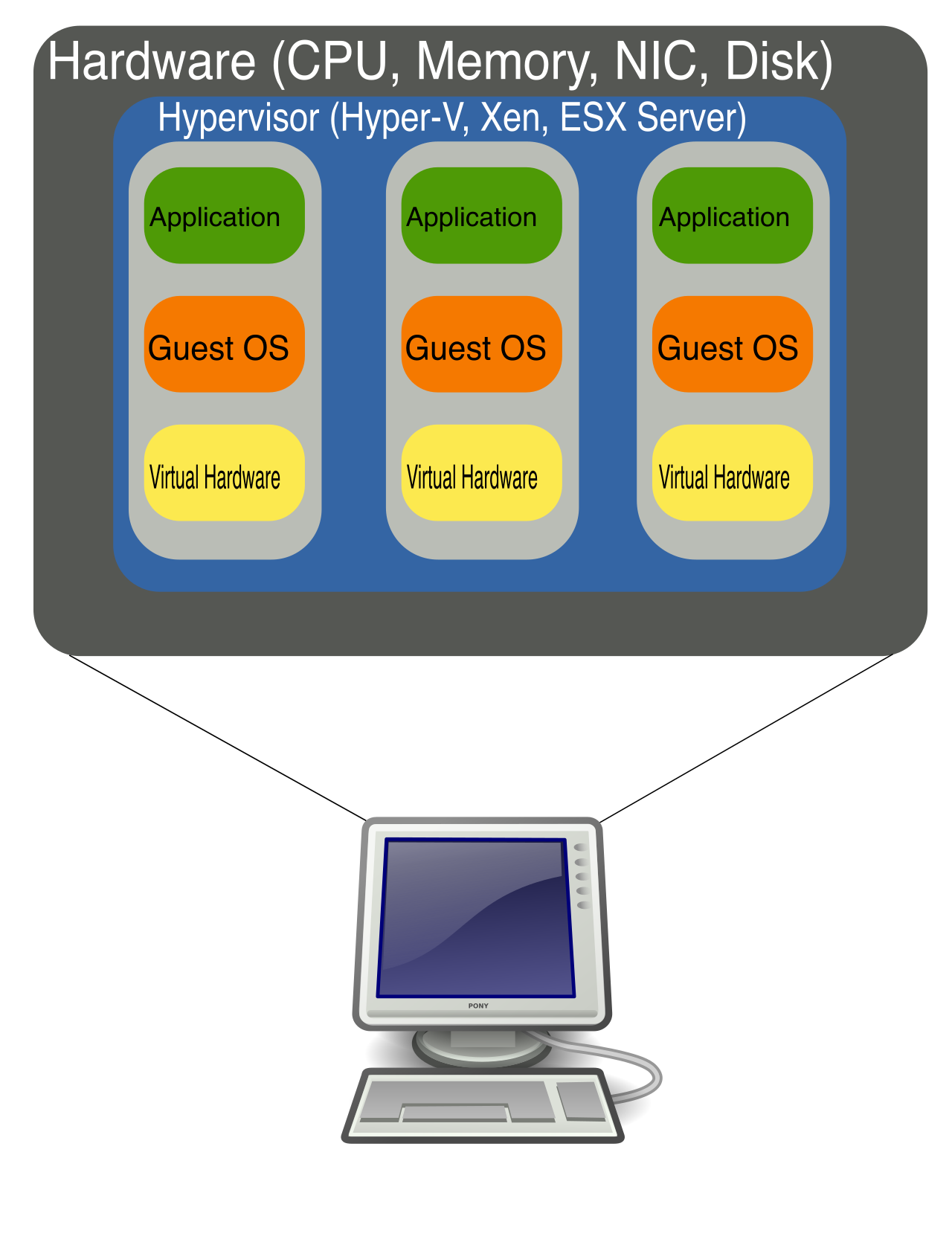
Once the assessment is approved, Azure Migrate handles the heavy lifting. Azure Migrate supports the migration of physical servers, VMware virtual machines, and Hyper-V virtual machines. Whether your existing infrastructure is cutting-edge virtualization or aging physical hardware bolted to a rack, Azure Migrate orchestrates the replication of those machines into Azure, minimizing downtime and risk.
Azure Migrate handles the complex orchestration required to map and replicate fully virtualized environments (like VMware and Hyper-V) into the cloud.
We must finally address the limits of network bandwidth.
Let us do the math. If an organization has 100 terabytes (TB) of archival video footage, and their internet connection has an upload speed of 100 Megabits per second (Mbps), uploading that data over the internet would take over three months of continuous, non-stop transmission. If the network drops, or if normal business operations require that same bandwidth, the migration halts.
When network bandwidth is the bottleneck, we abandon the internet entirely and return to the physical world.
Azure Data Box is a physical device provided by Microsoft for offline data transfer to Azure.
Azure Data Box is designed for moving terabytes of data to Azure when network bandwidth is limited or unavailable. It is the modern equivalent of an armored transport truck for your data.
The Data Box Workflow
Ordering and Delivery:Microsoft ships Azure Data Box devices directly to a customer's facility for local data ingestion.
Local Transfer: Your IT team plugs the Data Box directly into your local network via high-speed cables. Because it is local, you bypass the internet entirely, copying terabytes of data in a matter of days.
Security in Transit: Shipping physical devices naturally raises security concerns. What if the delivery truck is involved in an accident or the device is stolen? Microsoft anticipated this: All data transferred onto an Azure Data Box device is protected by hardware encryption. Without the specific unlocking passkeys (which are managed via the Azure Portal), the device is nothing more than an unreadable brick of silicon.
Ingestion and Destruction: Once shipped back to Microsoft, the datacenter technicians plug the device into the Azure backbone and upload your data to your storage account. Finally, Microsoft securely wipes all data from an Azure Data Box device according to NIST (National Institute of Standards and Technology) standards after uploading the data to Azure.
To mitigate the physical risks of shipping storage devices, all data on an Azure Data Box is cryptographically scrambled and cannot be read without secure passkeys.
Data migrations come in different sizes, so the hardware does as well. The Azure Data Box family includes Data Box Disk for smaller transfers and Data Box Heavy for petabyte-scale transfers.
Data Box: The standard appliance, roughly the size of a ruggedized suitcase, capable of moving around 80 terabytes of usable data.
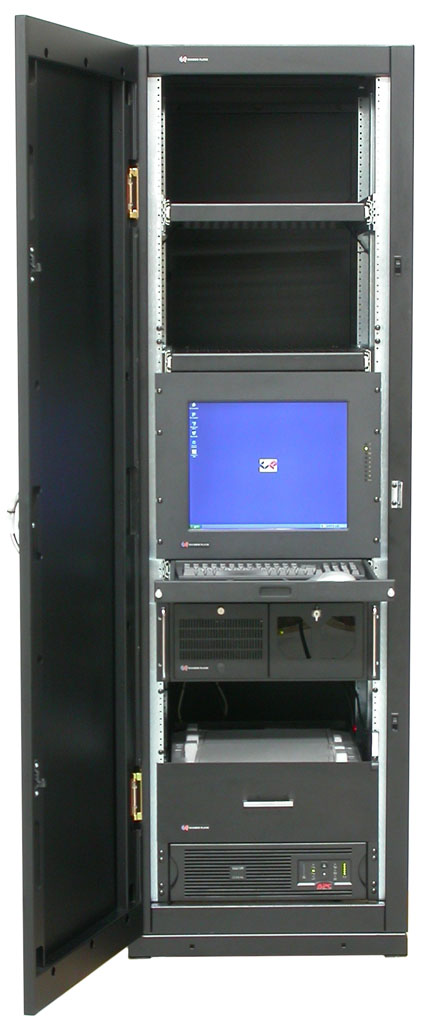
Data Box Heavy: A massive, wheeled, rack-sized appliance designed to ingest up to a petabyte (1,000 terabytes) of data.
The Azure Data Box Heavy is roughly the size of a standard commercial server rack, allowing it to house enough physical drives to ingest up to a petabyte of offline data.
Understanding Azure's data movement tools requires recognizing the right tool for the right scenario.
Use AzCopy for scriptable, high-speed file transfers.
Use Azure Storage Explorer when your team needs a visual interface backed by AzCopy's power.
Use Azure File Sync to magically extend your local on-premises server storage into the cloud, maintaining local performance while cutting hardware costs.
Use Azure Migrate when you need to assess, cost-estimate, and migrate entire virtual or physical servers.
And when the internet is simply too slow, use Azure Data Box to securely ship your data across the country in an encrypted, physical vault.
By mapping these tools to their real-world constraints—bandwidth, cost, user experience, and physics—you transform cloud migration from a daunting technical hurdle into a predictable, manageable business process.