Mobile OS and Application Issues
Not sure you’re ready?
Take the ~3-minute readiness diagnostic and see where you stand.
To troubleshoot a modern mobile device is to diagnose an entire densely packed computing ecosystem sandwiched behind a few millimeters of glass. Within this constrained environment, billions of transistors, multiple radio frequencies, and a sandboxed operating system are inextricably linked. When an end-user hands you a smartphone that is overheating, dropping connections, or abruptly crashing, you are not merely looking at a broken pane of glass; you are observing a breakdown in the precise mechanical and software interactions governing this environment. Every failure leaves a diagnostic trail. To resolve these issues efficiently in a professional support role, we must replace guesswork with a structural understanding of how mobile operating systems manage hardware resources, application states, and network security.
Applications in a mobile operating system do not execute in a vacuum; they rely on a delicate web of permissions, temporary files, and background services. When an application behaves erratically, your troubleshooting workflow should follow a strict hierarchy of escalation—from the least destructive intervention to the most.
Often, users will report that an app freezes on the loading screen or suddenly disappears into the background. In many cases, corrupted temporary cache files can cause a mobile application to freeze or, just as frequently, cause a mobile application to crash unexpectedly. As applications pull down images and data from the internet, they store them locally to speed up future load times. When these files become fragmented or misaligned with the current app version, the application chokes. Clearing a mobile application's cache removes temporary operational files, forcing the app to download a clean set of resources without destroying the user's login state.
If the app continues to hang, the operating system might be failing to manage the app's thread states. Here, we step up to a harder reset: the force stop. A force stop abruptly terminates a running mobile application, instantly killing its active processes. Crucially, a force stop terminates the background processes of a targeted mobile application as well, ensuring that no rogue background syncing service continues to execute.
When both cache-clearing and force-stopping fail, the corruption usually lies deeper within the user's saved data. At this stage, clearing a mobile application's data deletes all user configurations associated with that specific application. Be cautious and warn your end-user, because clearing a mobile application's data deletes all locally stored databases associated with that specific application, effectively returning the app to the state it was in the moment it was downloaded.
Sometimes, the binary code of the application itself has become corrupted. In this scenario, reinstalling a mobile application replaces potentially corrupted installation files with a fresh copy.
Failures Before the App Even Runs
You will frequently encounter scenarios where an application refuses to launch, install, or update. The underlying causes of these failures are rooted in system-level constraints:
- Launch Failures: Even with perfect code, mobile applications can fail to launch if essential application permissions are denied in the operating system settings. An app that immediately crashes upon opening the camera is often being blocked by the OS's privacy firewall because the user previously denied camera access.
- Installation Failures: Mobile operating systems are incredibly strict about local storage margins. Mobile applications fail to install when the device lacks sufficient storage space, as the OS reserves a buffer of flash memory specifically for system stability.
- Update Failures: If a user complains they are missing out on new features, check their OS version. Mobile applications fail to update when the mobile operating system version is obsolete, as developers frequently drop support for older API frameworks.
The Nuances of Sideloading
In enterprise environments or specialized development scenarios, applications are often installed from outside the official Google Play Store or Apple App Store. This is known as "sideloading," and both major operating systems employ strict security gates to prevent malicious software execution.
- Android: By default, Android blocks sideloading. To bypass this, sideloaded Android applications require enabling the Install Unknown Apps permission for the source application (such as the web browser or file manager used to download the
.apkfile). - iOS: Apple's ecosystem is even more locked down. iOS applications downloaded outside the App Store require trusting the Enterprise Developer certificate in the device management settings. Without this explicit cryptographic trust, iOS will refuse to execute the binary.
Because mobile devices operate without active cooling fans, system performance and battery health are intrinsically linked to thermal management and resource allocation.
When users complain of sluggish responsiveness, the issue is almost always a bottleneck in one of two memory layers. Slow mobile device performance can result from insufficient available active memory (RAM) forcing the OS to aggressively swap processes in and out. Similarly, slow mobile device performance can result from nearly full internal storage. Solid State Drives (SSDs) and eMMC storage require empty blocks to perform wear-leveling and garbage collection; when a drive is completely full, read/write speeds plummet, dragging the whole system down with it.

The Invisible Battery Drains
Battery complaints are the most common ticket a help desk will receive regarding mobile devices. While aging hardware is often to blame, software configuration is usually the culprit.
The display is the single largest power draw on any phone; thus, high screen brightness settings significantly reduce mobile device battery life. Behind the scenes, radio transmitters are the second largest drain. High mobile battery consumption is often caused by applications constantly utilizing location services in the background, keeping the GPS radio active and preventing the system from entering a deep sleep state. Additionally, poor cellular signal strength increases mobile device battery drain due to the radio transmitter boosting power to find a connection. If a phone is struggling to reach a distant cell tower, it will push maximum electrical current to its internal amplifier.

Hardware in Distress: Reboots and Batteries
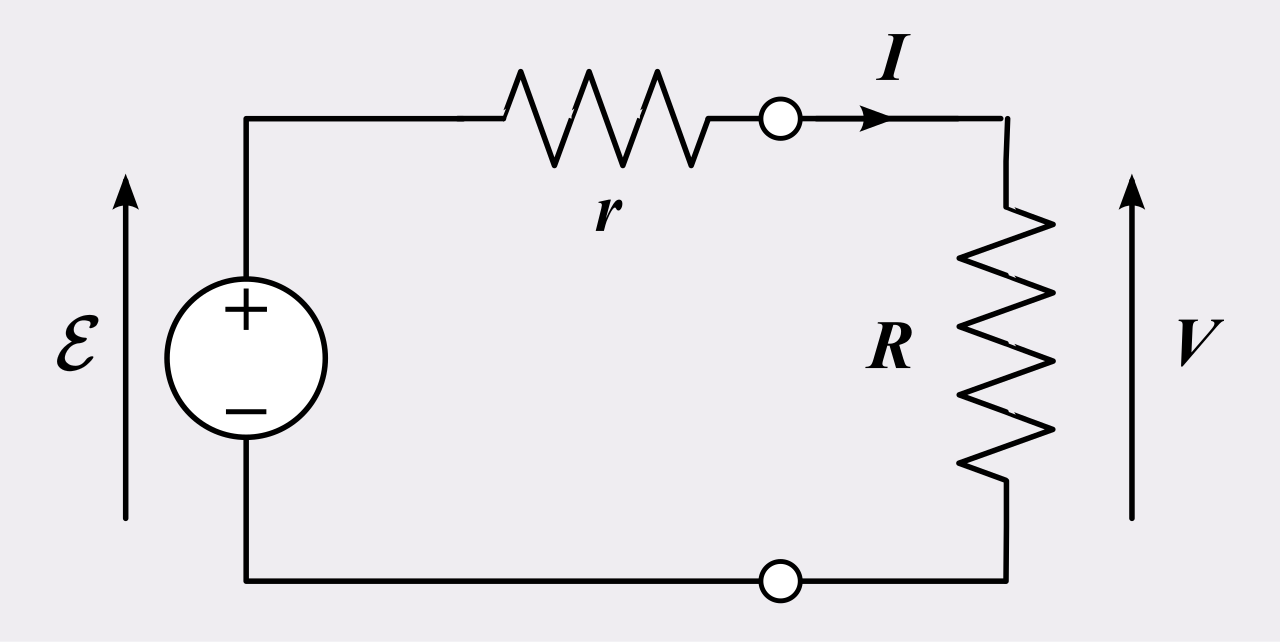
If a user reports that a phone shuts off on its own, you must differentiate between a software crash and a hardware failsafe. Random reboots on a mobile device can be triggered by thermal throttling during overheating events. To prevent the silicon from literally melting, the motherboard will cut power. Alternatively, random reboots on a mobile device can indicate a severely degraded internal battery whose internal resistance has grown so high that it can no longer supply the peak voltage required when the processor spikes in activity.
CRITICAL HARDWARE WARNING: Lithium-ion batteries degrade chemically over time. When internal electrolytes break down, they release gas. Therefore, a swollen mobile device battery is a critical physical hardware failure. The pressure can crack the screen or ignite. If you encounter a device bulging at the seams, know that a swollen mobile device battery requires immediate device shutdown. Place the device in a fireproof container and do not attempt to charge or use it.
When troubleshooting systemic instability, you must be able to isolate whether the root cause is the core operating system or a misbehaving third-party application.
Enter the diagnostic boot mode. Android Safe Mode loads the operating system without starting any third-party applications. Booting into this mode acts as a definitive dividing line. If the phone functions perfectly in Safe Mode, the OS and hardware are fine; Android Safe Mode helps administrators identify software conflicts caused by installed user applications.
If the system remains unstable even in Safe Mode, or if the OS is irreparably corrupted, you must turn to the ultimate reset. A mobile operating system factory reset restores the device software to its original manufacturer state. Remember that this is a highly destructive action: a mobile operating system factory reset erases all user data on the device. Always ensure the user has verified cloud backups before proceeding.
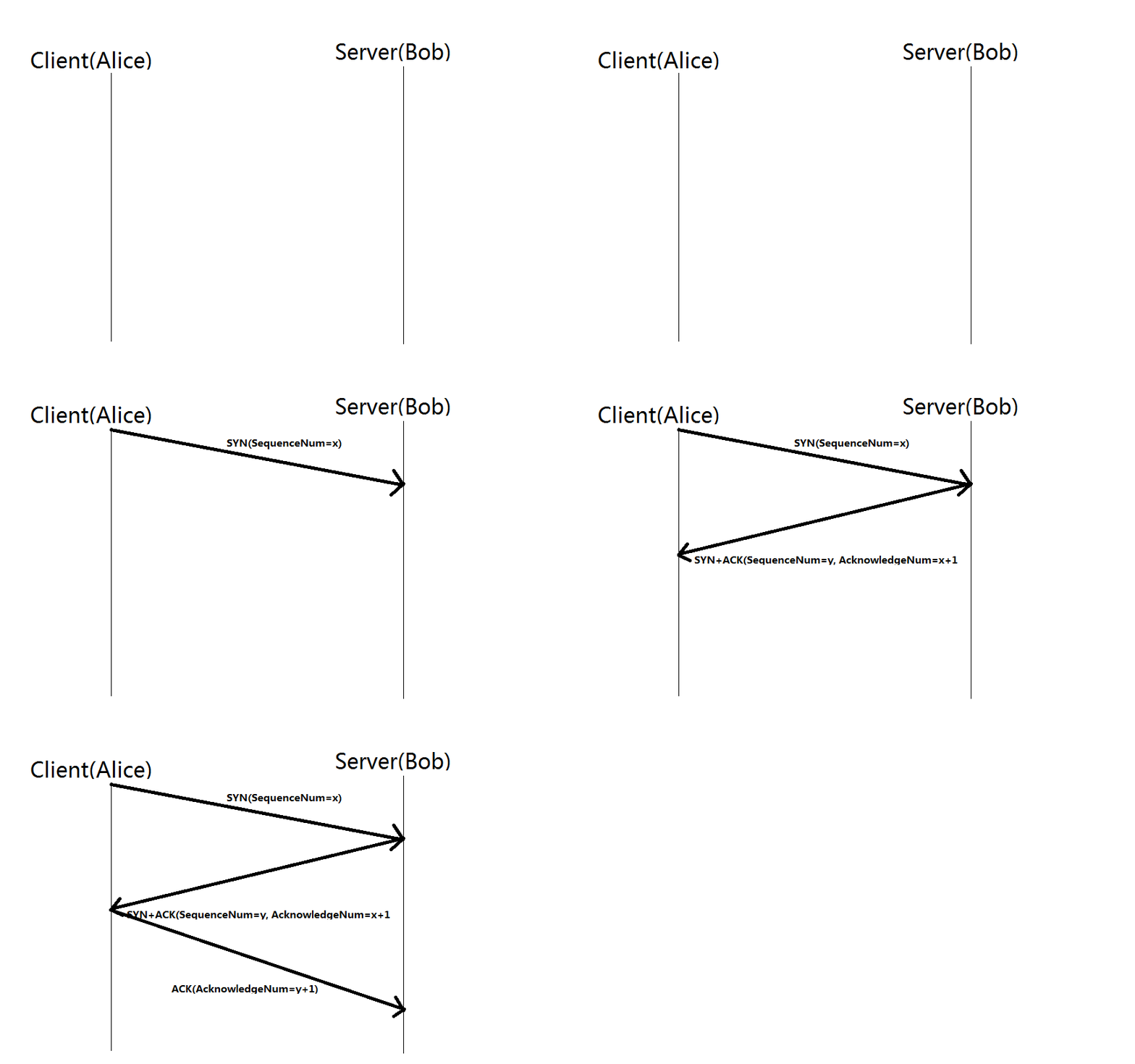
Mobile devices live and die by their wireless connections. When Wi-Fi, Bluetooth, or NFC fail, the troubleshooting methodology relies on breaking down and rebuilding the authentication handshakes between devices.
The fastest way to reset an erratic radio state is to use the master switch. Toggling Airplane mode temporarily disables all wireless radio connections on a mobile device. Turning it back off forces the antennas to perform a fresh scan and handshake with local towers and routers.
If a specific Wi-Fi network repeatedly drops, the cached authentication token might be invalid. Forgetting a Wi-Fi network forces the mobile device to establish a new authentication session upon reconnection. The same logic applies to Bluetooth audio devices and peripherals. Corrupted cryptographic keys often halt connections, but Bluetooth pairing failures can often be resolved by deleting the existing device profile and putting the peripheral back into pairing mode.
When multiple network protocols fail simultaneously, you must clear the entire networking cache. Resetting network settings on a mobile device clears all saved Wi-Fi networks, and simultaneously deletes all saved Bluetooth pairings. This flushes the networking stack without deleting the user's photos, apps, or local data.
The Physics and Security of NFC
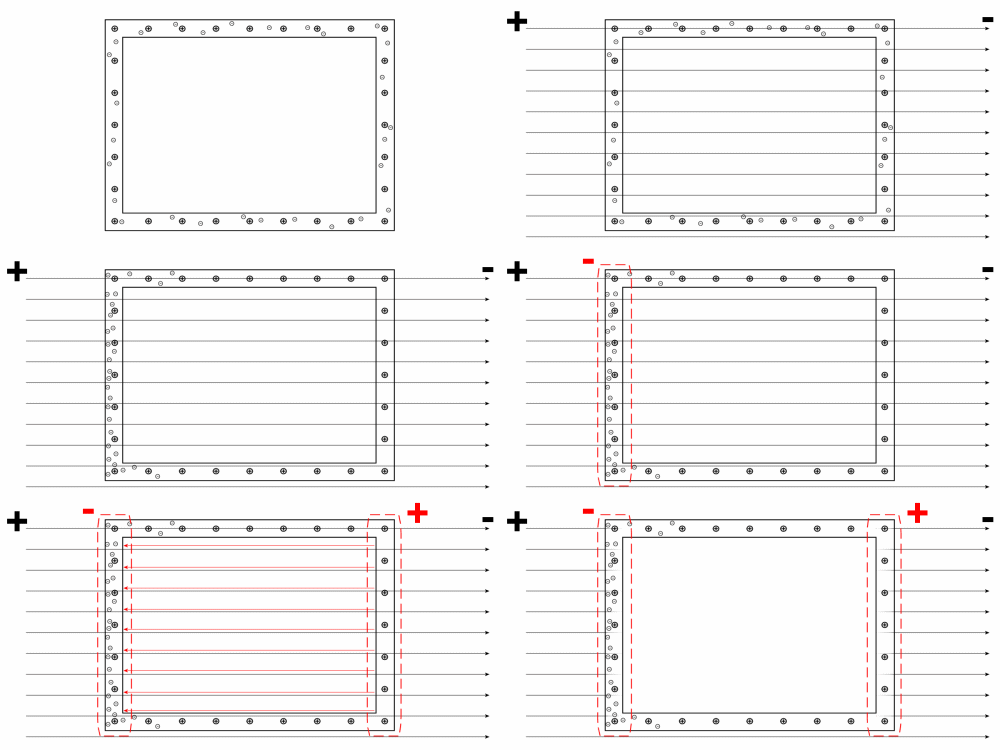
Near Field Communication (NFC) governs mobile payments (like Apple Pay or Google Wallet) and access control badges. Because it uses electromagnetic induction to transmit data, it is heavily bound by physical proximity and security constraints.
Near Field Communication requires communicating devices to be within four centimeters of each other. If a user complains that their phone will not scan at a payment terminal, check their case. Thick metallic protective mobile phone cases can physically block Near Field Communication signals, acting as a Faraday cage.
Finally, recognize the software security layered over the NFC hardware. Even if the hardware is working perfectly, mobile payment applications utilizing Near Field Communication typically fail if the device screen is locked. The OS requires biometric or passcode authentication to authorize the transmission of payment tokens.
We will close by examining the screen autorotate feature, a perfect example of hardware inputs dictating software outputs.
When you turn a phone sideways, the display shifts from portrait to landscape. This magic is governed by two tiny micro-electromechanical systems (MEMS) soldered to the motherboard. First, the mobile device autorotate feature relies on the internal accelerometer sensor to detect physical orientation relative to the gravity of the Earth. Second, the mobile device autorotate feature relies on the internal gyroscope sensor to track rotational movement, providing smooth, real-time data on the speed and angle of the twist.

When autorotate fails, check the software overrides before assuming the microscopic sensors have broken. Screen orientation locks enabled in the mobile operating system settings prevent the display from autorotating, overriding any hardware sensor input. Furthermore, specific mobile applications can programmatically restrict the autorotate function while the application is active—for example, most banking apps force a portrait orientation, while video games force landscape, regardless of how the user holds the device.
By understanding these invisible bridges between silicon hardware and software logic, you transition from simply guessing at solutions to systematically managing the mobile ecosystem.