Troubleshooting Windows OS Issues
Not sure you’re ready?
Take the ~3-minute readiness diagnostic and see where you stand.
A modern operating system is a profoundly intricate orchestration of millions of simultaneous operations, analogous to a sprawling metropolis governed by thousands of interacting laws. When the infrastructure operates seamlessly, the complexity is invisible to the user. But when a foundational component misaligns—whether through a driver issuing an illegal instruction, a failing power supply dropping voltage, or a corrupted boot record severing the pathway to the storage drive—the system manifests this failure through highly specific diagnostic symptoms. The ability to troubleshoot Windows operating system issues is not a matter of memorizing error codes; it is the discipline of observing these symptoms, isolating the failing layer of the architecture, and systematically restoring order to the environment.
Before software can even execute, the hardware environment must be perfectly stable. The laws of thermodynamics and electricity govern everything a computer does.
Unexpected Shutdowns and Heat
Frequent, unexpected computer shutdowns are almost always physical. They are often triggered by thermal sensors detecting unsafe hardware temperatures. When a central processing unit (CPU) overheats, motherboards initiate automatic shutdowns to prevent physical damage.
If the system doesn't abruptly shut down, it might instead try to save itself. Thermal throttling intentionally reduces the processing speed of a CPU to prevent overheating, resulting in severely degraded system performance.
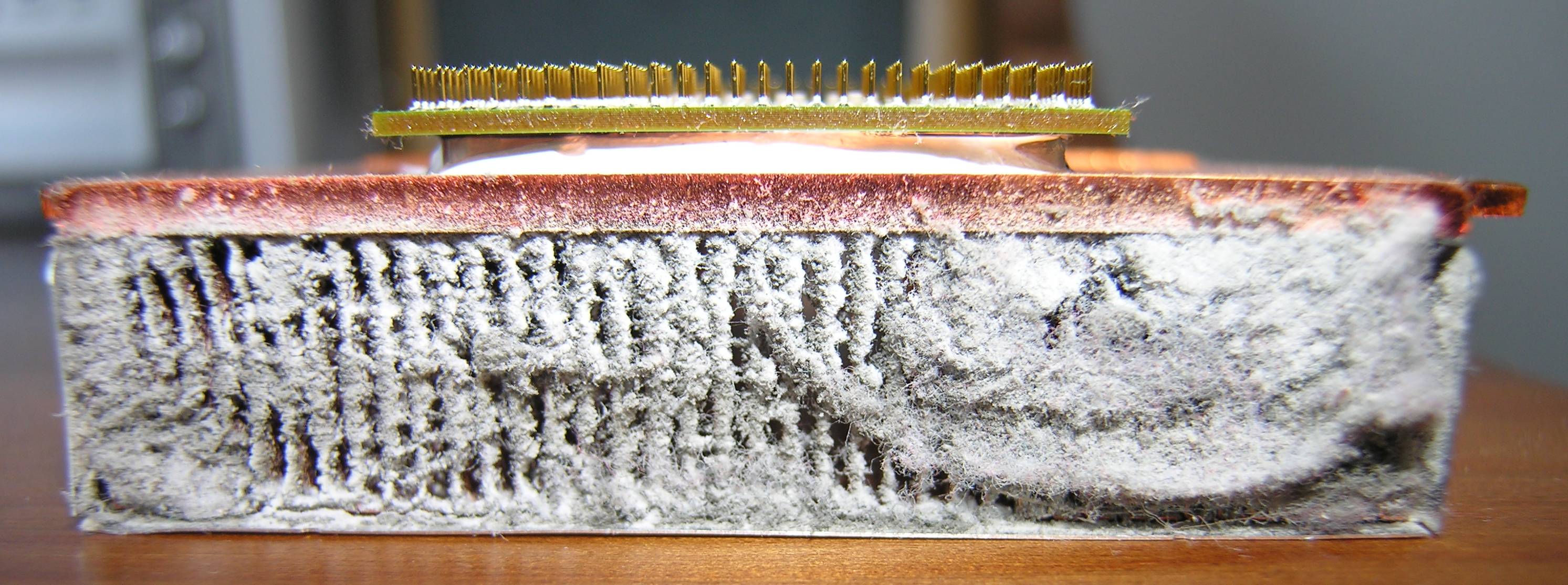
Why do these machines overheat? The primary physical causes are dust accumulation and blocked case ventilation, both of which prevent critical heat dissipation.
If heat isn't the culprit, look to electricity. A failing power supply unit (PSU) causes frequent computer shutdowns under heavy system loads due to voltage drops. When the graphics card and CPU demand sudden surges of power that a degraded PSU cannot deliver, the system blacks out. You can verify this by checking the logs: the Windows Event Viewer logs unexpected system shutdowns under the System log, and an unexpected shutdown logged here often generates Event ID 41, known as Kernel-Power.
Peripheral Resources: The USB Controller
Even peripheral ports have strict physical limits. You may encounter a "Not enough USB controller resources" warning. This occurs when connected USB devices exceed the controller's available bandwidth or when they exceed the controller's available power limits.
This often happens when users plug in excessive peripherals. Multiple USB hubs connected to a single host port share the same controller resources, increasing the likelihood of endpoint exhaustion.
- The Fix: Simply moving a high-bandwidth USB device to a different physical USB controller port resolves USB resource warnings. Alternatively, uninstalling a USB root hub in the Device Manager forces Windows to reallocate USB resources upon reboot.
The Fabric of Time: CMOS and Time Drift
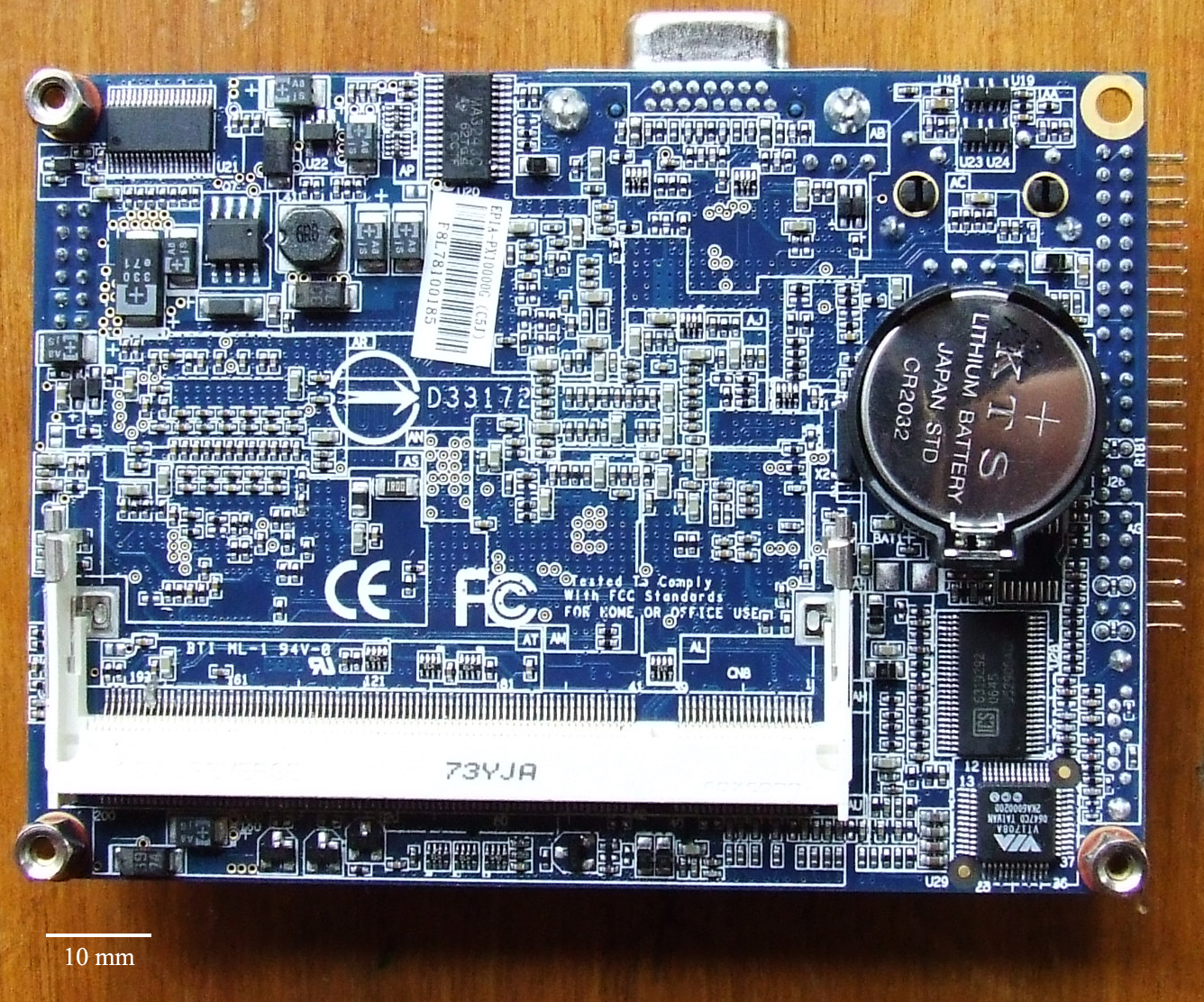
A computer must know what time it is, even when unplugged. Time drift occurs when the local computer clock loses synchronization with actual time. The most common hardware cause of severe time drift when a computer is powered off is a depleted CMOS battery on the motherboard.
Why does a few minutes of time drift matter? It breaks cryptography. Accurate system time is critical for network authentication protocols like Kerberos. Because Kerberos relies on timestamped tickets to prevent replay attacks, severe time drift prevents users from successfully authenticating to a Windows Active Directory domain.
Beyond networking, time drift leads to inaccurate timestamps on newly created computer files and inaccurate timestamps on system event logs, destroying your ability to audit forensics.
Correcting Time: The Windows Time service is responsible for synchronizing the local computer clock with an external Network Time Protocol (NTP) server. As an administrator, you can force the Windows operating system to immediately synchronize the local clock with the configured time server by running the command
w32tm /resync.
Once power is stable, the machine must locate and load Windows.
"No OS Found"
A "No OS found" error indicates the motherboard firmware cannot locate a bootable partition or a valid boot sector. This means the physical handoff between the hardware and the software has failed.
This happens for a few reasons:
- Incorrect Boot Order: An incorrect boot order in the system firmware causes a "No OS found" error if the computer attempts to boot from a non-bootable storage device (like a forgotten thumb drive).
- Missing or Corrupt Boot Files: A corrupted Boot Configuration Data (BCD) store prevents Windows from loading, and a missing Boot Configuration Data store results in boot failure messages.
To fix these underlying storage issues, we turn to the Windows Recovery Environment (WinRE), which provides the Startup Repair utility to automatically fix boot-related issues. If automatic repair fails, you must drop into the command prompt and manually rebuild the boot mechanisms:
| Command | Action |
|---|---|
bootrec /fixmbr | Writes a new Master Boot Record to the system partition without overwriting the existing partition table. |
bootrec /fixboot | Writes a new boot sector to the system partition. |
bootrec /rebuildbcd | Scans all disks for Windows installations and prompts the user to add discovered Windows installations to the Boot Configuration Data store. |
Slow Boot Times
If the system finds the OS but takes forever to reach the desktop, you are facing a resource bottleneck. Slow Windows boot times are frequently caused by an excessive number of startup programs loading simultaneously. These startup applications can be enabled, disabled, and reviewed using the Startup tab in the Windows Task Manager.
To inherently speed up the booting process, Microsoft introduced a feature called Fast Startup, which combines elements of a cold shutdown with elements of hibernation. By saving the operating system state to a file upon shutdown, the Fast Startup feature reduces the time required for a Windows computer to boot.
If you suspect a third-party application is hijacking the boot process, you can use the System Configuration utility, which allows technicians to perform a Clean Boot. A Clean Boot disables all non-Microsoft services and startup items to isolate software conflicts. You can access this by typing the command msconfig, which opens the System Configuration utility in Windows.
The operating system has loaded, but now the user must log in.
Slow Profile Load Times
Slow profile load times occur when a user authenticates but the Windows desktop takes an unusually long time to become responsive.
In enterprise environments, this is famously caused by roaming user profiles, which cause slow load times if a large amount of profile data must be downloaded from a server over a slow network connection. Furthermore, Group Policy objects applied during domain authentication introduce delays, and login scripts executed during domain authentication extend the total time required for a user profile to load.
On a local machine, the culprit is often registry corruption. A corrupted NTUSER.DAT file degrades user profile load performance. If the damage is catastrophic, Windows loads a temporary user profile if the primary user profile is corrupted or inaccessible.
Warning: You must immediately inform users who are logged into a temporary profile not to save important files locally. Data saved to a temporary user profile is permanently deleted when the user logs off.
Service Failures
Behind the scenes of the user profile, background worker applications called services are spinning up.
If a service won't run, check its foundation. A Windows service will fail to start if the dependencies the service relies upon are stopped or disabled. Furthermore, incorrect logon credentials assigned to a Windows service will prevent the service from starting. In such cases, a Windows service configured with incorrect credentials typically generates an Access Denied error, or it can generate a Logon Failure error.
To investigate, you use the Windows Services console, which allows administrators to view the software dependencies of a specific service, and allows administrators to specify automatic recovery actions for services that crash (such as auto-restarting the service after 1 minute). To find out exactly why it failed, check the logs; the Windows Event Viewer records service control manager errors detailing the specific reasons a service failed to start.
Administrators can also tweak when services start. The Automatic (Delayed Start) setting configures a Windows service to start shortly after the operating system finishes booting. Doing this improves initial desktop responsiveness by deferring the startup of non-critical services, preventing a traffic jam of data requests right after login.
The machine is fully booted, but it feels sluggish, unresponsive, or applications keep abruptly closing.
Memory Leaks and Virtual Memory
Low memory warnings appear when the Windows operating system exhausts available physical RAM and the allocated pagefile space.
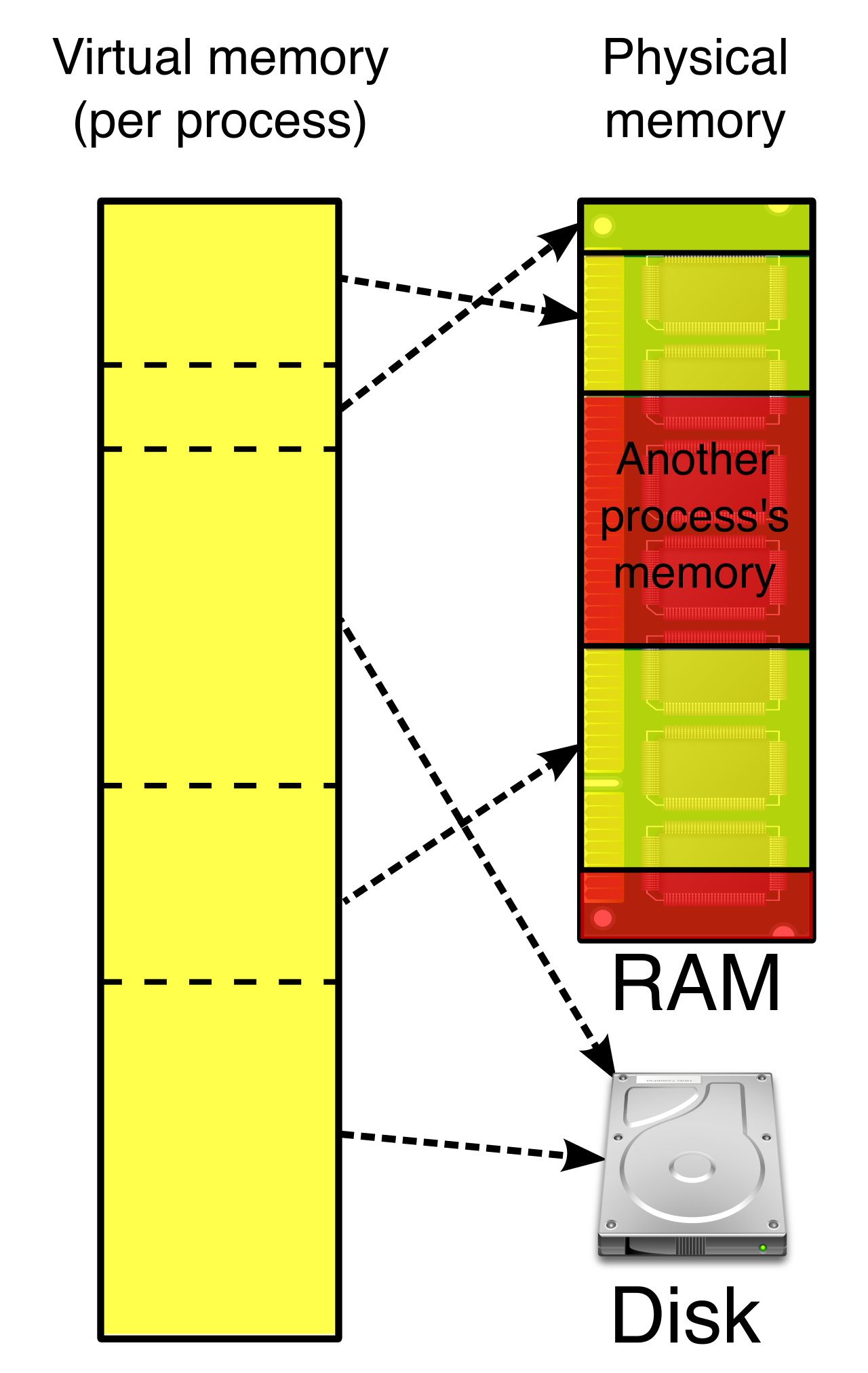
To understand this, you must understand virtual memory. Virtual memory in Windows is managed using a hidden system file called the pagefile. When physical RAM fills up, Windows seamlessly moves idle data to the storage drive to make room.
However, poor software design can ruin this balance. A memory leak occurs when an application fails to release memory the application no longer needs. Like a hoarder refusing to throw out trash, a severe memory leak eventually consumes all available system memory and triggers a low memory warning. You can spot this easily: The Windows Task Manager allows administrators to sort running applications by memory usage to identify resource-heavy programs.
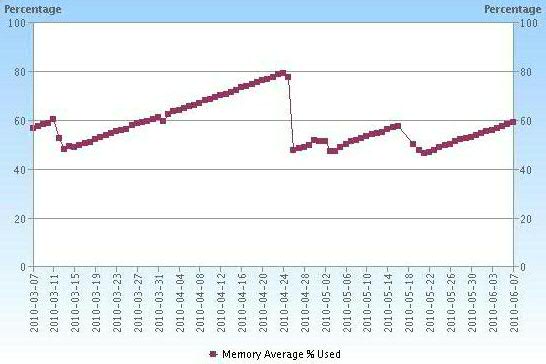
While increasing the size of the Windows pagefile temporarily alleviates low memory warnings, it is not a permanent fix for a leak. Furthermore, excessive reliance on the Windows pagefile degrades overall system performance due to constant disk swapping, because physical storage drives are astronomically slower than physical RAM chips.
Degraded System Performance
Aside from memory exhaustion, degraded system performance is often caused by physical resource exhaustion. The Windows Resource Monitor provides real-time data on CPU, disk, network, and memory usage, allowing you to spot the exact hardware bottleneck.
If hardware isn't maxed out, consider structural or malicious issues:
- Severely fragmented magnetic storage drives cause degraded system performance by forcing the read/write heads to mechanically thrash across the platters to gather parts of a single file.
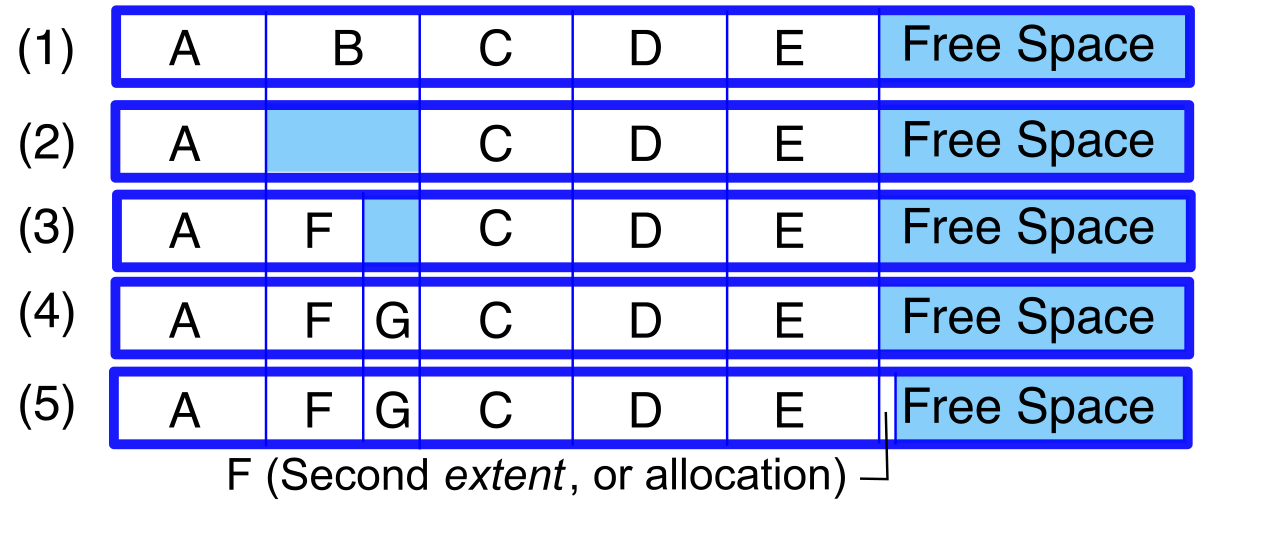
- Malware consuming background processing power leads to degraded system performance by stealing CPU cycles for cryptomining or botnet activities.
Application Crashes and System Repair
Application crashes occur when software attempts to access restricted memory areas or when software performs an illegal operation.
Often, this is an age issue. Running legacy software on a modern Windows version causes compatibility issues that lead to frequent application crashes. To bridge this gap, the Windows Program Compatibility Troubleshooter applies older operating system settings to legacy applications to prevent software crashes.
If modern software crashes, look at the logs. The Windows Event Viewer Application log records the faulting module names associated with crashed applications, and it records exception codes that help identify why an application crashed. If the application files themselves are broken, simply reinstalling an application resolves crashing issues caused by corrupted program files.
But what if the operating system itself is unstable? Windows system instability manifests as random freezes, unresponsiveness, or unpredictable operating system behavior.
To track down the timeline of this decay, you use the Windows Reliability Monitor. It provides a timeline of critical events, software installations, and system failures, which helps correlate system instability symptoms with recent software or hardware changes.
If core Windows files are damaged, we use two vital built-in tools:
- System File Checker (SFC): The System File Checker utility scans and repairs corrupted or missing Windows system files. Because it modifies the foundational OS, the command
sfc /scannowrequires administrative privileges to execute successfully. - Deployment Image Servicing and Management (DISM): If SFC fails, its blueprint is likely corrupted. The Deployment Image Servicing and Management tool is used to service Windows images and is used to repair the underlying Windows component store. Specifically, the command
DISM /Online /Cleanup-Image /RestoreHealthuses Windows Update to retrieve the files needed to fix corruptions.
Finally, we arrive at the absolute worst-case scenario.
A Blue Screen of Death (BSOD) occurs when Windows encounters a critical error from which recovery is impossible.
It is vital to understand that a BSOD is not Windows "crashing" haphazardly; it is Windows executing a deliberate kill-switch. A Blue Screen of Death intentionally halts the Windows operating system to prevent data corruption. If Windows detects that a corrupted driver is about to overwrite the Master File Table on the hard drive, it pulls the plug on itself rather than allowing your data to be destroyed.
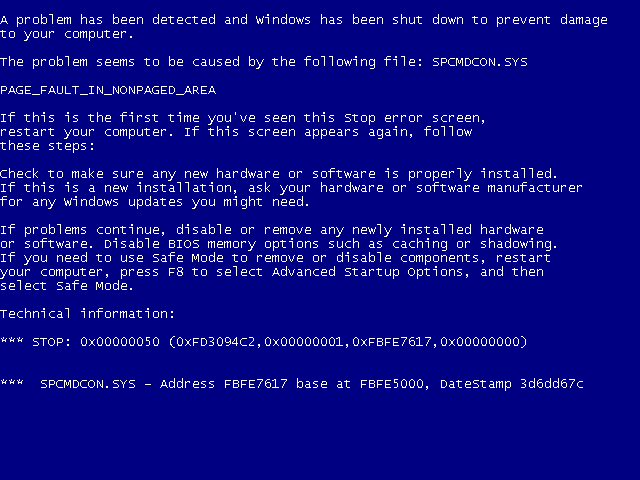
When a BSOD occurs, it provides breadcrumbs for the technician:
- It generates a Stop code that identifies the specific error type.
- It creates a memory dump file containing system state data from the exact time of the crash.
Depending on your system settings, it will generate either a small or full dump:
- The default location for a small memory dump file in Windows is the
%SystemRoot%\Minidumpdirectory. - The default location for a full memory dump file in Windows is the
%SystemRoot%\MEMORY.DMPfile.
What causes this catastrophic halt?
- Hardware failures are a primary cause of a Blue Screen of Death. (Failing RAM or storage drives serving up corrupted memory).
- Incompatible device drivers frequently cause a Blue Screen of Death. (A graphics or network driver demanding an impossible operation).
- Corrupt system files can trigger a Blue Screen of Death. (The operating system literally missing the code it needs to continue functioning).
To isolate a BSOD, we change the rules of the boot environment. Safe Mode is useful for troubleshooting a Blue Screen of Death because Safe Mode loads Windows with only a minimal set of generic drivers. If the machine BSODs in standard mode, but runs perfectly in Safe Mode, you have mathematically proven the hardware is fine, and a third-party driver or service is to blame. You have isolated the variable, which is the heart of all truly brilliant technical troubleshooting.