Workstation Security and Hardening
Not sure you’re ready?
Take the ~3-minute readiness diagnostic and see where you stand.
Imagine a sophisticated bank vault installed inside a canvas tent with the zipper left open. No matter how impenetrable the vault's steel door may be, the surrounding environment offers zero resistance to an intruder. In enterprise IT environments, the individual workstation is often that tent. It is the boundary where human unpredictability meets the rigid logic of corporate infrastructure. An IT support technician’s fundamental responsibility is not merely to fix broken configurations, but to architect a resilient environment around the user. This transformation of a fragile, factory-default machine into an armored asset is achieved through a systematic reduction of vulnerabilities.

When we talk about securing a computer, we must first understand the concept of the attack surface. An attack surface is the total sum of vulnerabilities, listening network ports, running services, and user inputs that can be exploited. Endpoint hardening is the systematic process of securing a workstation by reducing the vulnerable attack surface.
If a piece of software or a feature is not strictly required for a user to do their job, it is a liability. For example, disabling unused operating system services reduces the attack surface of a workstation by eliminating potential entry points for attackers. If a help desk machine is running an active remote registry service or a legacy file-sharing protocol that nobody uses, it provides a quiet backdoor for malware. By turning it off, that door ceases to exist.
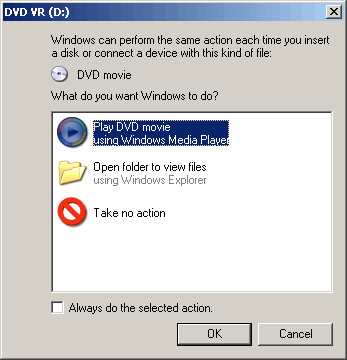
We apply the same logic to peripheral devices. Flash drives found in parking lots have compromised entire power grids. Disabling the Windows AutoPlay feature prevents software on removable USB media from executing automatically upon insertion. Instead of allowing the operating system to eagerly run whatever payload is sitting on the drive, we force a deliberate user action, halting automated malware in its tracks.
Before Windows or macOS ever loads into memory, a workstation must physically initialize. If an attacker can manipulate the hardware before the operating system boots, all software-level security is rendered useless. We secure this pre-boot environment at the firmware level.
There are two primary gates we can lock within a motherboard's firmware:
- A BIOS or UEFI system password prevents a computer from loading an operating system without the correct authentication. Think of this as the key to a car's ignition. Without it, the engine simply will not start.
- A BIOS or UEFI supervisor password prevents unauthorized users from altering critical system hardware and boot settings. Think of this as the lock on the car's hood. A user might be able to drive the car, but they cannot open the hood to rewire the engine or tell the machine to boot from a malicious USB drive.
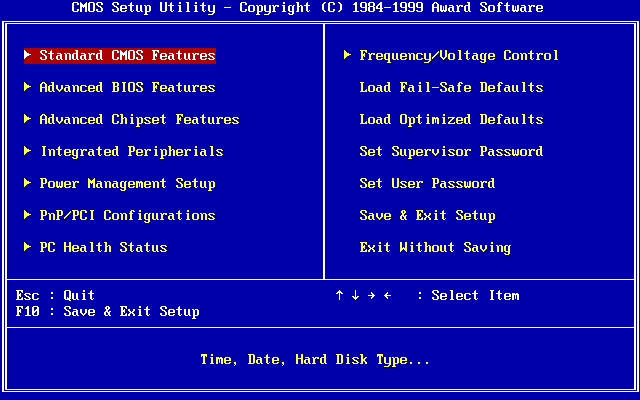
Beyond simple passwords, modern workstations use a cryptographic mechanism to verify the integrity of the boot process. Secure Boot is a hardware-level security standard implemented directly within UEFI firmware. When enabled, Secure Boot verifies the digital signature of the bootloader to prevent malicious software from loading before the operating system initializes. If a rootkit attempts to hijack the boot process, Secure Boot realizes the mathematical signature is forged and halts the machine, protecting the operating system from being undermined.
Suppose an employee's laptop is stolen from a coffee shop. If the thief pulls the hard drive out and plugs it into their own computer, Windows account passwords mean nothing—the thief is just reading raw data directly off the disk. To defend against this, we must encrypt the data where it lives.
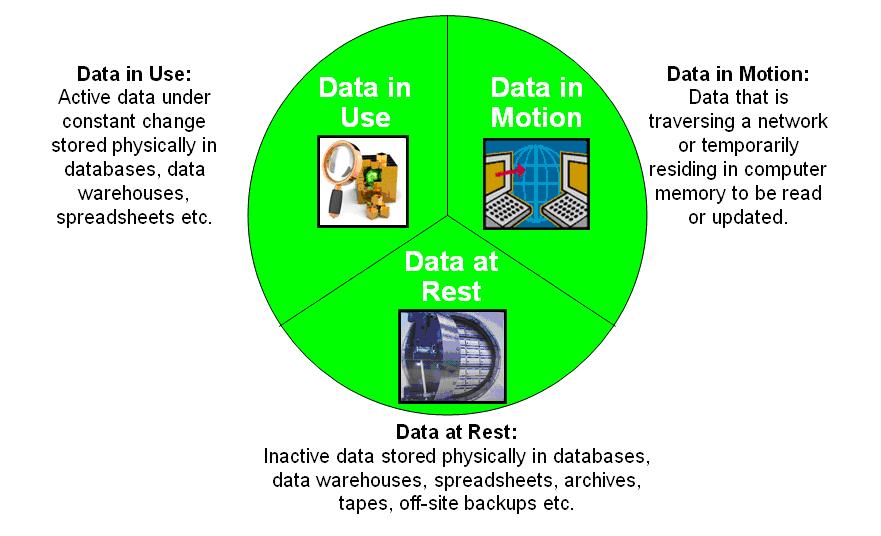
Data-at-rest refers to inactive data stored physically in any digital form (e.g., on a hard drive or solid-state drive), as opposed to data-in-transit moving across a network.
To secure this data natively, BitLocker is a native Windows feature that provides full disk encryption to secure data-at-rest against unauthorized physical access. Because the entire volume is scrambled, the stolen drive is mathematically useless to the thief without the decryption key.
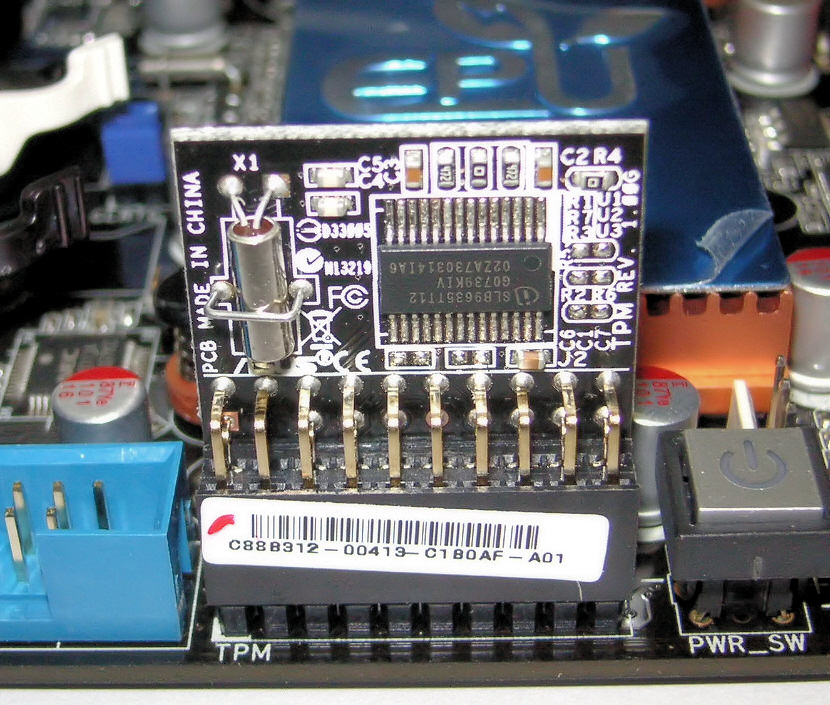
But where does the computer keep the key? If it stores the key on the very hard drive it is trying to protect, the thief could just extract it. This is where hardware security steps in. BitLocker relies on a Trusted Platform Module to securely store hardware-level disk encryption keys. The Trusted Platform Module (TPM) is a dedicated cryptographic microprocessor installed on a computer motherboard. It is physically separate from the storage drive, acting as an uncrackable safe welded directly to the circuit board.
Not all encryption requires locking the entire drive. If you only need to protect highly sensitive HR documents while leaving the rest of the OS unencrypted, the Encrypting File System (EFS) is a Windows feature providing file-level and folder-level data-at-rest encryption. EFS is tied directly to the individual user's account credentials rather than the hardware.
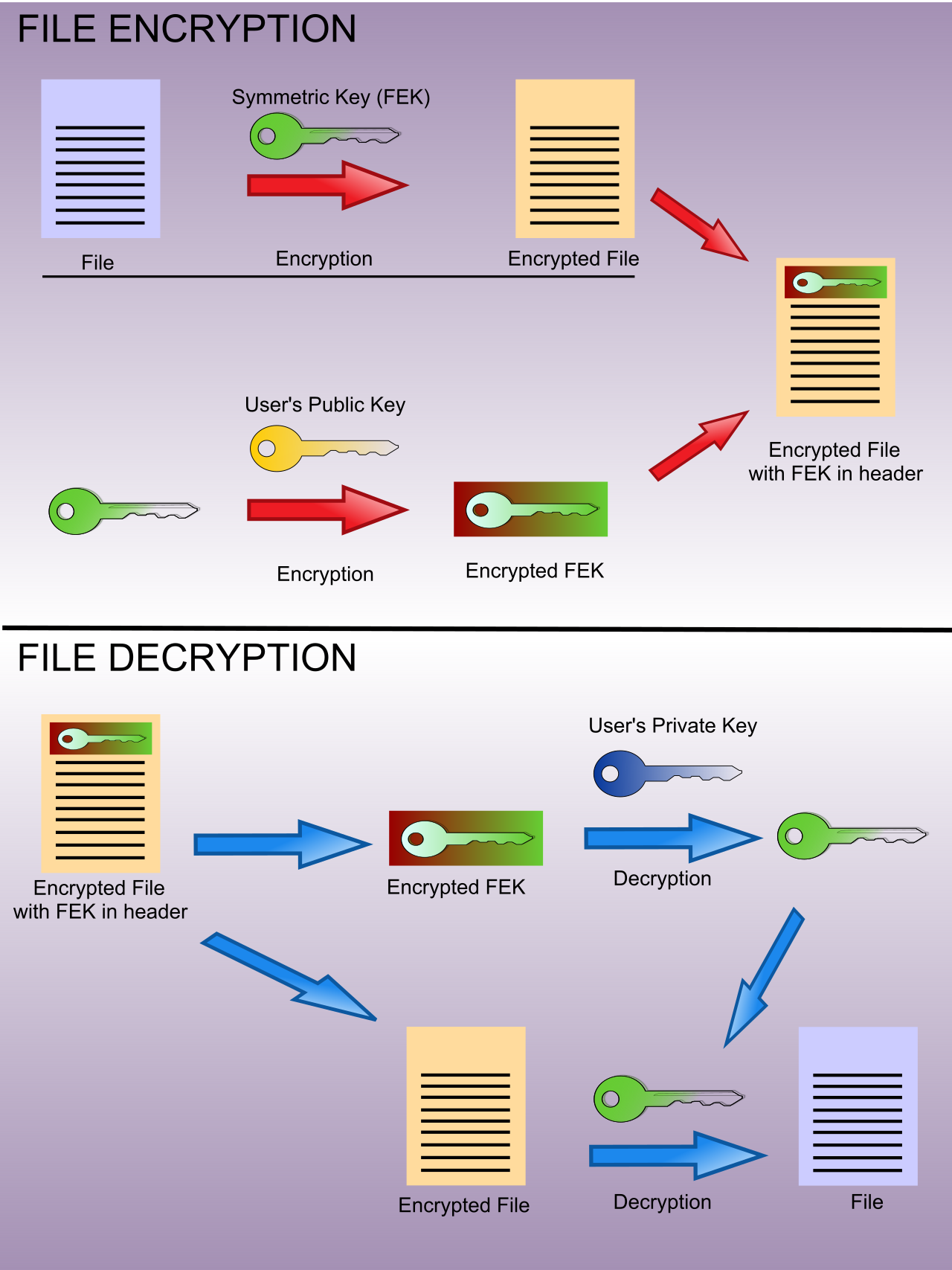
For organizations deploying Apple hardware, the concepts remain identical, though the terminology shifts. Apple macOS utilizes a feature named FileVault to provide full disk encryption for data-at-rest.
The most profound security control in an IT technician's toolkit is privilege management. The human operator is virtually always the weakest link.
To mitigate human error, we apply the principle of least privilege, which dictates assigning a user account only the minimum permissions necessary to perform required job functions. If a financial analyst does not need to install system-wide printer drivers or modify the system registry to manipulate spreadsheets, they should not have the mathematical capability to do so.
This is enforced by ensuring daily tasks are performed using Standard user accounts, which in Windows lack the permissions required to install system-wide software or modify critical system registry settings. If a standard user clicks a malicious phishing link, the malware executes with that user's limited permissions, preventing it from embedding itself deep into the operating system core.
Managing Built-in Accounts
Every operating system comes with default accounts, and attackers know their names.
- Disabling the default local Administrator account protects workstations from automated brute-force attacks targeting universally known usernames. If an automated script spends hours guessing the password for the username "Administrator", but that account is disabled, the attack fails mathematically.
- In environments where the local Administrator account must remain active for emergency IT access, renaming the default local Administrator account obscures the identity of the primary privileged account from unauthorized attackers.
- To prevent unauthorized walk-up access, the default Guest account in modern Windows operating systems is disabled by default, preventing unauthorized anonymous access to the machine's resources.
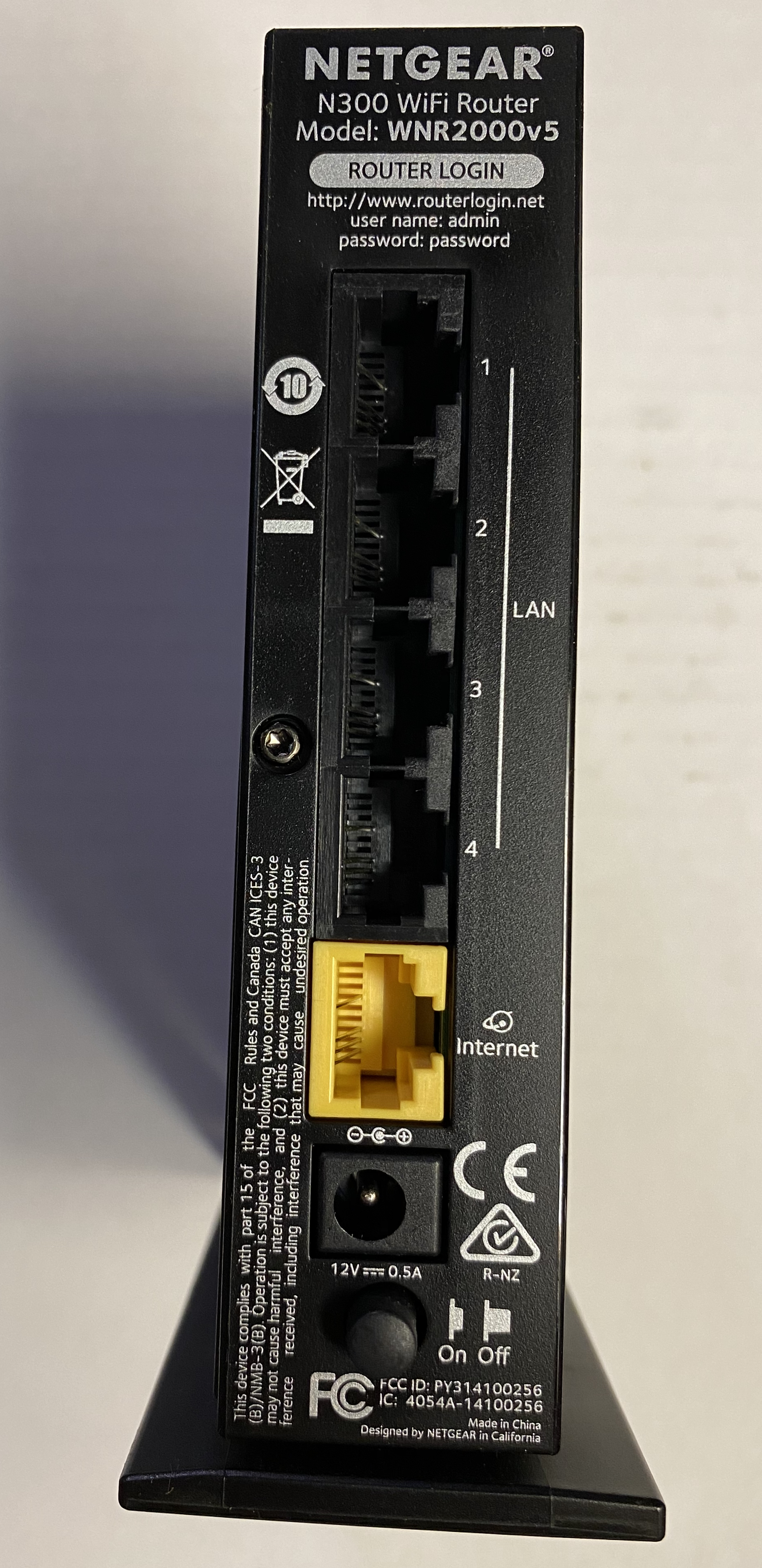
Passwords are the daily friction point between IT support and end-users. Understanding why policies exist helps you explain them to frustrated employees.
Password Construction and Lifecycle
To prevent users from utilizing easily guessable dictionary words, Windows password complexity requirements mandate the use of characters from at least three of four specific categories. The four Windows password complexity categories are uppercase letters, lowercase letters, numbers, and non-alphanumeric characters (such as !, @, #).
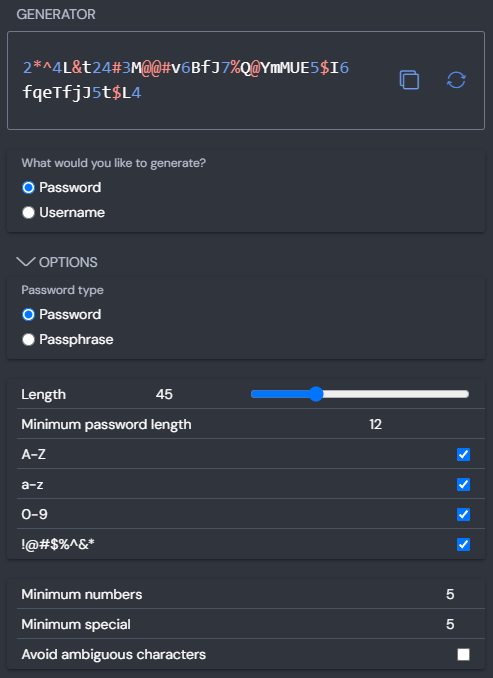
But a complex password is only secure until it is compromised. Passwords have a lifecycle governed by three critical policies:
| Policy | Definition | The "Why" |
|---|---|---|
| Maximum password age | Forces users to change their passwords after a specified number of days. | Limits the lifespan of a stolen password. |
| Enforce password history | Determines the number of unique new passwords required before an old password can be reused. | Prevents users from alternating between "Password123!" and "Password124!". |
| Minimum password age | Specifies the number of days a password must be used before the user is permitted to change it. | A minimum password age policy prevents users from rapidly cycling through password changes to bypass password history restrictions. |
A Note on Modern Standards: While maximum password age has been a staple of IT for decades, the philosophy is shifting. The National Institute of Standards and Technology (NIST) recommends against arbitrary password expiration policies unless a password is known to be compromised. Human nature dictates that if you force a user to change their password every 30 days, they will simply write it on a sticky note or append an incrementing number (e.g., Autumn2025!, Winter2025!), actually lowering overall security.
Defeating the Brute Force: Lockout Policies
If an attacker decides to simply guess passwords indefinitely, we must slam the door shut. Three intertwined Windows policies govern this interaction:
- The 'Account lockout threshold' Windows policy specifies the exact number of invalid logon attempts permitted before an account is disabled. (e.g., 5 failed attempts).
- The 'Reset account lockout counter after' Windows policy establishes the time window during which consecutive failed login attempts are tracked. If this is set to 30 minutes, a user who fails 4 attempts at 9:00 AM will have a clean slate at 9:31 AM.
- Once the threshold is breached, the 'Account lockout duration' Windows policy defines the number of minutes an account remains locked out before automatically unlocking. (Alternatively, it can be set to 0, requiring manual intervention from a Help Desk technician).
Workstations do not exist in a vacuum; they exist in physical offices, hospital wards, and call centers. Security must account for physical absence.
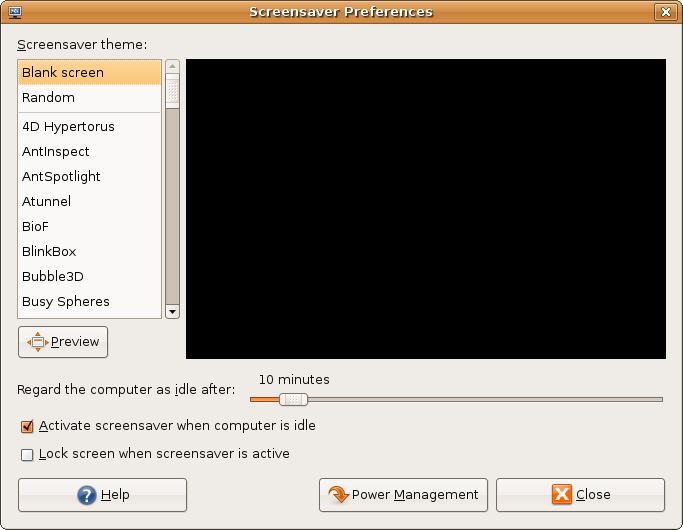
When a user steps away for a coffee, their active, authenticated session is completely exposed. Screen saver timeout policies automatically secure a workstation display after a predetermined period of user inactivity. However, merely turning on a screen saver of bouncing bubbles does nothing if someone can jiggle the mouse to dismiss it. Requiring a password upon waking from a screen saver prevents unauthorized physical access to an unattended workstation.
Furthermore, we can constrain when an account is valid. Time-of-day restrictions define the specific hours or days when a user account is permitted to authenticate to a computer system. If a bank teller works Monday through Friday from 8:00 AM to 5:00 PM, their account should be cryptographically incapable of authenticating at 2:00 AM on a Sunday. This prevents an attacker from utilizing compromised credentials during off-hours when no one is watching.
Understanding these mechanisms is only half the battle; an IT professional must know how to apply them.
If you are configuring a single kiosk PC in a small lobby, you will use the Local Security Policy. The Windows Local Security Policy management console applies security and password settings to a single standalone workstation.
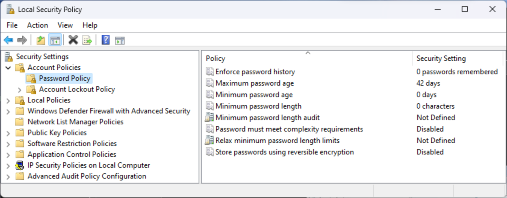
However, it is impossible to manually configure these settings across 5,000 corporate laptops. To achieve scale, enterprise environments utilize directory services. Group Policy applies centralized security and password settings to multiple computers within a Microsoft Active Directory domain environment. By configuring a Group Policy Object (GPO) once at the server level, an administrator can enforce screen saver timeouts, disable AutoPlay, and implement password complexities across every single endpoint in the entire organization simultaneously.
By mastering these layers—from the microscopic cryptographic math happening on the motherboard's TPM, up through the operating system's registry, and out to the behavioral policies governing human passwords—you cease to be a mere technician. You become the architect of a secure digital environment.